Introduction
WARNING
See the Important Safety and Product Information guide in the
product box for product warnings and other important
information.
All route and navigation lines displayed on the chartplotter are
only intended to provide general route guidance or to identify
proper channels, and are not intended to be precisely followed.
Always defer to the navaids and conditions on the water when
navigating to avoid groundings or hazards that could result in
vessel damage, personal injury, or death.
NOTE: Not all features are available on all models.
The Garmin
®
website at support.garmin.com presents up-to-date
information about your product. The support pages will provide
answers to frequently asked support questions, and you can
download software and chart updates. There is also contact
information to Garmin support should you have any questions.
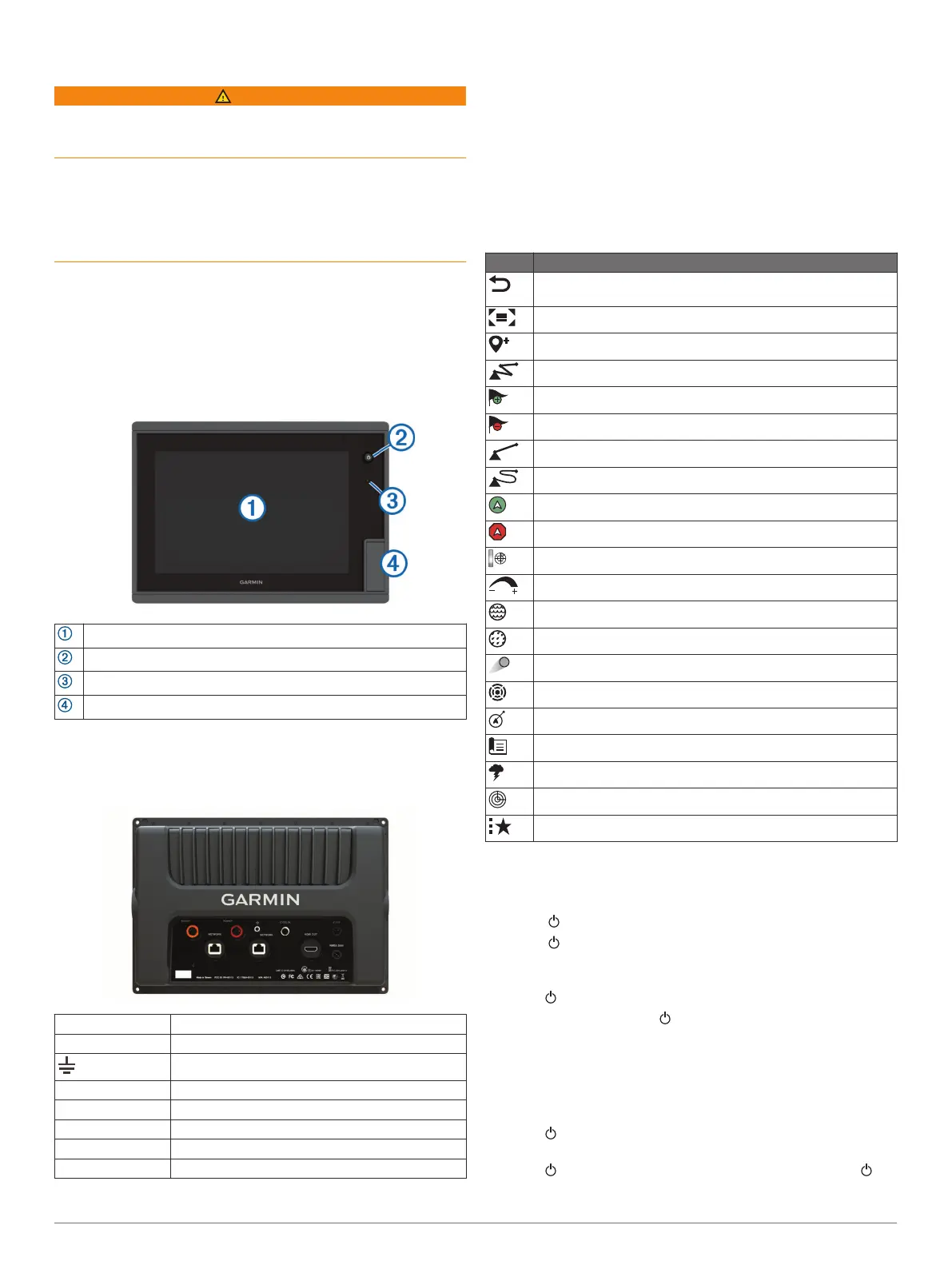
Device Overview
Touchscreen
Power key
Automatic backlight sensor
2 SD
®
memory card slots; 32 GB max. card size
Connector View
The connectors and locations vary based upon the model. This
image and table are representative of a GPSMAP 7410xsv
model.
SONAR* 12-pin transducer
3POWER Power and NMEA
®
0183 network
Ground screw
CVBS IN Composite video in
J1939 Engine or J1939 network
NETWORK Garmin Marine Network
HDMI OUT HDMI
®
video out
NMEA 2000 NMEA 2000
®
network
*Not available on all models
Using the Touchscreen
• Tap the screen to select an item.
• Drag or swipe your finger across the screen to pan or scroll.
• Pinch two fingers together to zoom out.
• Spread two fingers apart to zoom in.
On-Screen Buttons
These on-screen buttons may be displayed on some screens
and functions. Some buttons are accessible only in a
combination page or SmartMode
™
layout or when accessories,
such as a radar, are connected..
Button Function
Clears the on-screen icons and re-centers the screen on the
boat
Opens a full-screen view of the item
Creates a new waypoint
Creates a route, with turns, to the destination
Adds a turn to the route at the selected location
Removes the last added turn from the route
Creates a direct route, without turns, to the destination
Creates an Auto Guidance route to the destination
Begins navigation
Ends navigation
Stops and starts radar transmission
Opens the radar gain adjustment menu
Opens the radar sea clutter adjustment menu
Opens the radar rain clutter adjustment menu
Turns on and off the radar echo trails
Acquires a radar target and begins tracking it
Shows and sets the VRM/EBL line
Opens the menu for the page or function
Opens the Weather menu for the page or function
Opens the Radar menu for the page or function
Opens the Presets menu for the page or function
Locking and Unlocking the Touchscreen
You can lock the touchscreen to prevent inadvertent screen
touches.
1
Select > Lock Touchscreen to lock the screen.
2
Select to unlock the screen.
Tips and Shortcuts
• Press to turn on the chartplotter.
• From any screen, press repeatedly to scroll through the
brightness levels. This can be helpful when the brightness is
so low you cannot see the screen.
• Select Home from any screen to return to the Home screen.
• Select Menu to open additional settings about that screen.
• Select Menu to close the menu when finished.
• Press to open additional options, such as adjusting the
backlight and locking the touchscreen.
• Press , and select Power > Turn Off System, or hold
until the Turn Off System bar fills to turn off the chartplotter,
when available.
Introduction 1


 To Next Page