The next time you connect the ActiveCaptain app to the
GPSMAP A12 device, your contour maps are transferred to the
community automatically.
Connecting to the Garmin Quickdraw Community with
Garmin Connect
1
Go to connect.garmin.com.
2
Select Getting Started > Quickdraw Community > Getting
Started.
3
If you do not have a Garmin Connect account, create one.
4
Sign in to your Garmin Connect account.
5
Select Marine in the upper-right to open the Garmin
Quickdraw widget.
TIP: Make sure you have a memory card in your computer to
share Garmin Quickdraw Contours maps.
Sharing Your Garmin Quickdraw Contours Maps with the
Garmin Quickdraw Community Using Garmin Connect
You can share Garmin Quickdraw Contours maps that you have
created with others in the Garmin Quickdraw Community.
When you share a contour map, only the contour map is shared.
Your waypoints are not shared.
1
Insert a memory card into the card slot (Inserting Memory
Cards, page 2).
2
Insert the memory card into your computer.
3
Access the Garmin Quickdraw Community (Connecting to the
Garmin Quickdraw Community with Garmin Connect,
page 14).
4
Select Share Your Contours.
5
Browse to your memory card, and select the /Garmin folder.
6
Open the Quickdraw folder, and select the file named
ContoursLog.svy.
After the file is uploaded, delete the ContoursLog.svy file from
your memory card to avoid issues with future uploads. Your data
will not be lost.
Downloading Garmin Quickdraw Community Maps Using
Garmin Connect
You can download Garmin Quickdraw Contours maps that other
users have created and shared with the Garmin Quickdraw
Community.
If your device does not have Wi‑Fi technology, you can access
the Garmin Quickdraw Community using the Garmin Connect
website.
If your device has Wi‑Fi technology, you should access the
Garmin Quickdraw Community using the ActiveCaptain app
(Connecting to the Garmin Quickdraw Community with
ActiveCaptain, page 13).
1
Insert the memory card into your computer.
2
Access the Garmin Quickdraw Community (Connecting to the
Garmin Quickdraw Community with Garmin Connect,
page 14).
3
Select Search for Contours.
4
Use the map and search features to locate an area to
download.
The red dots represent Garmin Quickdraw Contours maps
that have been shared for that region.
5
Select Select an Area to Download.
6
Drag the edges of the box to select the area to download.
7
Select Start Download.
8
Save the file to your memory card.
TIP: If you cannot find the file, look in the "Downloads" folder.
The browser may have saved the file there.
9
Remove the memory card from your computer.
10
Insert the memory card into the card slot (Inserting Memory
Cards, page 2).
The chartplotter automatically recognizes the contours maps.
The chartplotter may take a few minutes to load the maps.
Garmin Quickdraw Contours Settings
From a chart, select Menu > Quickdraw Contours > Settings.
Display: Displays Garmin Quickdraw Contours. The User
Contours option shows your own Garmin Quickdraw
Contours maps. The Community Contours option shows the
maps you have downloaded from the Garmin Quickdraw
Community.
Recording Offset: Sets the distance between the sonar depth
and the contour recording depth. If the water level has
changed since your last recording, adjust this setting so the
recording depth is the same for both recordings.
For example, if the last time you recorded had a sonar depth
of 3.1 m (10.5 ft.), and today's sonar depth is 3.6 m (12 ft.),
enter -0.5 m (-1.5 ft.) for the a Recording Offset value.
User Display Offset: Sets differences in contour depths and
depth labels on your own contours maps to compensate for
changes in the water level of a body of water, or for depth
errors in recorded maps.
Comm. Display Offset: Sets differences in contour depths and
depth labels on the community contours maps to compensate
for changes in the water level of a body of water, or for depth
errors in recorded maps.
Survey Coloring: Sets the color of the Garmin Quickdraw
Contours display. When this setting is turned on, the colors
indicate the quality of the recording. When this setting is
turned off, the contour areas use standard map colors.
Green indicates good depth and GPS position, and a speed
under 16 km/h (10 mph). Yellow indicates good depth and
GPS position, and a speed between 16 and 32 km/h (10 and
20 mph). Red indicates poor depth or GPS position, and a
speed above 32 km/h (20 mph).
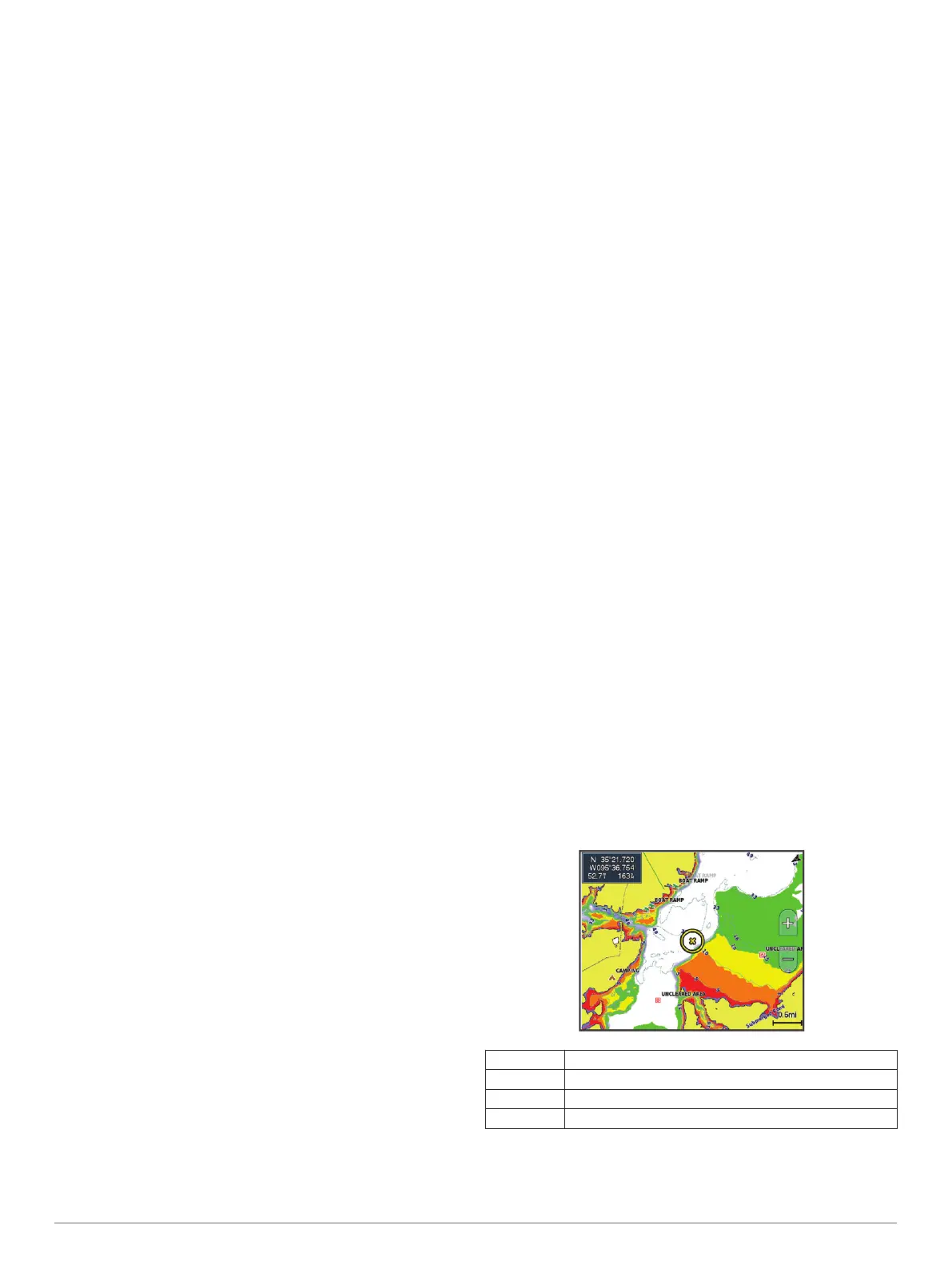
Depth Shading: Specifies the minimum and maximum depths of
a depth range and a color for that depth range.
Depth Range Shading
You can set color ranges on your map to show the water depths
where your target fish are currently biting. You can set deeper
ranges to monitor how quickly the bottom depth changes within
a specific depth range. You can create up to ten depth ranges.
For inland fishing, a maximum of five depth ranges can help
reduce map clutter.
Red From 0 to 1.5 m (from 0 to 5 ft.)
Orange From 1.5 to 3 m (from 5 to 10 ft.)
Yellow From 3 to 4.5 m (from 10 to 15 ft.)
Green From 4.5 to 7.6 m (from 15 to 25 ft.)
14 Garmin Quickdraw Contours Mapping


 To Next Page