Using an Optional Bike Speed or Cadence Sensor
You can use a compatible bike speed or cadence sensor to send data to your watch.
• Pair the sensor with your watch (Pairing Your Wireless Sensors, page38).
• Set your wheel size (Calibrating Your Speed Sensor, page39).
• Go for a ride (Going for a Ride, page6).
Calibrating Your Speed Sensor
Before you can calibrate your speed sensor, you must pair your watch with a compatible speed sensor (Pairing
Your Wireless Sensors, page38).
Manual calibration is optional and can improve accuracy.
1 Hold .
2 Select Settings > Accessories > Speed/Cadence > Wheel Size.
3 Select an option:
• Select Auto to automatically calculate your wheel size and calibrate your speed sensor.
• Select Manual, and enter your wheel size to manually calibrate your speed sensor (Wheel Size and
Circumference, page50).
Customizing Your Watch
Watch Settings
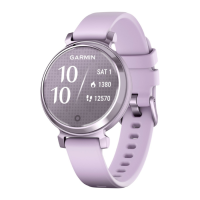
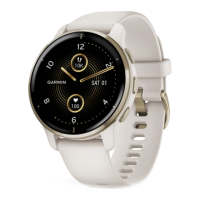
You can customize some settings on your Lily 2 Active watch. Additional settings can be customized in the
Garmin Connect app.
Hold to view the menu, and select Settings.
Shortcut: Allows you to set up a shortcut (Setting Up the Touch Button Shortcut, page21).
Notifications & Alerts: Allows you to adjust the alert settings (Alert Settings, page39).
Watch Sensors: Allows you to adjust the wrist heart rate sensor settings (Wrist Heart Rate Monitor Settings,
page28), sleep pulse ox settings (Turning On Pulse Oximeter Sleep Tracking, page30), and calibrate the
compass (Calibrating the Compass, page41).
Accessories: Allows you to pair your Lily 2 Active watch with wireless sensors (Wireless Sensors, page37).
User Profile: Allows you to adjust the user profile settings (Setting Up Your User Profile, page40).
Safety & Tracking: Allows you to adjust the safety and tracking settings (Safety and Tracking Features, page34).
Activity Tracking: Allows you to adjust the activity tracking settings (Activity Tracking, page21).
System: Allows you to adjust the system settings (System Settings, page40).
Alert Settings
Hold to view the menu, and select Settings > Notifications & Alerts.
Smart Notifications: Allows you to adjust settings for the Bluetooth notifications from your phone (Enabling
Bluetooth Notifications, page33).
Morning Report: Allows you to adjust the morning report settings (Morning Report, page20).
Health & Wellness: Allows you to adjust the health and wellness alerts settings (Health and Wellness Settings
and Alerts, page25).
Customizing Your Watch 39







 To Next Page