Quest
®
2 Owner’s Manual 7
GettInG started > usInG the Keys
Selecting Options and Entering Data
Use the OK key and the Rocker to select options and activate your
selections.
To select and activate an option or on-screen button:
1. Use the Rocker to move up, down, right, or left to the
selection or on-screen button.
2. Press OK to activate the feature.
To exit a menu or return to the previous setting:
Press Page . The Page key moves backward through
your steps or menus.
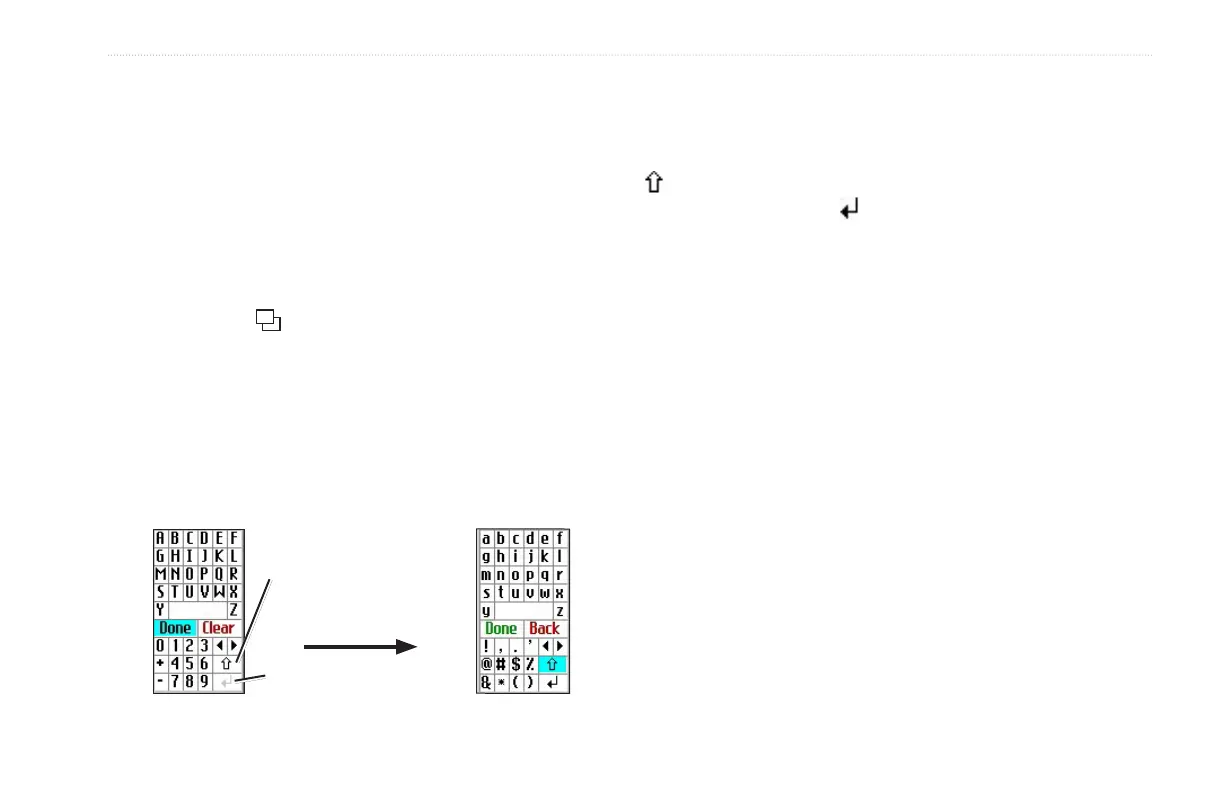
Using the On-screenOn-screen Keyboard
The on-screen keyboard opens when you need to enter data, such
an address or a city. The on-screen keyboard is used in a variety of
places throughout the Quest 2. Its appearance may alter, depending
on your purpose for using it, but it always functions the same way.
Return key
The up arrow changes the
capital letters to lower case
and numbers to symbols.
Use the Rocker to select a letter, number, or symbol, and then
press OK. To create spaces, select the blank space between the Y
and Z. Use the Clear (Back) box to delete letters/numbers. The ◄
and ► keys are backspace and forwardspace keys. The up arrow
changes the capital letters to lower case and the numbers to
symbols. Use the Return key to create a new line. When you
have entered all text, select Done.



 To Next Page