Quest
®
2 Owner’s Manual 39
customIzInG your Quest 2> chanGInG the tracK setup
Changing the Track Setup
As you travel, the Quest 2 automatically records your path in the
Track Log, creating an electronic “bread crumb” trail. This feature
can be enabled or disabled from the Track Setup page. By default,
it is enabled.
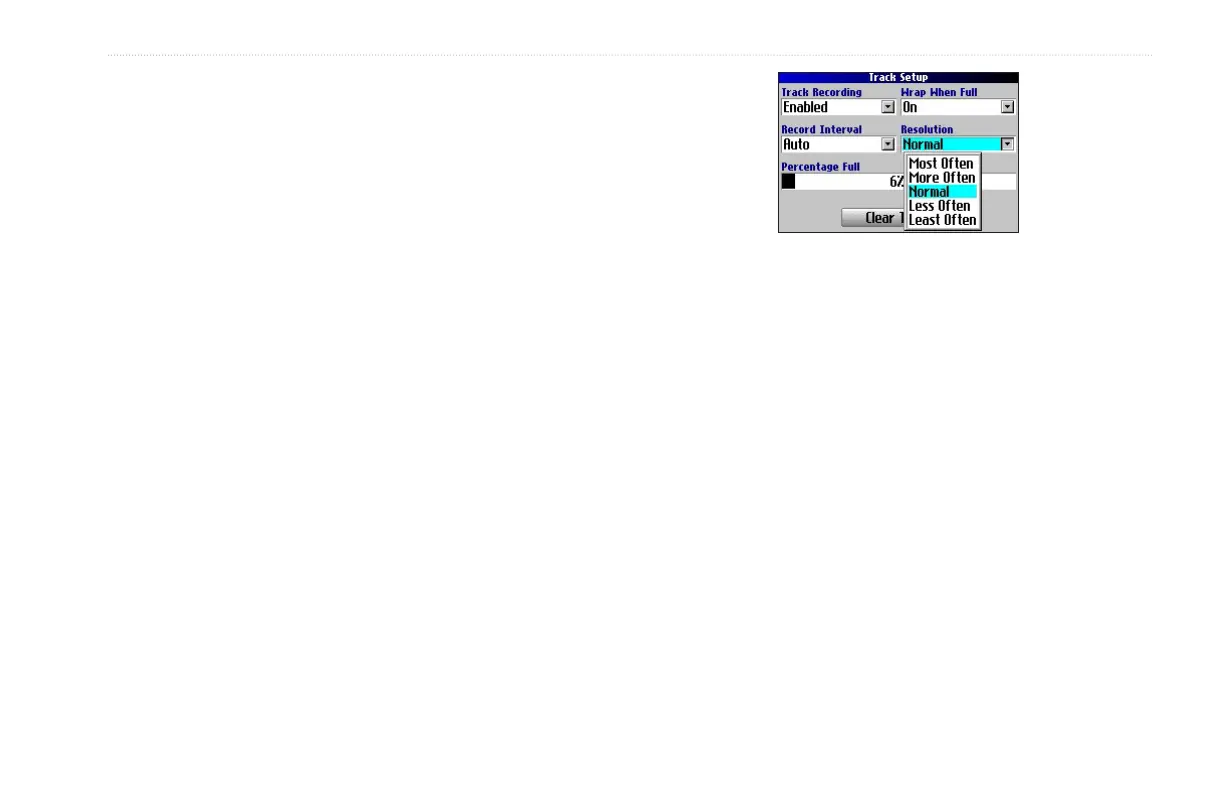
Press MENU two times, highlight Track Setup, and press OK.
Track Recording
—select Enabled to record tracks or Disabled to
stop tracks from being recorded.
Wrap When Full—select On to allow new track points to replace
the oldest track points once the log is full. If set to Off, no new
tracks are added until the Track log is cleared.
Record Interval—sets the interval at which track points are
recorded. With Auto, track points are recorded using a formula and
the setting you choose in the Resolution eld.
Resolution—selects the frequency at which you want track points
to be recorded based on how you set Record Interval (above).
Higher resolutions cause the track log to ll up more quickly.
Percentage Full—shows the percentage of track memory used.
Clear Track
—clears all of the points of the track log.
To restore these settings, press the MENU key, highlight Restore
Settings, and press OK.



 To Next Page