16 Quest
®
2 Owner’s Manual
basIc operatIon > my locatIons
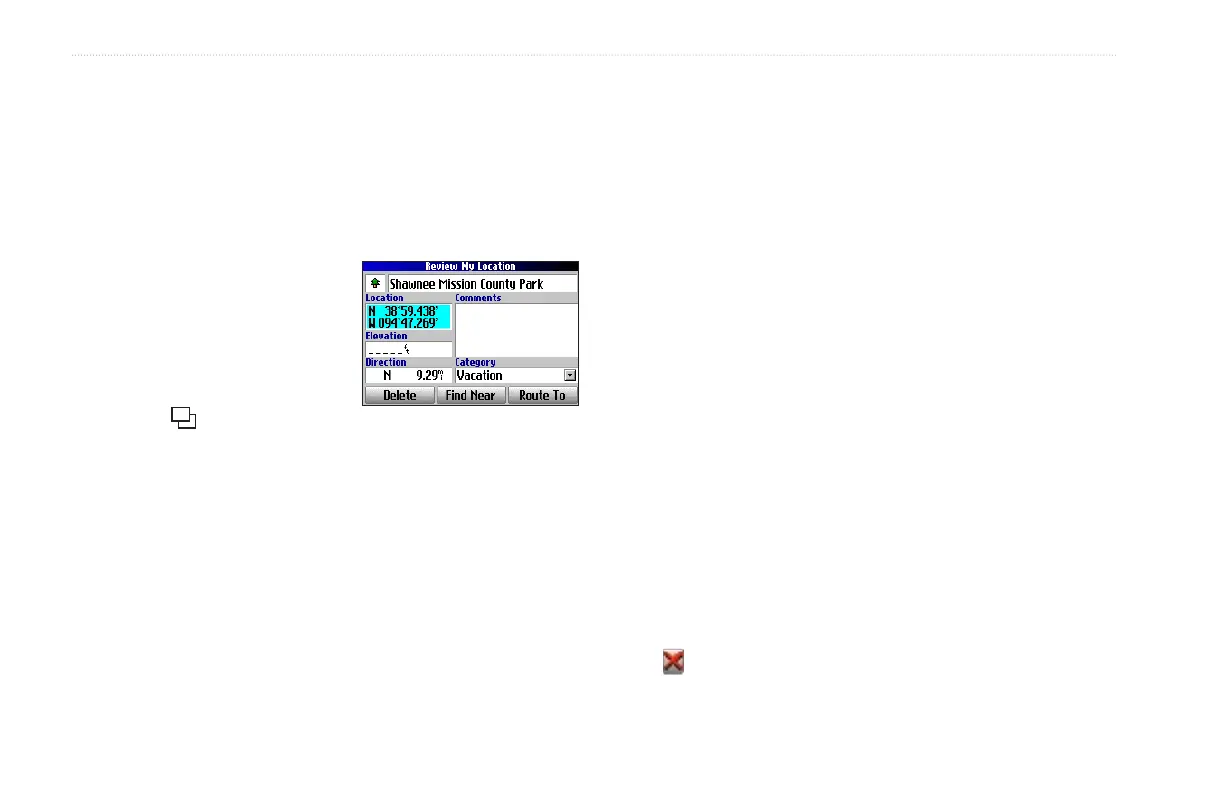
Editing a Saved Location
You can edit many aspects of a saved location: the name, symbol,
location coordinates, comment, elevation, and category.
To edit the saved location:
1. Press the FIND key. Highlight My Locations and press OK.
2. Highlight the saved location you want to edit and press OK.
3. Highlight the item you want to
change and press OK.
4. Use the on-screen keyboard
to enter new information.
5. When you are done editing
the saved location, press the
Page key to exit.
Organizing Saved Locations into Categories
You can organize your saved locations into categories to help you
manage and use your saved locations. For example, you can create
a “Vacation” category that stores all of the saved locations for your
upcoming vacation. When the vacation is over, you can simply
delete all the saved “Vacation” locations by pushing a few buttons.
To create a saved location category:
1. Press the FIND key. Highlight My Locations and press OK.
2. Highlight the saved location you want to edit and press OK.
3. Highlight the Categories eld and press OK.
4. Highlight Edit… and press OK.
5. Highlight Add New… and press OK.
6. Use the on-screen keyboard to enter the name of the new
category. Highlight Done and press OK when nished.
To assign a category to a saved location:
1. Press the FIND key. Highlight My Locations and press OK.
2. Highlight the saved location you want to edit and press OK.
3. Highlight the Categories eld and press OK.
4. From the list, highlight the category you want to assign the
saved location to and press OK.
To delete a category:
1. Press the FIND key. Highlight My Locations and press OK.
2. Highlight the location you want to edit and press OK.
3. Highlight the Categories eld and press OK.
4. Highlight Edit… and press OK.
5. Highlight the category you want to delete. Highlight the red
to the right of the category and press OK to delete it.



 To Next Page