52 -
Blurring an Image.
G4 Incident Management Software has a Blur feature allowing
individual elements in a video file to be effectively “screened-out”
of the playback.
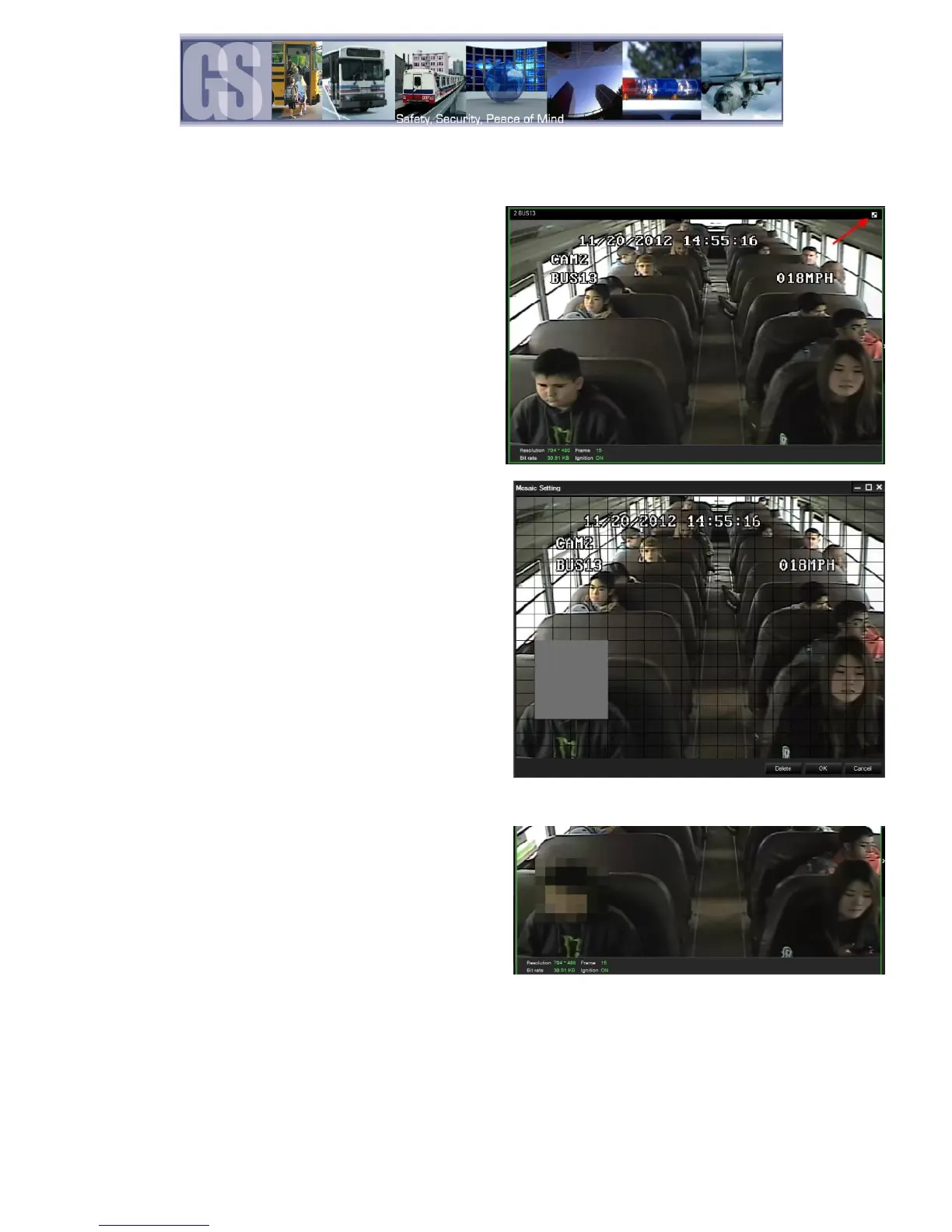
To Blur an area of the playback video first pause the video
playback and then give a single camera the focus in the
playback window.
Next click on the Blur button located at the top right-hand
corner of the playback window, arrowed in the image to the
right.
This will bring up the Mosaic Setting Window.
The Mosaic Setting window is divided into a 20 X 20 grid.
Using the cursor click and drag to “Screen-Off” any areas you do
not want to be visible in the final playback video.
Once you have defined the areas click OK to save the options.
Figure 39: Defining a Blur.
If the playback button is now clicked the playback video will
display a blurred image where the blur definition was defined.
Figure 40: Playback Blur.



 To Next Page