36
PUSH MODE / PULL MODE
5. To make changes to the current schedule or playlist, make changes locally
on your computer, then upload the new les to their respective directories.
Media les can also be added. Any changes will automatically take place
once the Hi-Def Digital Signage Media Player nishes executing the current
schedule and/or playlist.
Once the FTP client (or dedicated FTP server) has been congured and can
“see” the Hi-Def Digital Signage Media Player on the network, les can be
uploaded to the directory.
Make sure that the following directory structure is observed. If you change
the directory names, make sure that the schedule les and playlist les point
to the correct directory path.
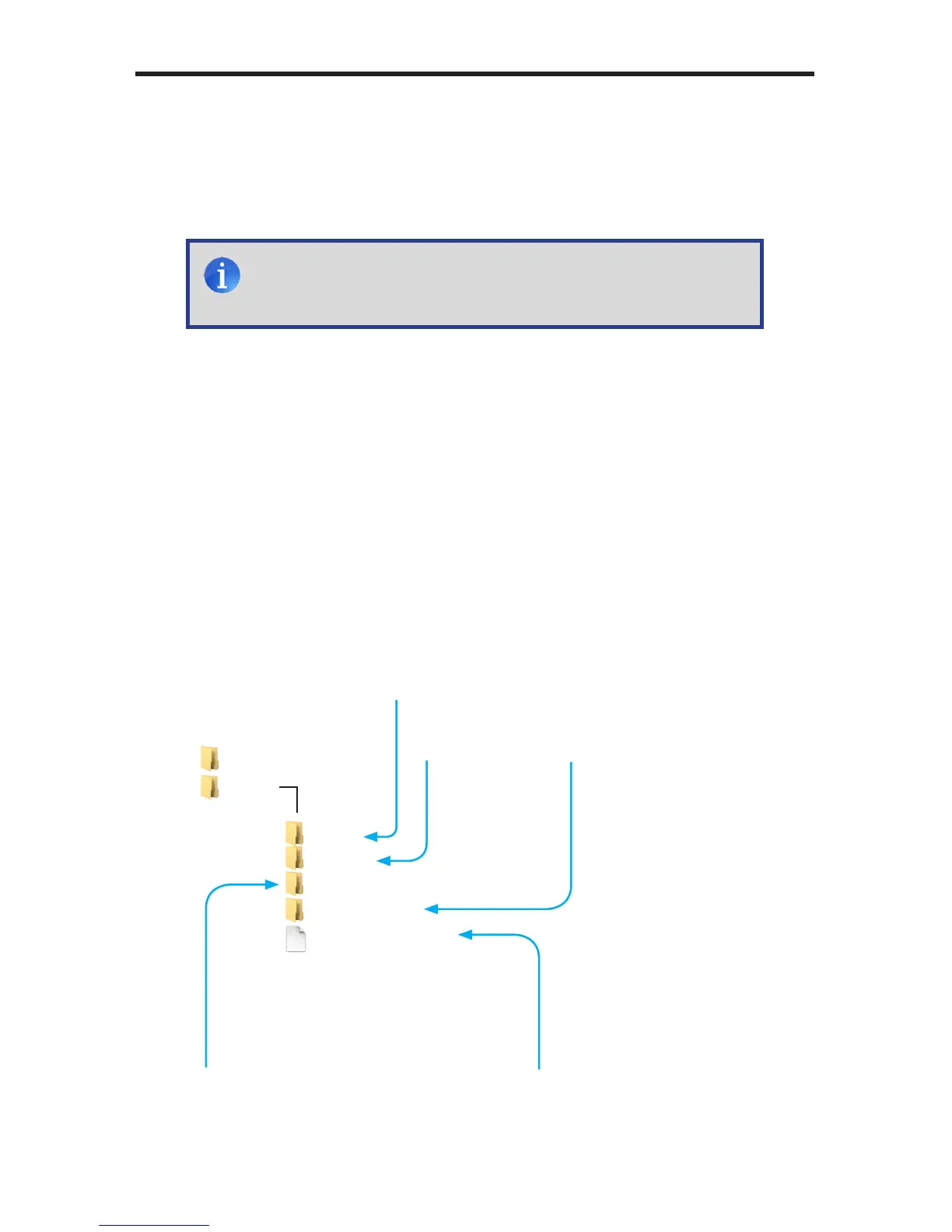
The (default) directory structure as viewed from the FTP server
..
sda1
Logs
media
playlists
schedules
settings.xml
Schedule les (.gsh)
go under this folder
Place content
in this folder
The Logs directory will be
created automatically.
File logging can be enabled
or disabled. See page 53 for
more information.
Playlist (.gpl) les
go under this folder
The settings.xml le
must reside in the root
folder
NOTE: If the settings.xml le has been changed, then the Hi-Def
Digital Signage Media Player must be power-cycled for the new
changes to take effect.


 To Next Page