Chapter 2 - Installation 27
© 2017 Geist
GM1157
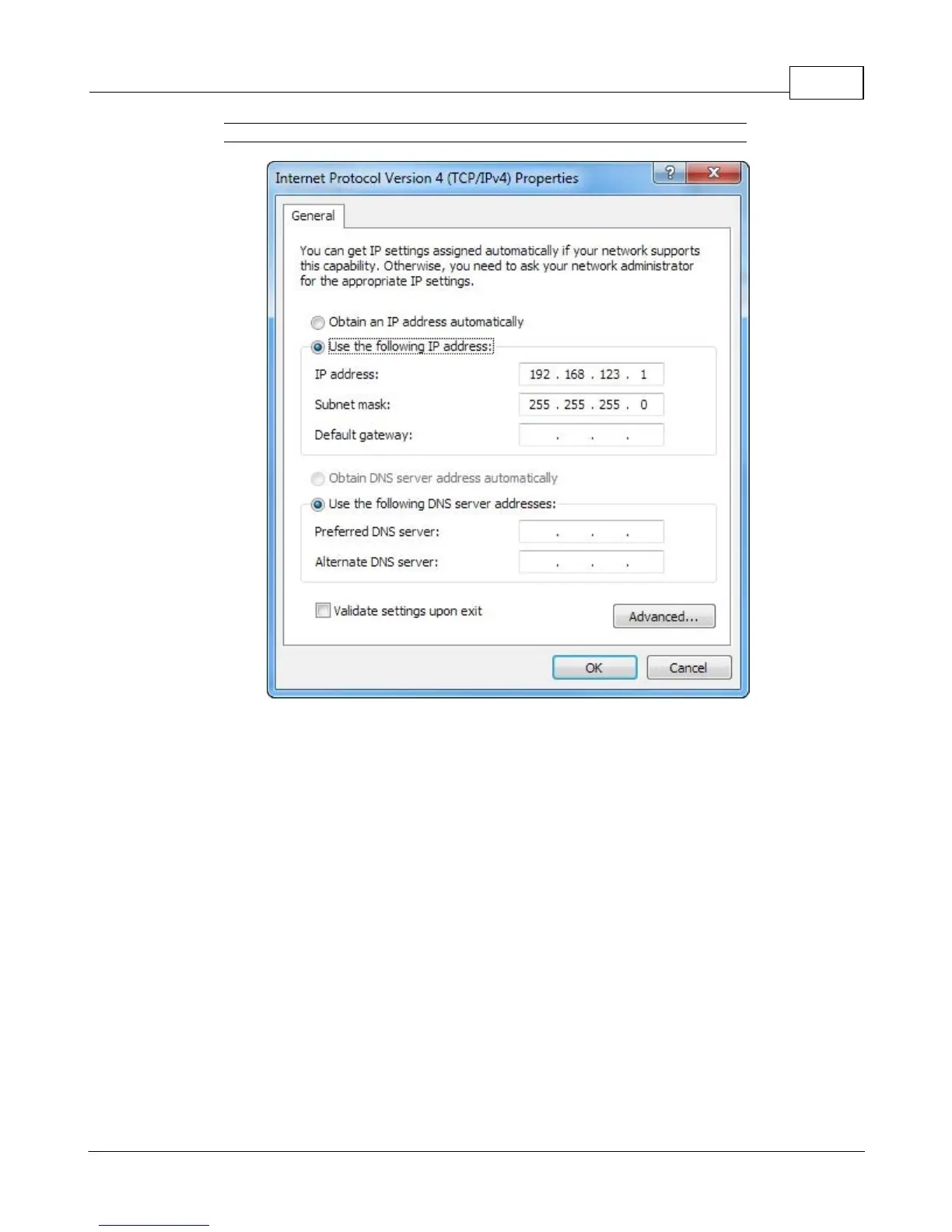
Figure 2-17 Internet Protocol Version 4
Choose the Use the following IP address option, then set IP address to 192.168.123.1 and Subnet
Mask to 255.255.255.0. For this initial setup, Default Gateway and the DNS Server entries can be left
blank. Select OK, then OK again to close both the Internet Protocol Properties and Local Properties
windows.
Once the NIC settings are configured properly, you should be able to access the unit by typing
http://192.168.123.123 into the address bar of your web browser. If you are setting up the unit for the
first time, or if the unit has been reset back to factory defaults via the network-reset button, the unit will
require you to create an Admin account and password before you can proceed.
Once you have created an Admin account and have logged into it, the unit's default Sensors page
should come up by default. Navigate to the System tab, then the Network page to configure the
device's network properties. The unit's IP Address, Subnet Mask, Gateway, and DNS settings can
either be assigned manually, or acquired via DHCP.
Note that the new settings will take effect when the Save button is clicked. The browser will no longer
be able to reload the web page from the 192.168.123.123 address and will probably display a "page
not found" or "host unavailable" message. This behavior is normal. Once you have finished configuring
the unit's IP address, simply repeat the steps above, and change the computer's Ethernet NIC card
settings back to the ones you wrote down prior to changing them, to restore its normal network and
internet settings.


 To Next Page