PAGE 12 INSTRUCTION MANUAL G-COMBO
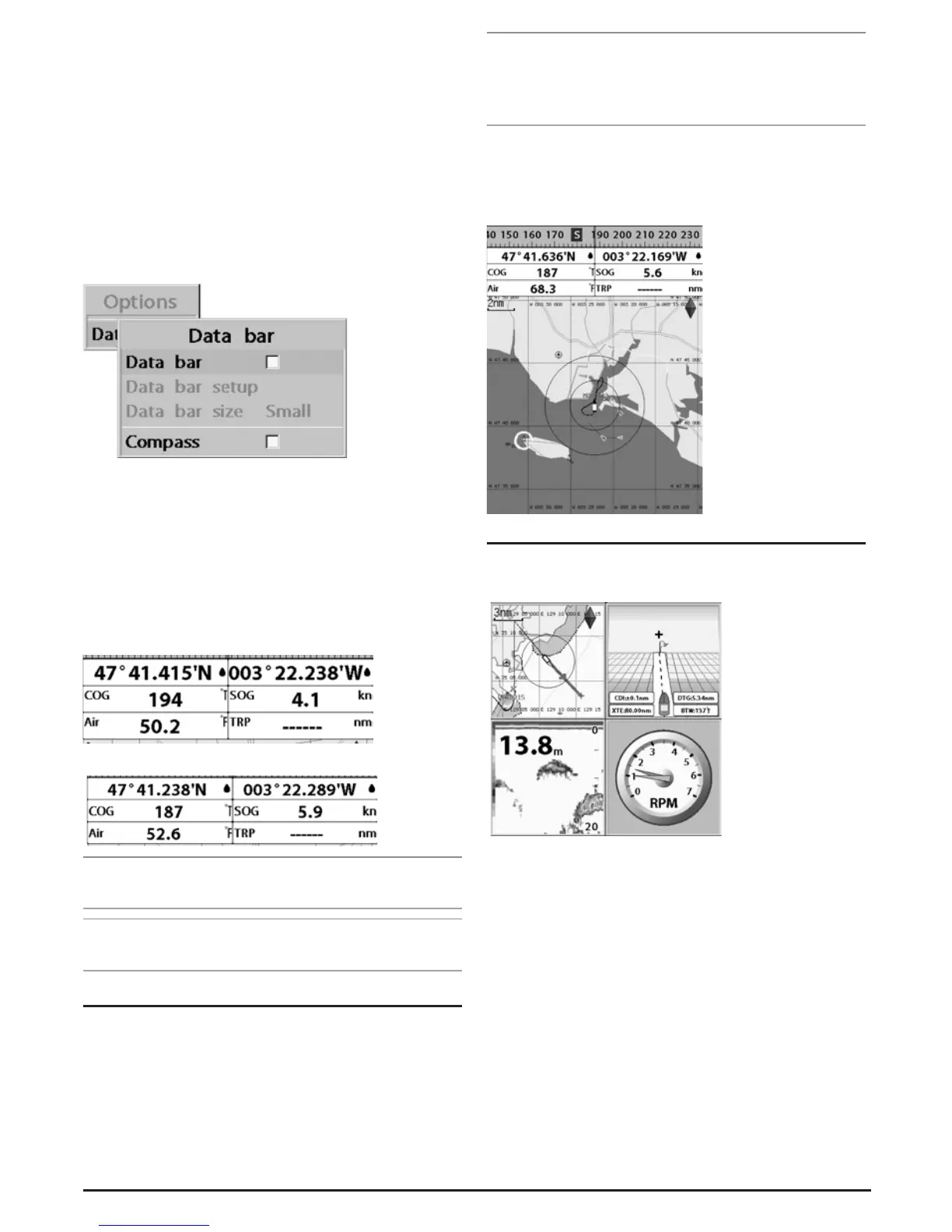
Setting the data displayed in the data bar
1 Press MENU
and select Data bar.
2 Select Data bar then Data bar setup.
3 Move the cursor key to highlight the data field you want to
change then press ENT.
4 Select Data type.
5 Select desired data you want to display in the field then
press ENT.
6 Repeat above steps if necessary.
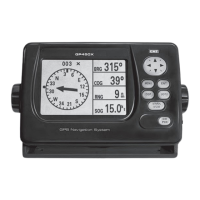
Selecting the Data bar size
1 Press MENU
and select Data bar.
2 Select Data bar then Data bar size.
3 Select the desired size of the data bar.
[Large]
[Small]
Tip: If you select None for all data fields, the data bar will
disappear.
Tip: Even though you set up a data bar for a specific window,
the data bar will not apply to all other windows.
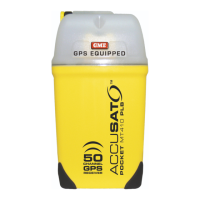
2-6 Compass
The chartplotter computes compass direction from the
constellation of GPS satellites. For the GPS chartplotter to
compute direction, the vessel must be moving through
the water.
Tip: COG (Course Over Ground) – The course your
vessel is heading.
BRG (Bearing) – The direction from your current
position to a destination point.
To turn the compass off or on:
1 Press MENU and select Data bar.
2 Select Compass.
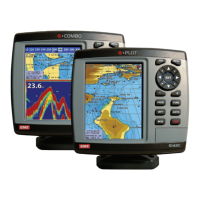
2-7 Multi window displays
The Chartplotter can display up to four windows at the
same time.
Adding a window
1 Press PAGE and select Add icon.
2 Select an icon you want to add.
3 Repeat above steps if necessary.


 To Next Page