G-COMBO INSTRUCTION MANUAL PAGE 25
3-8 Waypoints
A waypoint is a particular location on a voyage whether it is a
starting, intermediate or destination point. A waypoint is the
simplest piece of information the unit requires to get you to a
destination in the shortest distance possible. This unit can save
up to 10,000 waypoints.
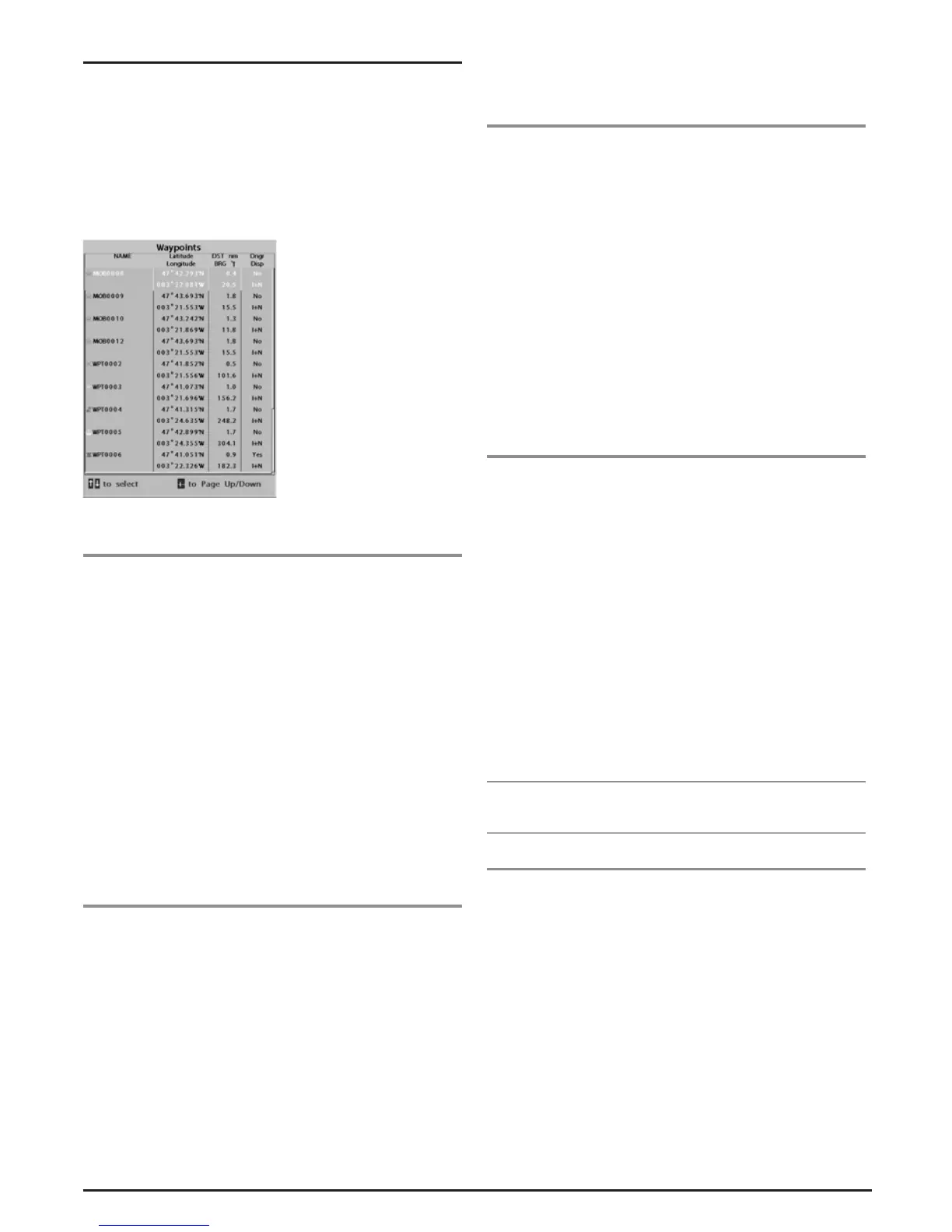
To display waypoint list, press PAGE and select
Waypoint icon.
3-8-1 Creating a new waypoint
To create a waypoint from the chart window:
There are two ways to create a new waypoint from the chart
window as described below:
1 Press WPT, waypoint is marked at current boat position.
2 Move the cursor to a point where you want to create a
waypoint and press WPT.
To create a waypoint from the waypoints window
1 Press MENU and select Create.
2 Enter waypoint data, change alphanumerical name, choose
between 48 icons, 16 colours and display options.
3 Select Save.
3-8-2 Moving a waypoint
To move a waypoint from the chart window
1 Move the cursor and place over the waypoint you want to
move. (If you move the cursor on the waypoint correctly,
waypoint information will be displayed at the bottom left).
2 Press MENU and select Move.
3 Move the cursor to a point where you want to move
waypoint and press ENT
To Move a waypoint from the waypoints window
1 Highlight a waypoint you want to move.
2 Press MENU and select Edit.
3 Change the existing latitude and longitude to new position.
4 Select Save.
3-8-3 Editing an existing waypoint
To Edit a waypoint from the chart window
1 Move the cursor over the waypoint you want to edit. (If
you move the cursor on the waypoint correctly, waypoint
information will be displayed at the bottom left).
2 Press MENU and select Edit.
3 Edit waypoint data as you need and press ENT
To Edit a waypoint from the waypoints window:
1 Move cursor key to highlight a waypoint you want to edit.
2 Press MENU and select Edit.
3 Edit waypoint data as you need and press ENT
3-8-4 Deleting a waypoint
To delete a waypoint from the chart window:
1 Move the cursor over the waypoint you want to delete. (If
you move the cursor on the waypoint correctly, waypoint
information will be displayed at the bottom left).
2 Press MENU and select Delete.
3 Select Yes.
Deleting a waypoint from the waypoints window
1 Move cursor key to highlight a waypoint you want to
delete.
2 Press MENU and select Delete.
3 Select Yes.
Note: A waypoint can not be deleted if the final destination of
navigation is that waypoint.
3-8-5 Find a waypoint
To find a waypoint from the chart window:
Finding waypoints from the chart window.
1 Press MENU and select Find.
2 Select Waypoints.
3 Move cursor key to highlight a waypoint you want to find
and press ENT.


 To Next Page