3030 3131
12. App - Charger12. App - connection setup
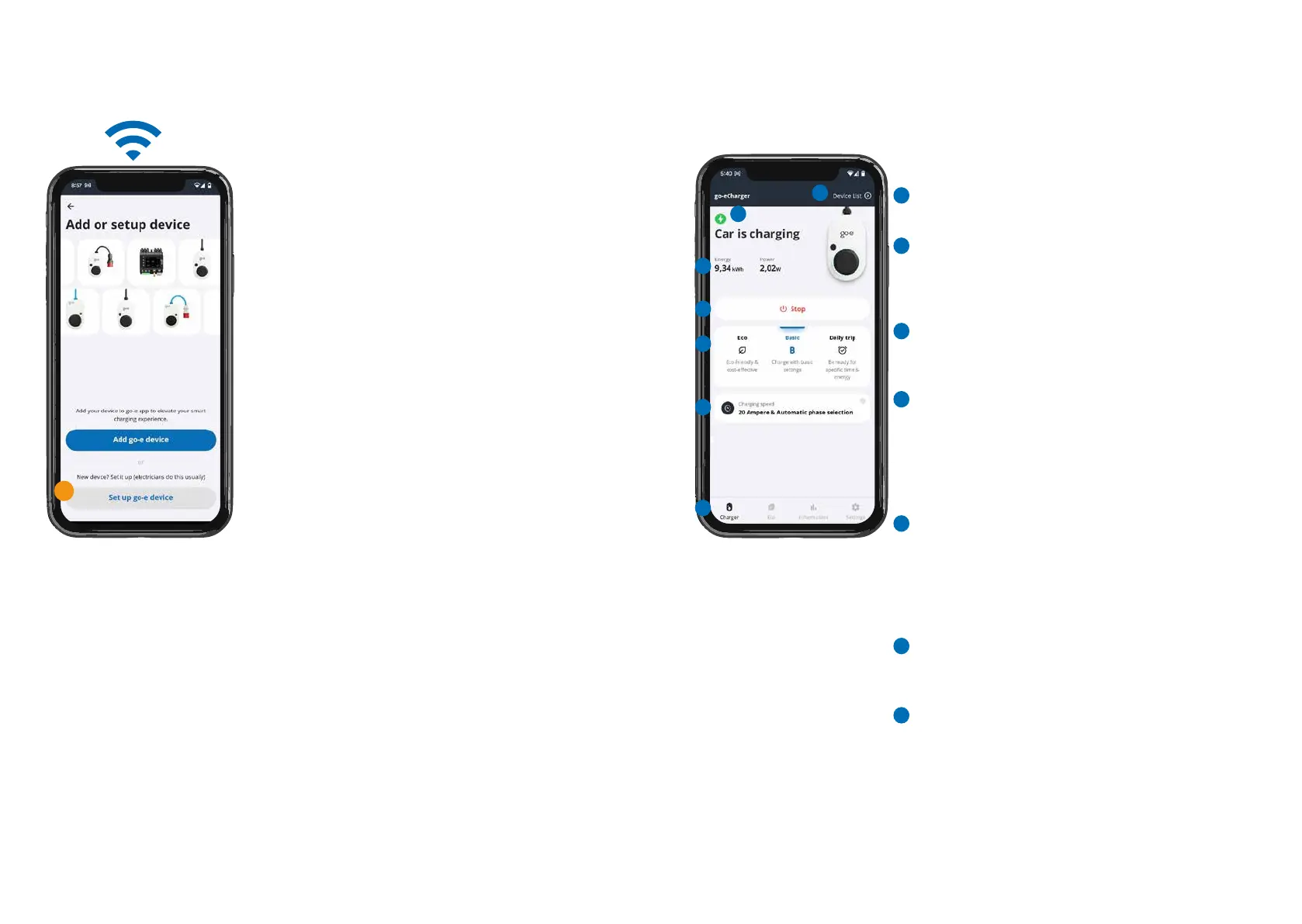
Set up connection via WiFi
For remote control of the Charger and for some com-
fort functions, an Internet connection of the Charger
is essential.
1. To connect to the WiFi network, you have to esta-
blish an active hotspot connection to the Charger
(as described above).
2. Open the app, go to device list, and tap „Setup
device.“
3. On the next screen, choose „Set-up go-e device.“
Once the hotspot connection is recognized, a
new screen will appear. Here, select your country
and tap „Continue.“ You have the option to enter
a technician password to safeguard the grid con-
guration.
4. Enter the name of your WiFi („SSID“) or select
your WiFi (if displayed). You also need to enter
the „password“ of this WiFi network. As soon as
the connection has been established, a „Conti-
nue“ button appears, which you have to tap. You
may also disable the cellular connection at this
point.
5. The following screen prompts you to set a pass-
word, enabling remote Charger access. Comple-
te the setup by entering this password.
6. Finally, disconnect the hotspot connection with
the Charger and switch your smartphone to an
internet connection via mobile data or WiFi to re-
motely control the Charger.
3
B
F
G
C
The „Charger“ screen of the app shows you the status
of your Charger. Here you can monitor and control the
charging process of your vehicle.
If you own more than one go-e product, you can add,
display and manage new devices in this list.
In the charging status area, you can see the current
charge status of your Charger, e.g. whether your car is
currently being charged or whether it is waiting for PV
surplus.
Here you can see the total energy supplied during the
current charging process (in kWh) and the current power
output (in kW).
The charging process usually starts immediately after
connecting the vehicle, unless you changed settings in
the app for PV surplus charging, for example, or activa-
ted access protection (authentication). In this case, you
can start or cancel the charging process immediately
using the start/stop button.
You can choose your desired charging mode that suits
your preference or schedule. ‚Eco‘ is for environmentally
friendly and cost-eective charging, ‚Basic‘ is for regular
charging without special settings, and ‚Daily Trip‘ is for
setting a specic time and energy amount for your daily
needs.
Here you can see the charging speed in amperes and the
number of phases used. You can change the charging
speed by tapping this button.
The tabs in the bottom navigation bar provide detailed
information about the charging process and additional
settings for a wide range of use cases.
A
D
E
B
C
D
F
G
E
A
Installation and operating manual go-e Charger Gemini / go-e Charger Gemini 2.0 | V 1.0Installation and operating manual go-e Charger Gemini / go-e Charger Gemini 2.0 | V 1.0



 To Next Page