B. Troubleshooting
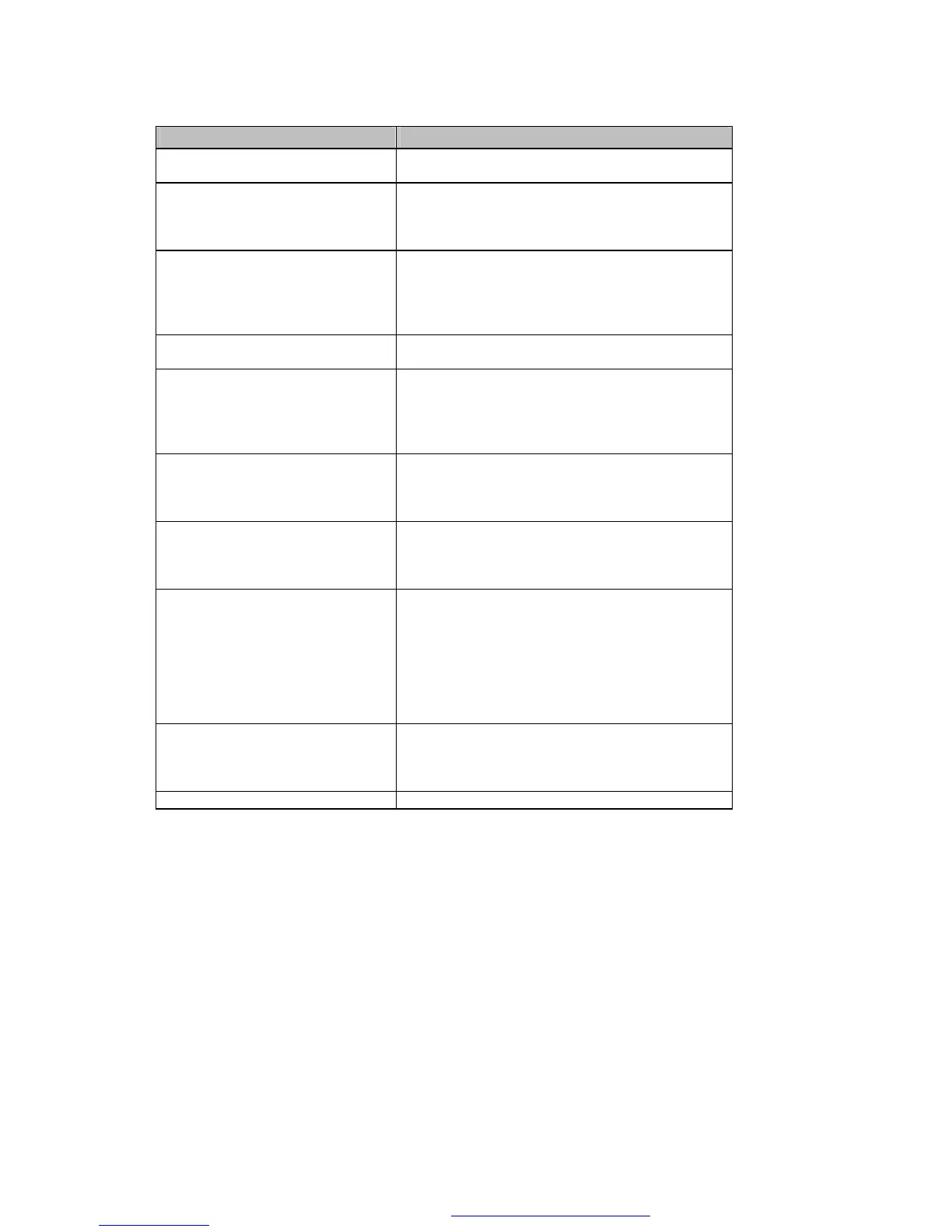
Problems Recommended Solution
Power switch already turned on but
the LED does not light.
l
Check Power connector.
Printing stops and LED goes red. l Probably software setting or programming
problem.
l Check to use the correct paper
l
Probably label jam, remove the stuck label
Printer is working but nothing is
printed on label.
l
Check the label is facing up and the paper you
use is thermal paper.
l Check to choose the correct printer driver.
l
Make sure to choose the correct model of printer
on platen.
Label is stuck l Remove the stuck label and use soft cloth
soaked with alcohol to clean the adhesive glue.
Only part of the label got printed l Label is stuck on print head.
l Probably software problem
l
Margins are not set properly
l Printer head is not fixed in proper position,
re-positing printer head screws or clipper
Difficult to load label roll l Check if the label stuck on printer.
l Remove the stuck label.
l
Make sure the width and thickness of label is
within the specification.
When printing out, some dots
missing
l Clean printer head with alcohol. (If the label glue
is attached to printer head, please apply alcohol
to printer head; wipe with soft cloth softly.)
l Replace printer head for possible damage.
Printing is not in the correct position
l Check the Label Transmit Sensor, it may be
covered with dust.
l Check with your label supplier; make sure they
have used the recommended backing material.
l Adjust the label transmit sensor if you are an
experienced printer user.
l
Check the label guide, it may not be in the proper
position.
Label printing jumps to next label l Check if the label height setting is the same as
actual label height.
l Check the Label Transmit sensor, it may be
covered with dust.
Printing is not very clear
l
Check the printer darkness setting.
Please call your agent for help if the above information can not help you.
PDF created with FinePrint pdfFactory trial version http://www.fineprint.com


 To Next Page