Home
12
Home
12
Home 1
25
G2Call APP
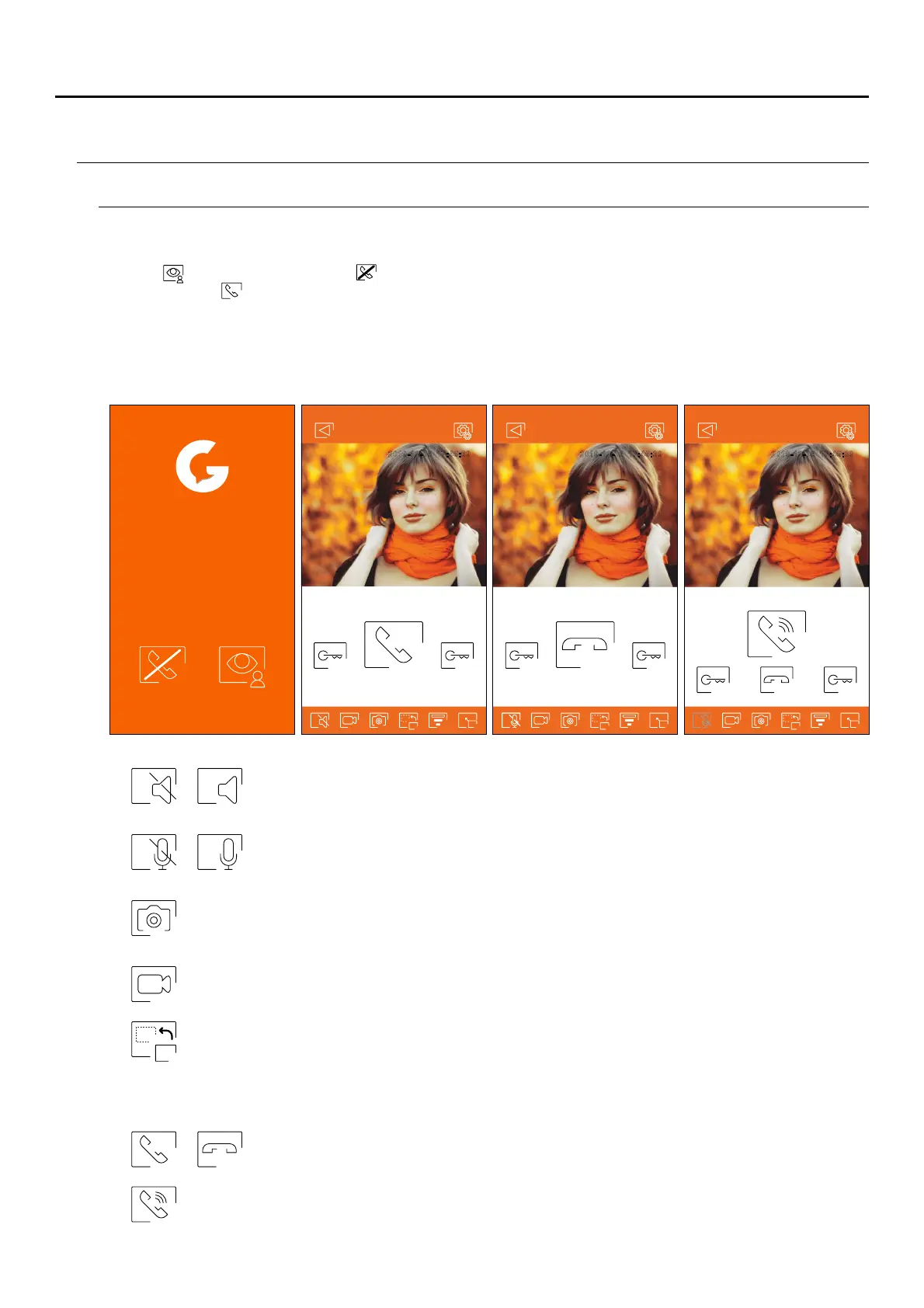
Whether you access the communication screen through call reception or from the main screen, the options
detailed below will be the same.
If you activated call transfer on the monitor and the notifications are activated on the app, you will receive calls
made on the street panel. A pop-up screen will show you the origin of the call. You can accept the call using
icon , or reject it by pressing . Once the call is accepted, you can establish audio communication by
pressing icon .
Communication screen
Start or end audio communication with the door panel displayed. Communication has a
maximum duration of 90 seconds.
In 'Push to talk' communication mode, keep the button pressed while talking and release it to listen.
Change the source of the image. This icon appears enabled (white) if the system has more than one
door panel or has an external camera connected and monitor display has been activated
27 28(see pp. - ). It is possible to make the change during display and communication processes.
Press to start recording a video. To end recording, press the icon again.
Activate or deactivate audio from the door panel during the viewing process. The initial
state depends on the configuration of the preview of the monitor (p. 2 ).2
Activate or deactivate the phone's microphone during the communication process. In
communication mode, 'Push to talk' is deactivated.
Take a photograph.
201 - -1 17:45:399 12 6201 - -1 17:45:399 12 6
Door panel 1Door panel 1
12
Push to talk
Home
201 - -1 17:45:399 12 6
Door panel 1
ART MONITOR7W/G2+


 To Next Page