10 11
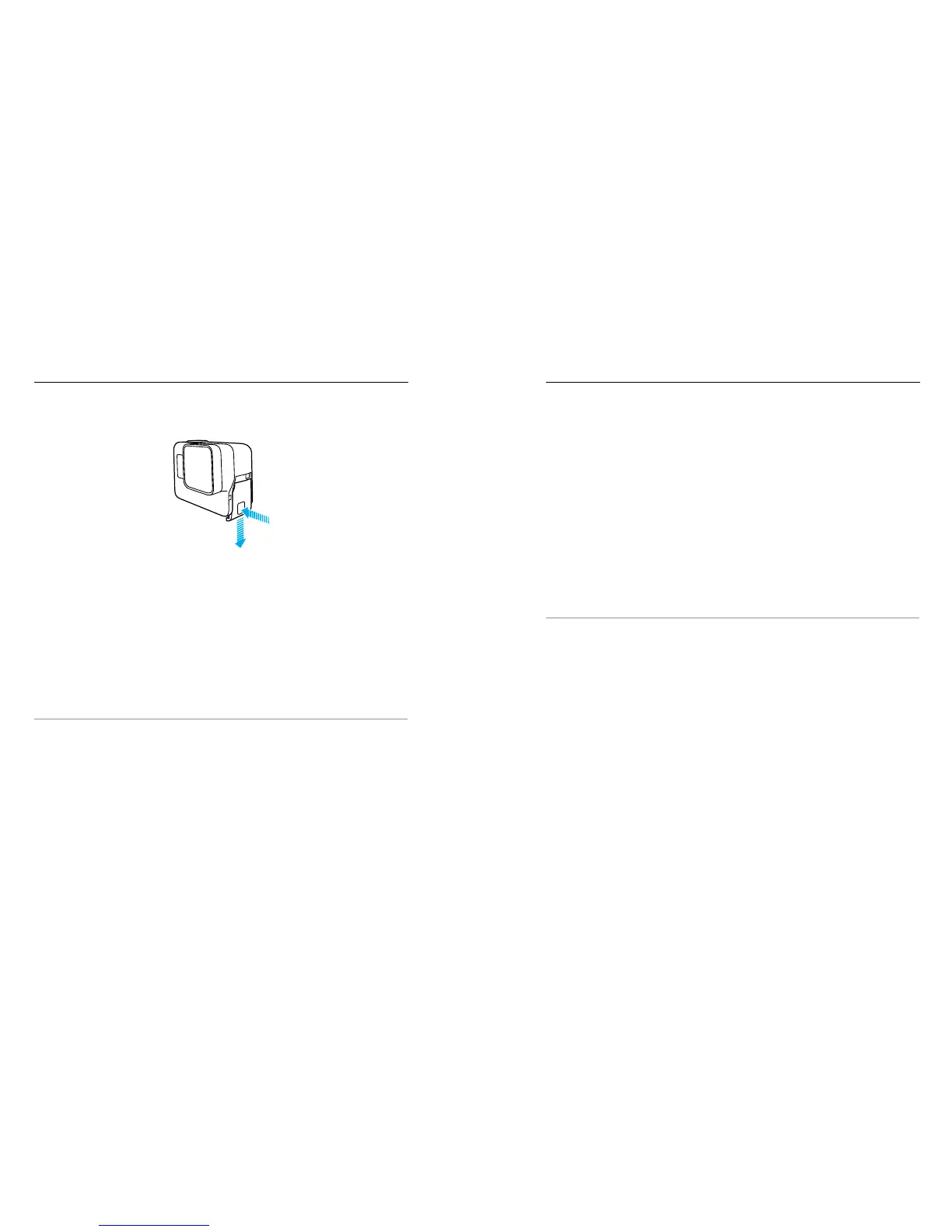
4. Hold down the Latch Release button on the side door, then slide the
door open.
5. Connect the camera to a computer or other USB charging adaptor using
the USB-C cable included.
6. Power o the camera. The camera status light turns on during charging
and turns o when charging is complete.
When charging with a computer, make sure that the computer is
connected to a power source. If the camera status light does not
turn on, use a dierent USB port.
The battery charges to 100% in about 3 hours. For more information,
see Battery Information (page 64).
PRO TIP: For fastest charging, use GoPro’s Supercharger (sold separately).
You can charge your camera with a USB-compatible wall charger or
in-car charger.
GETTING STARTED GETTING STARTED
UPDATING YOUR CAMERA SOFTWARE
To get the latest features and best performance from your GoPro, make
sure your camera is always using the most current software. When you
connect to the GoPro App or Quik for desktop, you are automatically
notied if an update is available.
1. Download these apps:
• GoPro App from the Apple App Store or Google Play
• Quik for desktop from gopro.com/apps
2. Connect your camera to your smartphone/tablet or computer. If an
update is available, the app provides instructions for installing it.
You can also update your camera manually using the microSD card and a
card reader/adaptor (sold separately). For details and information about
the latest software version, visit gopro.com/update.
PRO TIP: To see your current software version, swipe down from the main
screen, then tap Preferences > About This GoPro.


 To Next Page