24 25
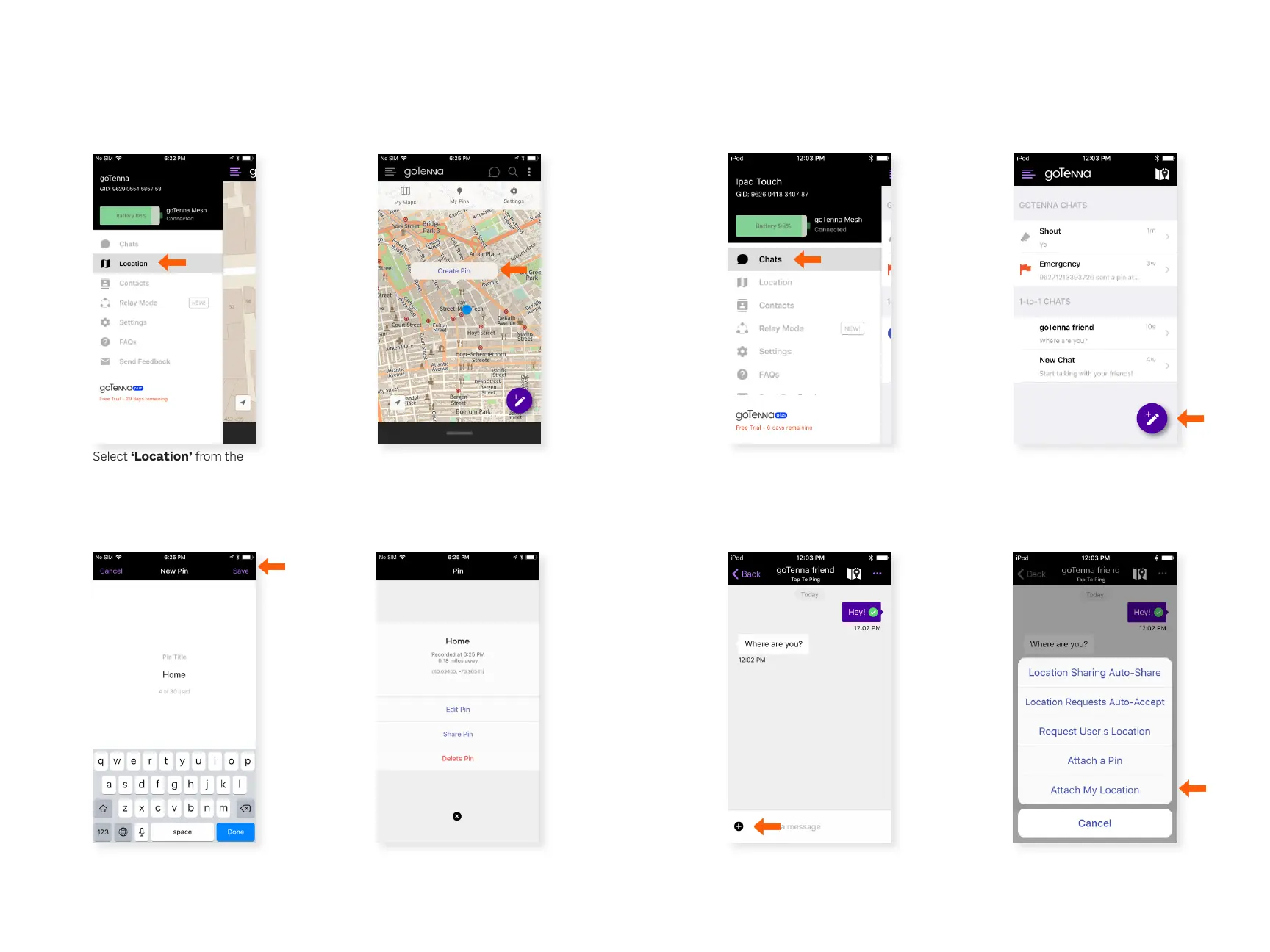
Create a Pin:
Step 1
Step 3
Step 2
Step 4
Select ‘Location’ from the
side menu.
Drop a pin by long pressing
the location where you’d like
to create a pin. Tap ‘Create
Pin’ when the bubble pops
up.
Create a name for your pin
under Pin Title. Select ‘Save’
in the upper right corner of
the screen.
You now have the option to
edit, share, or delete the pin.
Alternatively, you can exit the
screen by selecting the X icon
at the bottom of the screen.
Share your Location:
Select ‘Chats’ from the Side
Menu.
Choose an existing chat in
which you’d like to share a
location, or create a new
chat by clicking the compose
icon at the bottom right
corner of the screen.
Select the plus icon to the
le of the text box.
Select ‘Attach My
Location’ or any of the
location sharing options.
Step 1
Step 3
Step 2
Step 4
You can follow these steps to auto-accept location requests,
request a user’s location, attach a pin, or attach your location.



 To Next Page