深圳市中软赢科技术有限公司 版权所有 Shenzhen GPD Technology Co.Ltd All Rights Reserved
5 / 50
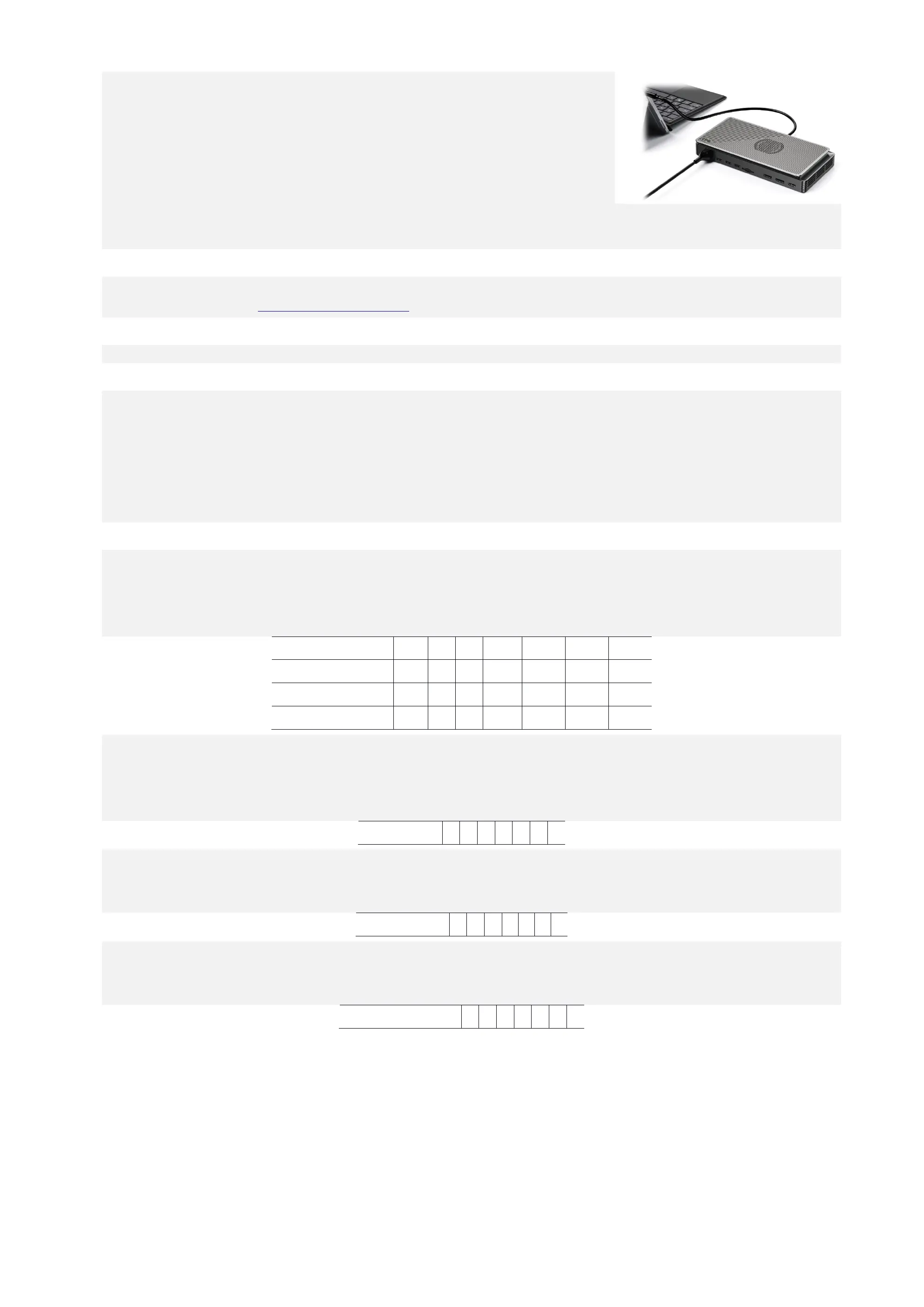
Step 1: Please turn off the computer.
Step 2: Connect one end of the included USB4 cable to your computer's USB4 or Thunderbolt 3/4 port, and the
other end to the USB4 port on the GPD G1 Graphics Dock. (If you have purchased the Oculink SFF-8611 dual
male port cable and the GPD WIN Max 2 2023, connect one end of the cable to the Oculink SFF-8612 female
port on each device.)
Step 3: Connect the power cable to the power port on your GPD G1, and press the power button.
Step 4: Turn on your computer, and depending on your operating system version, download the driver for the graphics card expansion dock by clicking on the lin
k below or scanning the QR code, and install it.
Download AMD Radeon™ RX 7600M XT Driver:
Download in Multiple Languages:https://gpd.hk/gpdg1firmwaredriver
Step 5: After successfully installing the driver, you can check if the graphics card expansion dock is successfully driver-enabled in the "Device Manager".
Note:
The Oculink cable does not support hot-swapping. If you connect the GPD G1 to your computer via the Oculink SFF-8611 dual male port cable while the comput
er is on, the GPD G1 may not be recognized. Frequent hot-swapping may cause two problems: short circuits and arcs. In addition, hot-swapping may cause dama
ge to components and input and output pins.
When you are ready to remove the Oculink SFF-8611 cable, do not use force. Instead, press the latch on the connector and gently remove it. Failure to do so m
ay result in damage to the interface.
Difference between USB4 and Oculink SFF-8611 Cable Connections
Oculink and USB4 each use independent PCIe channels. Oculink is directly connected to PCIe and is only responsible for video signal output. USB4 supports more
protocols, such as Thunderbolt 3, and can transmit both video and data signals. The differences between USB4 and Oculink SFF-8611 cable connections are shown
in the following table:
HDMI DP1 DP2 SD 4.0 USB A1 USB A2 USB A3
USB4 connection
Oculink connection
USB4+Oculink connection
Details are as follows:
Connected via USB4 Cable:
At this time, all of the GPD G1's HDMI, DisplayPort, USB A, and SD 4.0 card reader interfaces are functional. You can connect up to three external displays and in
sert a USB drive into the USB A port to copy and store important data.
USB4 connection
Connected via Oculink SFF-8611 Cable:
At this time, the HDMI and DisplayPort interfaces of the GPD G1 are functional, while the USB A and SD 4.0 card reader interfaces are not. The Oculink connectio
n directly connects to PCIe, providing 63Gbps of effective bandwidth, and can maximize the performance of the built-in graphics card.
Oculink connection
Both Cables Connected:
At this time, the built-in graphics card uses the PCIe channel connected via the Oculink SFF-8611 cable, which has exclusive access to 63Gbps of effective bandwid
th. The USB4 cable is responsible for data transmission for the USB A and SD 4.0 card reader interfaces.
USB4+Oculink connection



 To Next Page