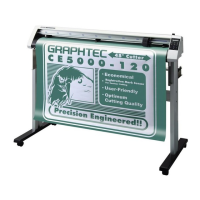
for CE5000-60
for CE5000-120
Pull out the roll media
621359400
2. Setting the roll media stand
CE5000-60
CE5000-120
CE5000-60
CE5000-120
OPERATION MANUAL
CE5000 SERIES
Caution
To avoid bodily injury, always handle
the cutter blade with caution.
Preparing the cutter blade and the
cutter pen plunger
1
Mounting the cutter pen plunger
2
Loading the media
3
1. Lower the set lever
Stock shaft
Stopper
Fit in
Set the shaft
Insert the stoppers into both end of the core.
3-1. Pull out the roll media and pass through the CE5000
(in case of roll media)
3-2. Pass the sheet media through the CE5000
(in case of sheet media)
4. Align the media with the CE5000
Align the media to
the guide line
Align the media
to the scale
Media sensor
Media sensor
5. Adjust the push roller position
Adjust the position of the push rollers to the push roller position guide mark
Push roller position
guide mark
Make sure to position the media so it covers the media sensor.
Move the push rollers while
the lever is in the low position.
The media cannot be fed if the
push roller position is not
adjusted to the mark.
Grit roller
Grit roller
Push roller
Push roller
If loading narrow media,
position both push rollers
above the longest grit roller.
Media sensor
Media sensor
6. Adjusting the media
Provide slack
in the media
Turn on the cutting plotter
Press the "|"
side of its power
switch
Select the media mode
4
5
6
Setting the cutting conditions
Move the cutter pen to the position where you
wish to initiate the test.
Press the COND. key.
Select the setting
condition number.
If you wish to use the 09U as a standard accessory, the default setting condition is
saved in the condition number 2.
Move the cursor
Select a blade
Material Thickness(mm) Blade Cutting force Speed Quality
0.05 to 0.08 CB09UA 10-14 1-30 2
0.05 to 0.08 CB15UB 10-14 1-20 1
0.08 to 0.1 CB09UA 14-17 1-30 2
0.08 to 0.1 CB09UA 14-20 1-30 2
0.08 to 0.1 CB09UA 14-20 1-30 2
0.20 to 0.25 CB09UA 20-21 1-20 1
0.20 to 0.25 CB15U 20-21 1-20 1
Outdoor vinyl
(for small size character cutting)
Film for decoration
Transparent/translucent film
Reflection film
Fluorescent film
Fluorescent film
Set FORCE, SPEED and
QUALITY with reference to
the table below.
Move the cursor
A rough guide of the setting
Adjust the cutting force so that the cutting trace lightly appears on the
media liner.
Press the TEST key
Caution: Be sure to keep your hands, hair, and face away from
the moving parts.
Check the corners of the triangle.
Press the ENTER key
Move the cursor to adjust the offset value, repeat the adjustment
until the result becomes proper.
Too much
In this case, increase the offset value.
Proper
Corners are cut properly.
Too little
In this case, increase the offset value.
Press the ENTER key to finish.
If the ENTER key is pressed, then the setting conditions are stored
into the memory.
Select media mode
using arrow keys.
Press the ENTER key
to start media size
detection.
When using a sheet media.
When using a roll media and
setting the origin point to the top
of media.
When using a roll media and
setting the origin point to the
current setting position.
Roll media
Sheet media
Raise
Origin point



 To Previous Page
 Loading...