EasyManua.ls Logo

Gree ME30-24/E5 - User Manual

Gree ME30-24/E5
28 pages
Print Icon
To Next Page IconTo Next Page
Loading...
Owner's Manual
Original Instructions
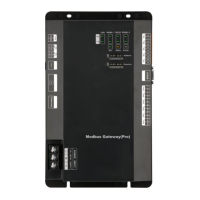
Modbus Gateway(Pro)
Models:ME30-24/E5(M)

Other manuals for Gree ME30-24/E5

Questions and Answers

  • C
    Cory GonzalezAug 6, 2025
    Why does my Gree ME30-24/E5 show a communication error and cannot control units?
    • E
      Emily WarnerAug 6, 2025
      If your BMS system displays a communication error for your Gree Gateway, preventing the display and control of some or all units, several factors could be at play. First, ensure that you are using twisted-pair communication cable. Replace it if it is not. Check for any breaks or short circuits in the communication cable and weld any broken circuits or repair any short-circuited parts. Also, make sure the twisted-pair cable is at least 15cm away from any power cords; if this isn't possible, use a shielding steel pipe. Verify that the communication interface is correctly connected according to the manual's instructions. Finally, the Modbus Gateway(Pro) might be broken and needs replacement.
  • P
    patrick71Aug 21, 2025
    How to fix a Gree ME30-24/E5 communication error when everything seems normal?
    • B
      Brittany SextonAug 21, 2025
      If the circuit, device, and engineering installation for your Gree Gateway are normal, but the software still shows a communication error, you might be using the wrong display or controller that doesn't match the actual unit. To solve this, check the controller and wired controller models of your current unit. If the models are incorrect, contact the after-sales service center.
  • A
    anthonydoughertyAug 29, 2025
    What to do if a Gree ME30-24/E5 Gateway device layer doesn't display information?
    • W
      Wesley LoweryAug 29, 2025
      If the circuit and other device layers are normal, but a specific device layer on your Gree Gateway isn't displaying information, it might be due to the relay. Ensure that the relay is correctly installed. If a relay is already installed, verify that its wire connections are correct. Install the relay correctly.
  • C
    Caleb CortezNov 13, 2025
    What to do if Gree ME30-24/E5 Gateway units don't display information despite a normal circuit?
    • J
      Jamie MasonNov 13, 2025
      If the circuit appears normal but some or all units are not displaying information and the software indicates a communication error with your Gree Gateway, consider these potential causes: Ensure that the unit is energized. If you've replaced a chip or reset a DIP switch, make sure to re-energize the outdoor unit afterward. Verify that the matched resistance is correctly set. Check that the serial port used by the communication software matches the serial port to which the computer is connected; replace the serial port or change the serial port setting of the software. Confirm that the unit address in the software matches the actual unit's address and correct it if necessary. Also, check that the chip is properly inserted in the outdoor or indoor unit, aligning with the indentation directi...

Summary

Safety Notices

Safety Warning Symbols

Explains warning symbols indicating prohibition or required observation.

Environmental Installation Warnings

Warns against installing in corrosive or flammable environments, risks.

Product Functionality

General Functions

Describes the purpose and capabilities of the Modbus Gateway.

Product Composition

Package Contents

Lists the included items: Modbus Gateway(Pro) and Owner's Manual.

Device Interfaces

Interface Function Drawing

Diagram showing the location and purpose of various interfaces.

Power Specifications

Details the input power specifications and safety precautions.

Device Interfaces

Communication Interfaces

Describes CAN, RS485, RS232, Ethernet, USB/SD interfaces.

Device Interfaces

Digital Input;Output (DI;DO)

Explains digital inputs (DI) and digital outputs (DO) functionality.

Device Indicators and Controls

LED Display Meanings

Explains the meaning of various LED indicators on the device.

DIP Switch Introduction

Introduces the two types of DIP switches: address and function.

DIP Switch Configuration

DIP Switch Diagram

Illustrates the positions (0/1) and direction of DIP switches.

Address DIP Switch Settings

Explains how to set the device address using DIP switches.

DIP Switch Configuration

Modbus Bus Matched Resistance

Details setting the 7th DIP switch for Modbus bus matched resistance.

DIP Switch Configuration

CAN2 Bus Matched Resistance

Details setting the 8th DIP switch for CAN2 bus matched resistance.

Application Scenarios

Building Management System (BMS)

Explains the gateway's use as an interface for BMS.

Application Scenarios

Network Topology Diagram

Illustrates the network topology for BMS integration.

Topology Definitions

Defines Modbus bus, CAN1, CAN2 networks, and system components.

Installation Guide

Product Dimensions

Shows the physical dimensions of the Modbus Gateway(Pro).

Installation Guide

Cabinet Installation Space

Specifies the required space for installing the gateway in a cabinet.

Communication Cable Specifications

Details the specifications for communication cables.

Communication Connection Methods

Serial Connection Requirement

Emphasizes that all communication cables must be connected in series.

BMS Connection Diagram

Illustrates serial connection for Modbus to BMS communication.

Air Conditioner Connection Diagram

Illustrates serial connection for Modbus to air conditioner communication.

Communication Connection Settings

BMS Wiring Steps

Step-by-step guide for connecting Modbus Gateway to BMS.

Air Conditioner Wiring Steps

Step-by-step guide for connecting Modbus Gateway to air conditioners.

Communication DIP Switch Setup

Instructions for setting DIP switches for communication parameters.

Communication Connection Settings

Modbus Bus Repeater Guidelines

Guidelines for using photoelectric isolation repeaters for Modbus bus.

DIP Address Tables

Address Table 0-31

Table mapping DIP switch settings to addresses 0-31.

Address Table 32-63

Table mapping DIP switch settings to addresses 32-63.

DIP Address Tables

Address Table 64-95

Table mapping DIP switch settings to addresses 64-95.

Address Table 96-127

Table mapping DIP switch settings to addresses 96-127.

DIP Address Tables

Address Table 128-159

Table mapping DIP switch settings to addresses 128-159.

Address Table 160-191

Table mapping DIP switch settings to addresses 160-191.

DIP Address Tables

Address Table 192-223

Table mapping DIP switch settings to addresses 192-223.

Address Table 224-255

Table mapping DIP switch settings to addresses 224-255.

Gree ME30-24/E5 Specifications

General IconGeneral
BrandGree
ModelME30-24/E5
CategoryGateway
LanguageEnglish

Related product manuals