
 To Next Page


M
morrislindaSep 6, 2025
What does 'Re- ~ Boot!' mean on GSE Accessories?
- KkarencolemanSep 6, 2025
The message 'Re- ~ Boot!' on GSE Accessories means that EEPROM data could not be read and the unit is attempting a power-up reset.

What does 'Re- ~ Boot!' mean on GSE Accessories?
The message 'Re- ~ Boot!' on GSE Accessories means that EEPROM data could not be read and the unit is attempting a power-up reset.
What does 'Bad ~ Code!' mean on GSE Accessories?
The message 'Bad ~ Code!' on GSE Accessories indicates that an incorrect access code was entered.
What does 'Add ~ Load!' mean on GSE Accessories?
If 'Add ~ Load!' is displayed after performing a count sample on your GSE Accessories, this message indicates that a larger sample size is required.
What does 'T.X.YYYY' mean on GSE Accessories?
The message 'T.X.YYYY' on GSE Accessories means that catastrophic errors occurred in the software, a trap error may occur and freeze the display with address information. Press any key five seconds after viewing message to reboot the unit.
What does 'Tare ~ GT FS' mean on my GSE 350?
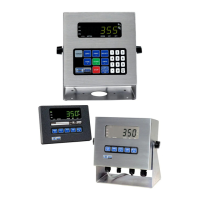
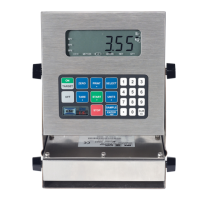
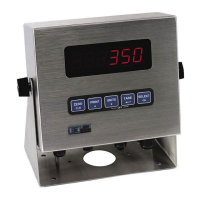
The 'Tare ~ GT FS' message on your GSE Touch Panel means that the tare value is greater than the full scale capacity.
What does 'A-D ~ Bad!' mean on GSE Accessories?
The message 'A-D ~ Bad!' on GSE Accessories indicates a problem with the A/D chip. Disconnect any Or Code17 options installed and re-power the unit.
What should I do if my GSE 350 displays 'Problem with A/D chip detected'?
If your GSE Touch Panel displays 'Problem with A/D chip detected', disconnect any options installed and re-power the unit.
What does 'Unit ~ Seald' mean on GSE Accessories, and how to fix it?
The message 'Unit ~ Seald' on GSE Accessories means access to the Setup or Calibration Mode was denied. You should check the internal “YES/NO” program jumper.
What does 'Add ~ Load!' mean on my GSE 350 Touch Panel after a count sample?
If your GSE Touch Panel displays 'Add ~ Load!' after performing a count sample, it means that a larger sample size is needed.
What to do if my GSE 350 displays 'Under Load'?
If your GSE Touch Panel displays 'Under Load', check the load cell wiring.
Instructions for sampling and counting parts, including viewing average piece weight.
Guides on entering target values and tolerances for percentage checkweighing.
Instructions for entering target values for the fill program, including pre-act values.
Steps to enter target and pre-act values for batching ingredients in Model 350 and 355.
Instructions for entering target and pre-act values for the discharge program.
How to enter target values for combined fill and discharge operations.
Guides on entering absolute target values and tolerances for checkweighing.
How to enter target values and tolerances for target deviation checkweighing.
Lists and explains common operational error codes and messages encountered.
 General
| Display Type | TFT LCD |
|---|---|
| Touch Panel | Yes |
| Touch Technology | Resistive |
| Power Supply | 24 VDC |
| Operating Temperature | 0°C to 50°C |
| Storage Temperature | -20°C to 60°C |
| Interface | Ethernet |
| Humidity | 10% to 90% non-condensing |
| Protection Level | IP65 |
| Operating Voltage | 24V DC ±10% |