17
15. Changing subtitle language (DVD only)
It is possible to change the subtitle language to
a different language from the one selected at
the initial settings. (This operation works only
with discs on which multiple subtitle languages
are recorded)
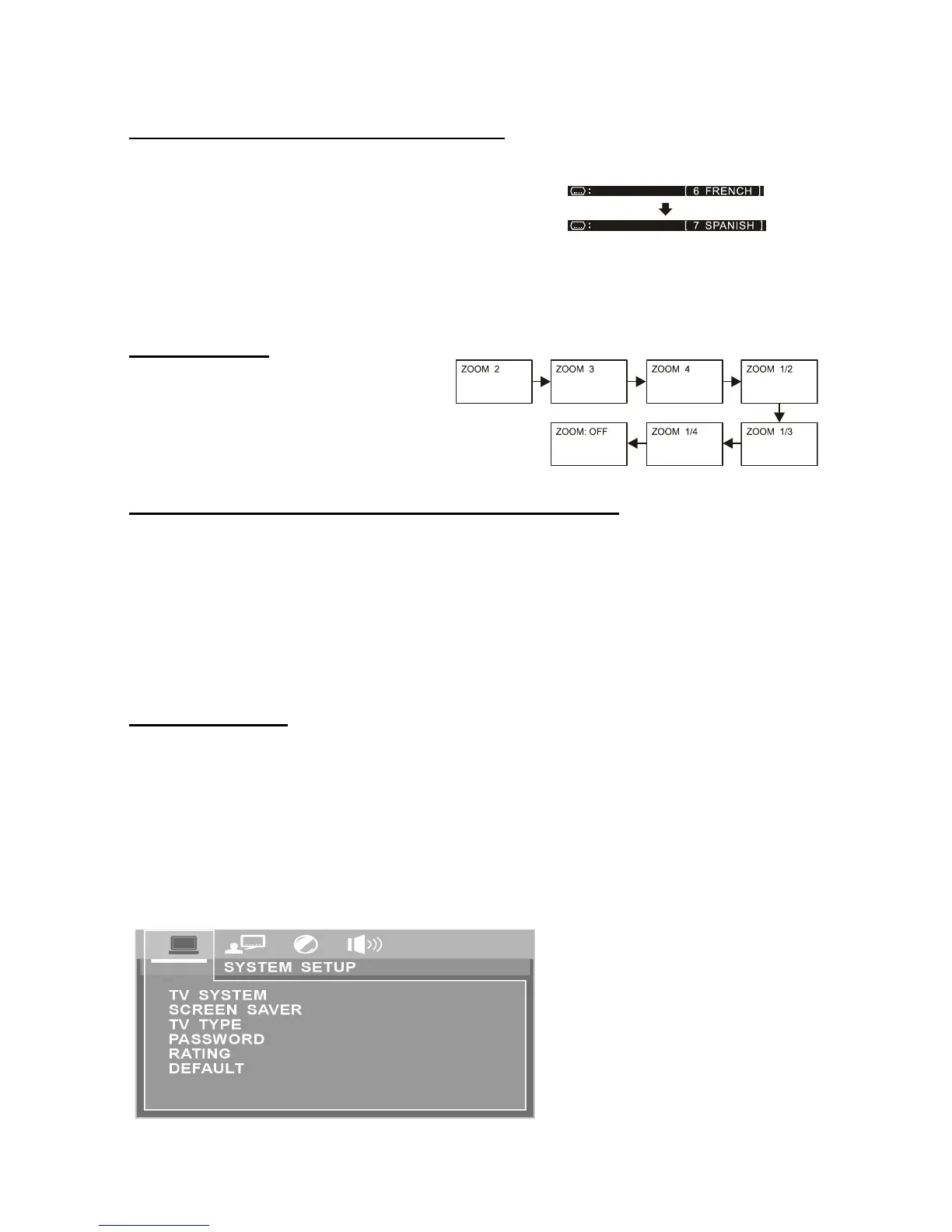
Press SUBTITLE button repeatedly
during play, the subtitle Language changes
with the indication shown on The screen
or turn off the subtitle.
16. ZOOM PLAY
This function allows you to enjoy a motion
picture.
1. Press ZOOM button when playing, the
screen shows as right:
2. Press NAVIGATION button to scroll
across the enlarged picture.
17.Changing audio soundtrack language (DVD/CD disc)
It is possible to change the audio soundtrack language to a different language from the one
selected at the initial settings (This operation works only with discs on which multiple audio
soundtrack languages are recorded).
1. Press AUDIO button while playing DVD disc to cycle the soundtrack languages available on
the disc.
2. Pressing AUDIO button while playing CD disc will change audio output mode: Mono Left,
Mono Right and Stereo soundtrack.
NOTE: When no soundtrack languages are recorded, pressing this button will not work. When
the power is turned on or the disc is removed.
18. Initial Settings
Once the initial programming is entered it is retained in memory until changed, the player can
always be operated under the same conditions. Common procedure for initial settings
1. Press SETUP button.
2. Use the navigation buttons to select preferred item, each screen for setting the value is
displayed. Then move the navigation button to set the item and press OK button to confirm
the settings.
3. Press SETUP button to close setup menu in any mode.
4. Use left navigation button to switch to another main setup items.
1. SYSTEM SETUP
NOTE: Pressing this button will not
function when the option is not available
on the disk.
CHANGING SUBTITLE LANGUAGE


 To Next Page