14
HARTING Electric GmbH
15
Management Software Ha-VIS mCon Series / Edition 2.4
Introduction to the Web Browser InterfaceUser Manual Ha-VIS mCon Switch Management Software
Assuming conguration changes and permanently saving them
• The software maintains any conguration changes in volatile memory after pressing the Apply
button.
• The administrator must explicitly trigger the save operation (bottom bar after changing
parameters.
• When triggered, the software saves the full conguration.
• Any old contents in the cong-le is over-written.
• When the switch is restarted, the software starts with the last conguration saved to the ash.
Note
The Apply button only saves your changes temporarily until the next reboot. You have to click on
the subsequent SAVE CONFIGURATION button in order to save the changes persistently.
6.3
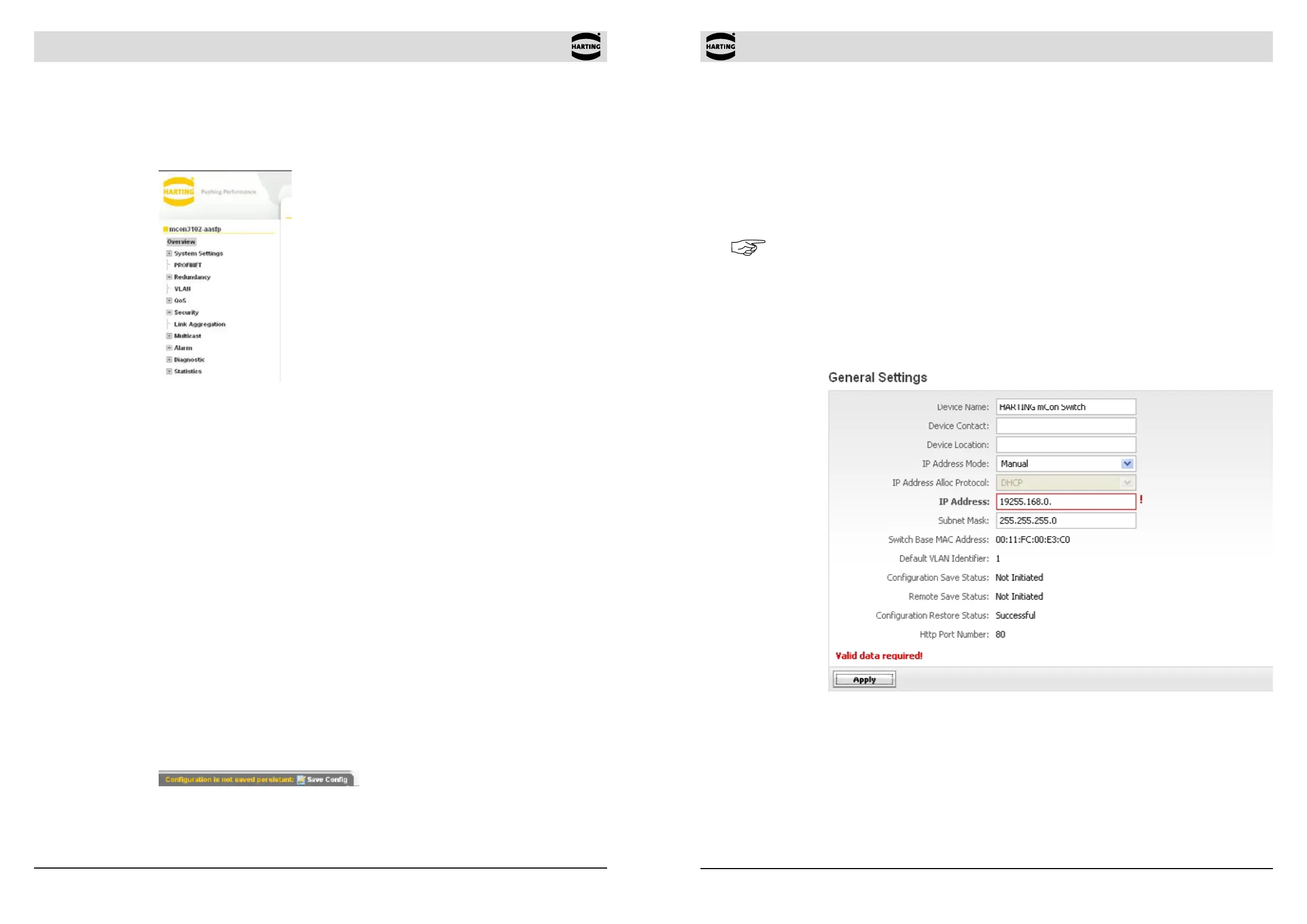
If you specify an invalid entry (for example, an out-of-range timer value or improperly formatted IP
address), a red exclamation mark is displayed next to the error eld to notify the user of the error.
Figure 6-4 Invalid entry: The exclamation point indicates an improperly formatted IP address.
6.1.2 The menu tree
A clickable, two-level menu located on the left of the browser window is used to navigate through
the switch functionality. You can view or change switch settings and statistics by clicking on any
of the various second-level menu choices.
Figure 6-2 The menu tree
6.1.3 The active window
Most of the screen is taken up with the active window, in which settings and statistics for the
switch are displayed and congured. The active window consists of several tabbed sub-windows.
The right-most tabbed section is marked with a question mark and contains helpful explanations
for the corresponding settings.
6.1.4 The bottom task bar
On the left side the IP Address, the Subnet Mask, the MAC Address and the installed rmware
version of the switch is displayed. On the right side, the current conguration storage status is
shown.
6.2 Accept and saving changes with the Save Conguration button
After modifying a setting (e.g. by checking a box or specifying a value), please click on the Apply
button located at the bottom of the active window to conrm the change. Note that the Apply
function only temporarily saves the changes to the RAM. For a short time after the opening of a
window, the Apply button is highlighted grey. The Apply button is also activated, when settings
or alterations are made in the window. In this case, it appears in a bold font to remind you that
settings have been made or altered and that these have to be conrmed by clicking the Apply
button. After this is done, a SAVE CONFIGURATION button appears in the bottom bar. Click the
button to save your changes permanently in the ash memory to make the conguration also
existent after a power down or a software reboot.
Figure 6-3 Save Conguration button


 To Next Page