20
HARTING Electric GmbH
21
Management Software Ha-VIS mCon Series / Edition 2.4
System SettingsUser Manual Ha-VIS mCon Switch Management Software
Management
Function Description
Default/Mgmt-VLAN
ID:
Change of the Management VLAN
Range of value: 1 ... 4094
Default value: 1
HTTP Port Sets the http port for the web interface.
Range of value: 1 ... 65535
Default value: 80
Multifunction Button Enable or disable the Multifunction Button on the switch
Range of value: Enable / Disable
Default value: Enable
8.2 Port Settings
This section informs you on how to change the settings for the switch’s Ethernet ports. The ports
can be individually enabled (up) or disabled (down). The data transfer rate and mode of data ow
can be determined as well as the compatibility parameters for the network. Note that there are
two tabbed sections (Basic Settings and Port Control) where these settings can be made.
8.2.1 Basic Settings
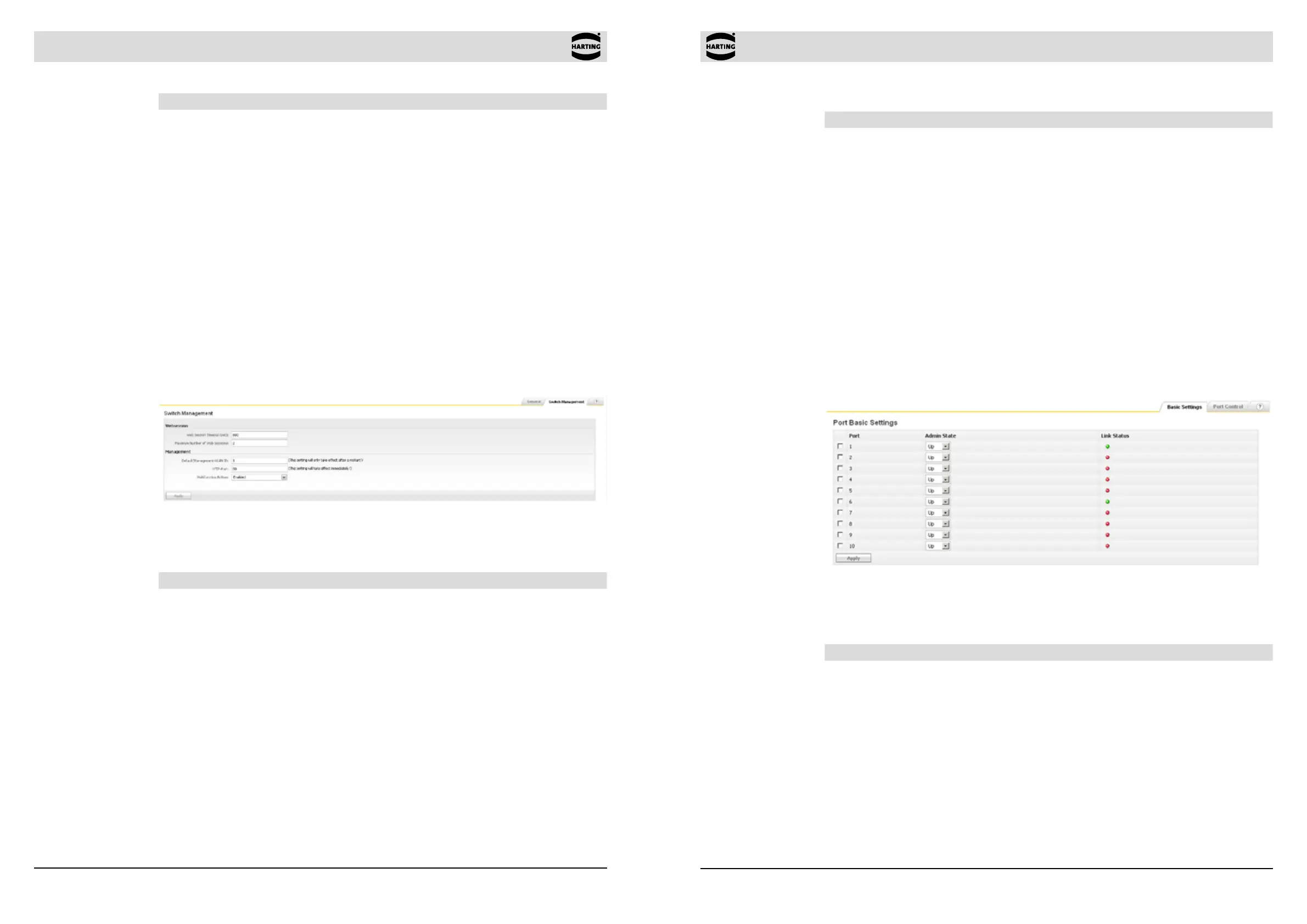
Figure 8-3 Basic Settings tab
In this tabbed section, the administrative state of individual ports can be specied. Each port row
has the following columns.
Function Description
Select/Port Select the port that you would like to change by clicking on the
checkbox here.
Admin State Select the desired state of the port. A port can be either enabled (up)
or disabled (down).
Range of value: UP / DOWN
Default value: UP
Link Status Displays the port status. A green circle in this column indicates that a
device is connected to this port. A red circle indicates that no device
is connected.
Function Description
Save IP Address
Persistent
Check this box to save the IP address permanently. You will no
longer be able to connect to the switch using the old IP address.
Using your web browser, connect to the switch using the new IP
address.
Subnet Mask Specify the subnet mask for the network. If the subnet mask is
entered manually. This value is assigned automatically if you have
a DHCP server.
Default Gateway Specify the default gateway for the switch
Be sure to remember to click on the Apply button to save your changes. Then click on the Save
Conguration button which appears at the bottom of the window to save the settings permanently.
The lower section of the General Settings window lists additional status information. This includes:
the switch MAC address, the default VLAN identier, the conguration save status, the remote
save status, the conguration restore status and the HTTP port number.
8.1.2 Switch Management
This chapter describes the conguration of the various system and session related features,
like web session and service functionalities.
Figure 8-2 Switch Management window
Web Session
Function Description
Web Session Timeout Sets the timeout for each web session. Without any action on the web
interface, the session will be terminated after the timeout timer expires.
Range of value: 1 ... 3600 seconds
Default value: 600
Maximum Number of
Web Sessions
Sets the maximum number of parallel web sessions.
Range of value: 1 ... 10
Default value: 2


 To Next Page