16
HARTING Electric GmbH
17
Management Software Ha-VIS mCon Series / Edition 2.4
OverviewUser Manual Ha-VIS mCon Switch Management Software
7. Overview
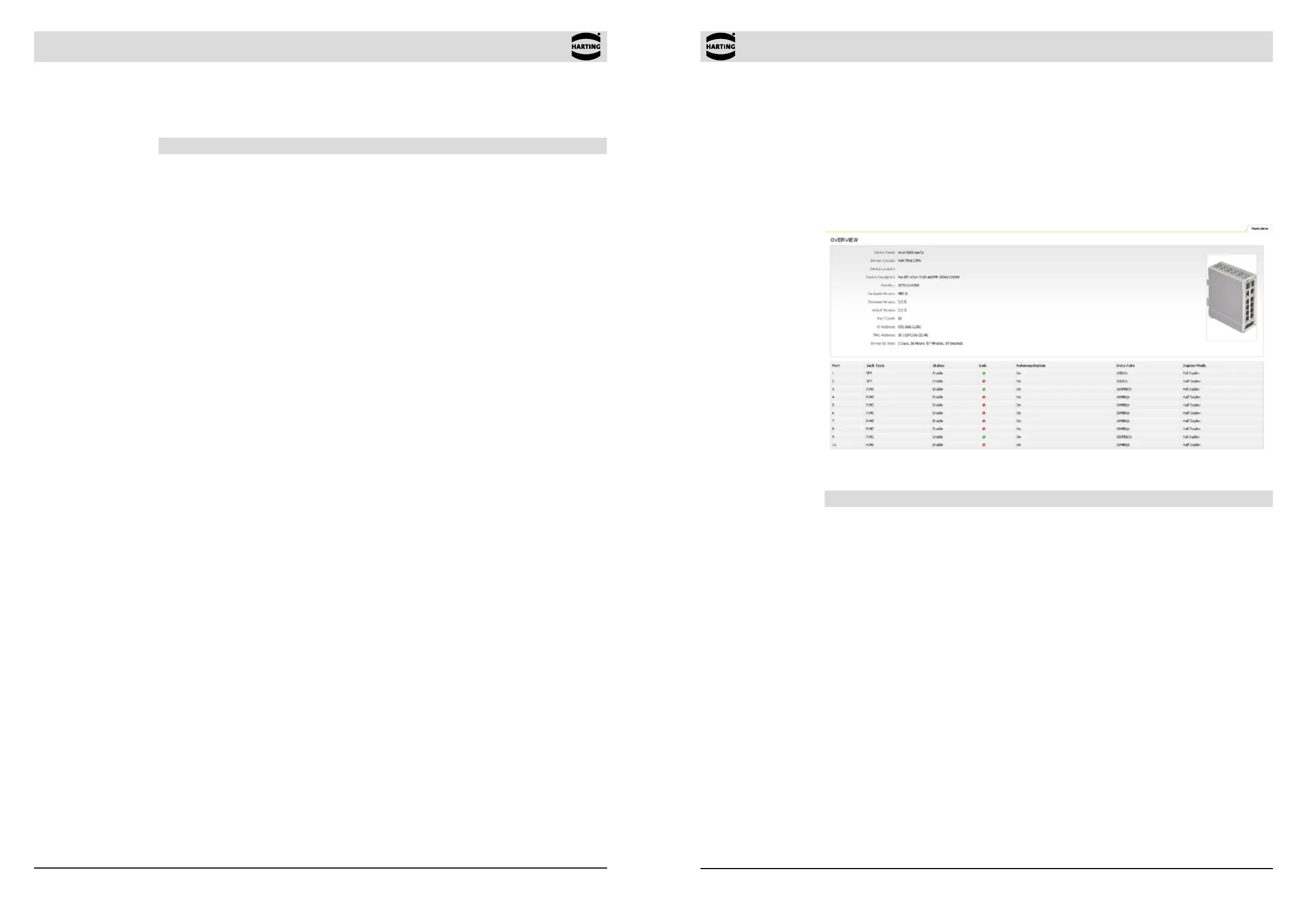
After you log in to the switch, the active window displays an overview of the switch and the main
settings for each of the ports. No changes can be made in this window. To access this section,
simply click on Overview in the two-level menu tree displayed at the left of the window.
The top right section of the Overview window contains an illustration of the particular Ethernet
switch you are connected to. In addition, general information is displayed at the top left of the
Overview window:
Figure 7-1 The Overview section
Function Description
Device Name Displays the type of HARTING Ethernet switch in use.
Default value:
Ha-VIS mCon 3080-A, Ha-VIS mCon 3102-AASFP
Device Contact Displays contact information, as dened by the user in the General
Settings section.
Device Location Displays the location of the device, as dened by the user in the
General Settings section.
Device Description MAC address of the switch
Part No. Displays the HARTING part number of the switch.
Hardware Version Displays the hardware version number of the switch management
board.
Firmware Version Displays the rmware version number of the switch.
WebUI Version Displays the version of the web interface.
Port Count Displays the number of ports.
IP-Address Displays the currently assigned IP address on the switch.
MAC-Address Displays the unique hardware MAC address on the switch.
Device Up Time Displays the duration that the switch has been powered up.
6.4 User rights
There are two pre-dened user modes for accessing the Ethernet switch web-based software:
Function Description
Guest The access category Guest enables all areas of the software to be
viewed only.
Admin The access category Admin enables all areas of the software to be
viewed and administered. No restrictions apply to making settings
or alterations. This is the normal administrative user account for
making switch settings.


 To Next Page