22
HARTING Electric GmbH
23
Management Software Ha-VIS mCon Series / Edition 2.4
System SettingsUser Manual Ha-VIS mCon Switch Management Software
8.3 User Management
This section allows you to create new users and to specify a new password for the admin or guest
account.
8.3.1 User Management
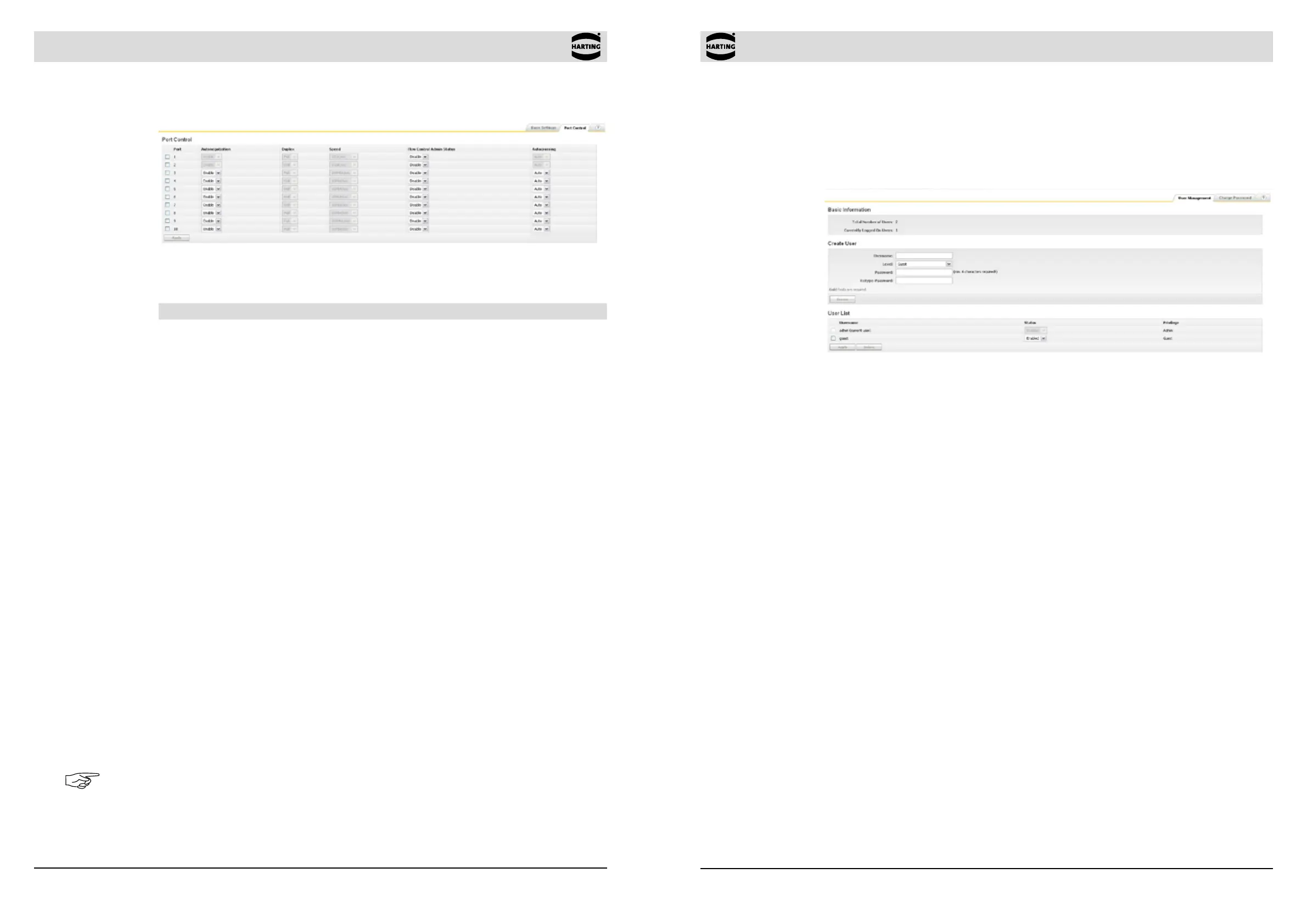
Figure 8-5 User Management tab
Create User To create a new user you must be logged in to the switch as an
administrator. It is possible to create new Guest and Admin accounts.
After the required information has been entered, the Apply button
must be pressed and nally the creation of the new account must
be veried with the password of the actual logged in user account.
User List All users existing on the switch are shown in this list. The maximum
of users is limited to 20. Selected users can be deleted from the
switch by pressing the delete button on the bottom. The default
admin account can only be deactivated, if another admin account
was created on the switch rst. You must be logged in via this new
admin account to deactivate the Default Admin account.
8.2.2 Port Control
Figure 8-4 Port Control tab
In this tabbed section, the characteristics of individual ports can be specied in the following columns:
Function Description
Select/Port Select the port that you would like to change by clicking on the
checkbox here.
Autonegotiation
Select whether Autonegotiation is disabled or enabled. Autonegotiation
is a function which enables the participating interfaces to automatically
determine the best possible transmission parameters. The auto-
negotiation function can either be activated (Enable) or deactivated
(Disable). If Enable is selected, the auto-negotiated settings will be used
and the data-rate and duplex columns will be greyed out.
Range of value: Enable / Disable
Default value: Enable
Duplex Select the data transmission mode for the respective port from the drop-
down list. Half means that data ows in only one direction via the port at
a given time; Full enables data to ow in both directions simultaneously.
Range of value: Half / Full
Default value: Full
Speed Select the data transmission rates for the port from the drop-down
list: 100 Mbit/s or 10 Mbit/s, 100 Mbit/s or 1 Gbit/s, depending on the
type of port interface.
Range of value: 10 Mbit/s or 100 Mbit/s / 100 Mbit/s or 1 Gbit/s
Default value: Physical maximum
Flow Control Admin
Status
Select if ow control is activated (Enable) or deactivated (Disable). If
enabled, the port sends out Pause frames when the buffer capacity
reaches a certain limit.
Range of value: Enable / Disable
Default value: Disable
Autocrossing The automatic crossover of the RX / TX lines can be switched from the
standard auto mode in the following modes: MDI (no crossing of lines),
MDIX (RX / TX lines are crossed) and AUTO (automatic crossover).
Range of value: MDI / MDIX / AUTO
Default value: AUTO
Note
For the usage of the Ha-VIS mCon 3102-AASFP the following restrictions apply: Depending on
the capabilities of the used SFP-modules the adjustable parameters may vary. For example, it is
not possible to deactivate Autonegotiation and Autocrossing for Gigabit SFP-Modules.


 To Next Page