9
Video Recording
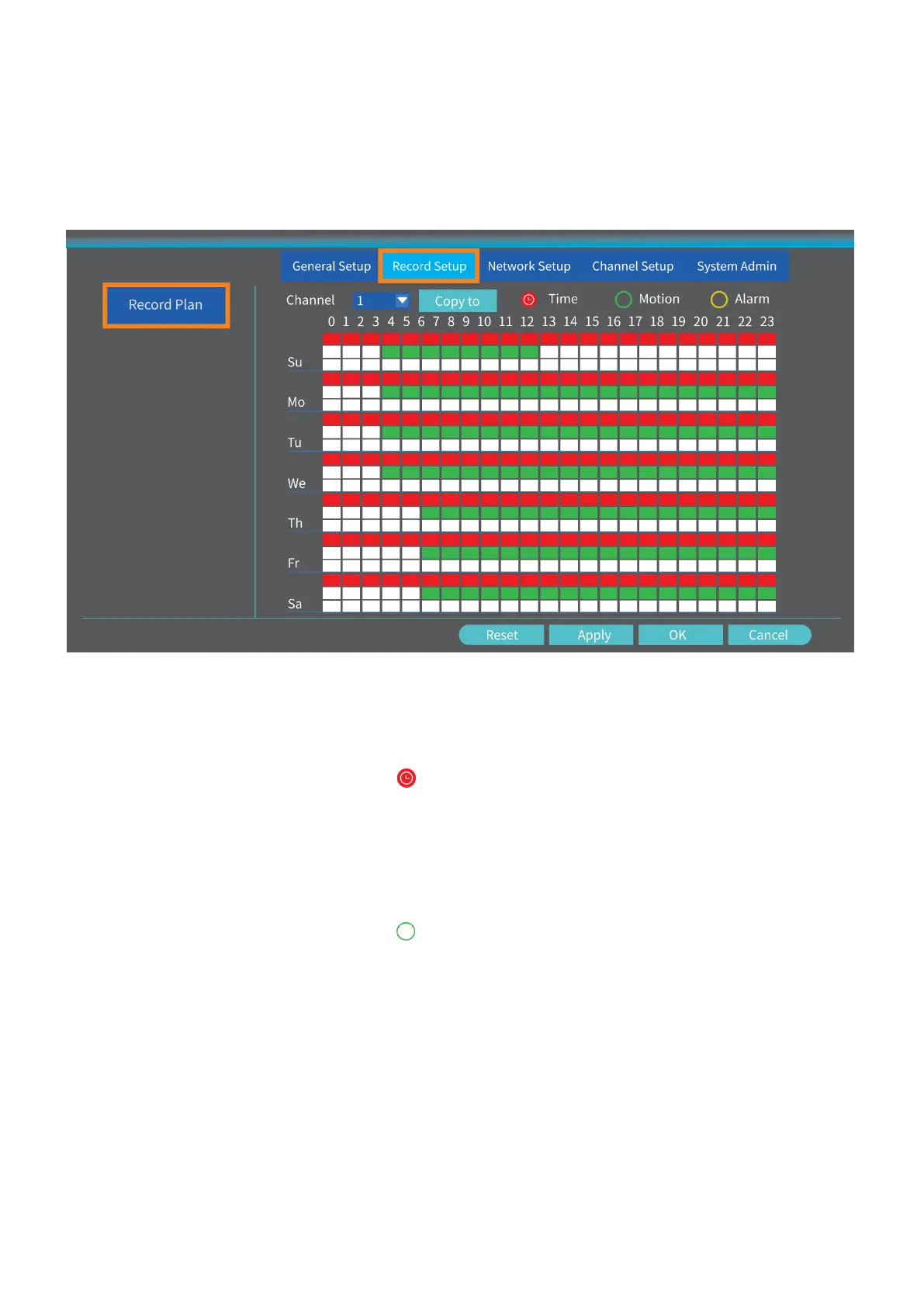
Right click the mouse on the main interface, then select System Setup > Record Setup >
Record Plan to set the record mode. The default record mode of the NVR is 24/7 all time
record.
Notice: Click Reset before you change the record mode.
Scheduled Record
After reset, select Channel and click Time to start scheduled record setup. Left click
the mouse and then select the day and hour you plan for recording. The area selected
will turn Red and click Apply to save the setting. The system will start recording at a
specific time on a daily/weekly schedule.
Motion Record
After reset, select Channel and click Motion to start motion record setup. Left click
the mouse and then select the day and hour you plan for recording. The area selected
will turn to Green and click Apply to save the setting. The system will start recording
when the camera detects any motion.
Tips:
• Changing the setting from 24/7 recording to motion recording helps to prolong your
HDD storage time.
• External device is required for Alarm record and this NVR does not support it.


 To Next Page