Quick Start Guide REX 30026
SF Solid light: Indicates a fault on the router
(check the log in the web interface under “Status” - “System”)
Con
VPN
Off: There is no active Internet or VPN connection
Solid light: Internet connection active, but VPN connection inactive
Rapid ashing (3 Hz): The router is attempting to establish an Internet or
VPN connection
Flashing (1.5 Hz): VPN connection active
RxD Solid light: MPI/PROFIBUS communications OK
Flashing together with Rdy: A conguration is being loaded from the USB
port
TxD Flashing: Data is being transferred on the MPI/PROFIBUS interface
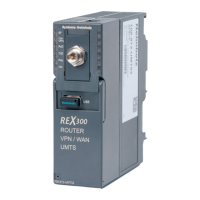
Rdy Readiness indicator (this LED must show a solid light after a max. of 110 s)
ON Indicator light for the power supply
12. LED description
11. Firmware update using a USB ash drive
Note: The rmware le must be stored in the root directory of your USB ash drive. In addition, no valid conguration le may be found in the root directory when carrying out this
action. A disruption of the supply voltage during the transfer can switch the router to an undened status.
- Load the rmware le onto a standard FAT-formatted USB ash drive.
- Switch the device on and wait until the boot process is completed (RDY & ON LEDs are lit continuously).
- Plug the USB ash drive into the corresponding USB port on your REX 300 unit.
- Wait until the RxD LED begins to ash.
- Press the Dial Out button and hold it down until the TxD LED ashes. The device has detected the rmware le.
- Release the Dial Out button.
- If a USB ash drive with valid rmware is found, the conguration will be transferred from the ash drive to the router. During transmission, the TxD LED ashes.
- The RDY LED and the ON LED will show a solid light as soon as the process is complete. A restart of the device is not required.


 To Next Page