87
• Two-way Audio: Ability to use two-way radio between the remote client and the DVR.
• Remote Alarm Control: Remote alert or control the relay output of the DVR. Alarm and
exception settings must be configured properly to upload to host.
• Remote Advanced Management: Remotely manage hard disk drives (initializing and setting
properties for HDDs). Ability to remote update system firmware and stop of the relay output
• Remote Shutdown/Reboot: Remotely shutdown or reboot the DVR.
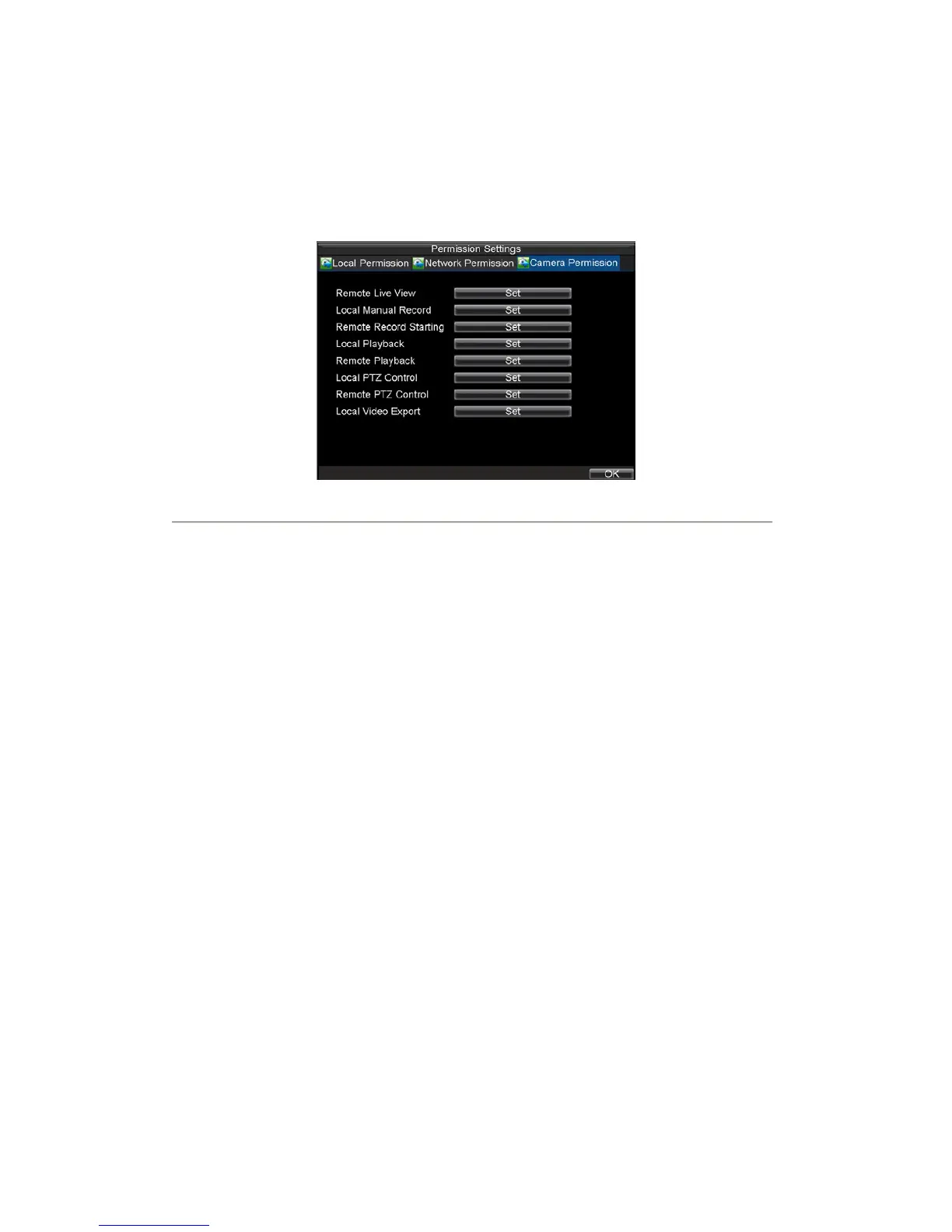
8. Click on the Camera Permission tab to configure camera permission, as shown in Figure 8. The
channel settings include:
Figure8. Camera Permission Settings Menu
• Remote Live View: Select and view live video over the network.
• Local Manual Record: Local start and stop manual recording on any of the channels.
• Remote Record Starting: Remote start and stop manual recording on any of the channels.
• Local Playback: Local play recorded files that are on the DVR.
• Remote Playback: Remote play and download recorded files that are on the DVR.
• Local PTZ Control: Local control PTZ cameras.
• Remote PTZ Control: Remote control PTZ cameras.
• Local Video Export: Locally backup recorded files from any of the channels.
9. Click the OK button to save and exit menu.
Note: If you forget the password to your DVR, contact your supplier with the serial number of your DVR to
obtain a secure code to reset your DVR.
Deleting a User
To delete a user from the DVR:
1. Click Menu > Settings > User to enter the User Settings menu.
2. Select user to delete.
3. Click the Delete button to delete user.
4. Click the OK button to exit menu.
Modifying a User
To modify a user:
1. Click Menu > Settings > User to enter the User Settings menu.
2. Select user to modify.
3. Click the Modify button to enter the Modify menu, shown in Figure 9.




 To Next Page