Access to CLI
16
2.2
CLI via SSH (Secure Shell)
RM CLI EAGLE 20
Release
4.3
09/08
To select a connection type, click on
SSH under Connection type.
After selecting and setting all the required parameters, you can set up the
connection via SSH.
Click “Open” to set up the connection to your device. Depending on the
device and the time at which SSH was configured, it can take up to a
minute to set up the connection.
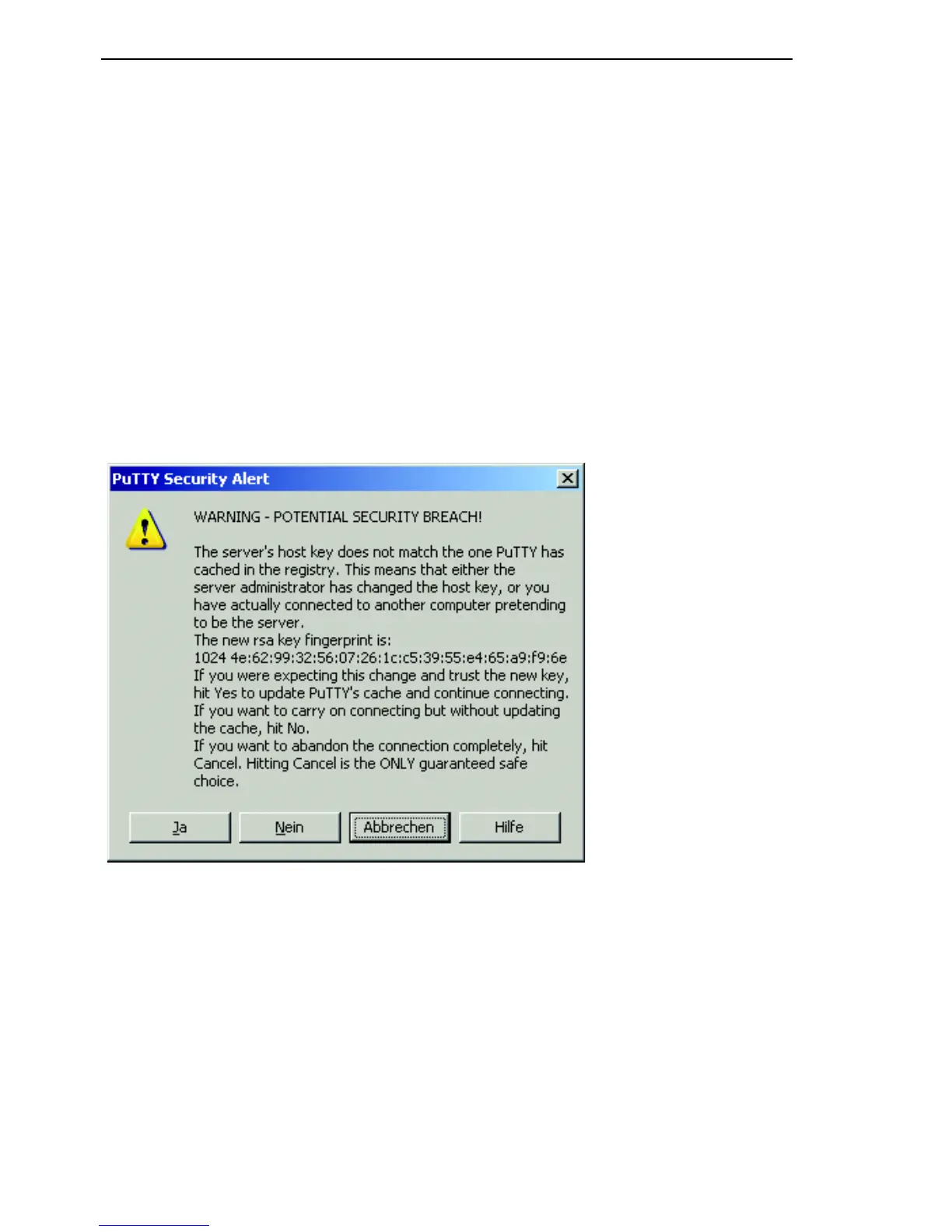
When you first login to your device, towards the end of the connection setup,
PuTTY displays a security alert message and gives you
the option of checking the fingerprint of the key.
Figure 2: Security alert prompt for the fingerprint
Check the fingerprint to protect yourself from unwelcome guests.
If the fingerprint matches that of the device key, click “Yes”.
You can read the fingerprints of the device key with the CLI command “show
login” or in the Web interface, in the “SSH access” dialog.



 To Next Page