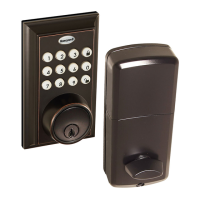
EasyManua.ls Logo

Honeywell 8832101S - User Manual

Honeywell 8832101S
26 pages
Print Icon
To Next Page IconTo Next Page
Loading...
User Guide
ENGLISH
Square Faceplate Digital Bluetooth Door Knob
Model 8832001S
8832101S
8832301S
8832401S
Package Includes:
1 - Exterior Faceplate
1 - Interior Faceplate
1 - User Guide
2 - Keys
1 - Strike Plate
1 - Mounting Plate
1 - Latch
1 - 1 3/8” Screws
2 - 5/16” Screws
2 - 1 “ Screws
5 - 3/4” Screws
Read this manual carefully before installing and operating!
Please carefully check the above list to confirm all items have been received. If any items are
missing, please contact Consumer Assistance. ( See page for contact information)
3/4” Screws1” Screws 5/16” Screws1 3/8” Screws
Exterior Faceplate Interior Faceplate User Guide Keys
Strike plate Latch
Mounting Plate

Questions and Answers

  • L
    Luis WilliamsAug 12, 2025
    How to reset forgotten password on Honeywell 8832101S?
    • J
      Jeffery CrawfordAug 12, 2025
      To reset a forgotten password, select the 'Forgot Password' option on the home screen. Then, select the account type that was registered and follow the prompts to create a new password.
  • M
    mary55Aug 16, 2025
    What to do if Honeywell Door locks latch is not locking in inclement weather?
    • E
      estuartAug 16, 2025
      If the latch isn't locking in bad weather, try pushing or pulling the door to direct the latch. You may also need to readjust the latch for smoother operation.
  • A
    aatkinsAug 20, 2025
    What to do if my Honeywell Door locks lock will not function electronically?
    • L
      Linda SmithAug 20, 2025
      If the lock won't function electronically, check that all batteries are fresh, high-quality alkaline batteries and that the polarity (+ -) of all batteries is correct. Also, check that the control wire is attached to the interior assembly.
  • T
    tina69Aug 25, 2025
    What to do if Honeywell 8832101S Door locks default Keypad Passcode is not working?
    • M
      Matthew WheelerAug 25, 2025
      If the default keypad passcode isn't working, it's likely been replaced by a new passcode generated by the app, assuming you've connected to the lock with the app. This new passcode should be changed.
  • S
    salasrandallAug 28, 2025
    What to do if my Honeywell 8832101S Door locks app is unable to connect to a lock?
    • C
      Christopher SilvaAug 28, 2025
      If the app can't connect, Bluetooth might be off, your device might not be compatible, or the lock might not be activated. Turn Bluetooth on and make sure the lock is activated by pressing a keypad button on the physical lock until you see the icon to add the lock. For compatibility issues, note that iPhone 5 and later models and most Android devices are compatible.
  • J
    Joshua EvansAug 31, 2025
    Why Honeywell 8832101S eKeys will not send after?
    • M
      Michelle OwensAug 31, 2025
      eKeys might not send because only registered app users can receive them. Make sure the recipient has a registered account and their information is entered correctly. Also, ensure you're connected to Wi-Fi and that your smart device is updated.
  • J
    jessica20Sep 4, 2025
    What to do if Honeywell Door locks gives error signal when opening or locking?
    • C
      Christopher WalkerSep 4, 2025
      If the lock gives an error signal and the latch won't fully extend or retract, unlock the door using the key or interior knob. While the door is open, check that the latch operates smoothly. Also, check the strike plate alignment and adjust it if needed to ensure there is no binding against the latch.
  • E
    Ellen RoseSep 7, 2025
    Why is the latch sticking on my Honeywell 8832101S?
    • M
      Martin NguyenSep 7, 2025
      If the latch is sticking, the installation screws of the lock may be too tight. Remove the interior assembly, slightly loosen the mounting plate screws, lock and unlock using the key, and then reattach the control wire and interior assembly.

Summary

Square Faceplate Digital Bluetooth Door Knob Guide

Package Includes Overview

Lists all items included in the product package for user verification.

Installation Instructions

Package Contents and Tools Required

Details the items included and tools needed for installation.

Prepare Door and Jamb for Installation

Step-by-step guide for preparing the door and jamb for lock fitting.

Adjusting and Installing the Latch

Instructions on adjusting the backset and installing the latch mechanism.

Installing the Exterior Assembly

Procedure for attaching the exterior part of the smart lock.

Installing the Interior Assembly

Steps for mounting the interior components of the smart lock.

Interior Assembly: Batteries and Testing

Installing Batteries and Testing Lock Operation

Guide to inserting batteries, power-up sequence, and initial lock testing.

Honeywell Lock Mobile Application Setup

Register App and Create Account

Instructions for downloading the app and setting up a user account.

Mobile App Lock Operations

Connect to Bluetooth Lock

Steps to connect the lock via Bluetooth.

Manage Lock Settings

Instructions for configuring lock settings through the mobile app.

Locking and Unlocking Methods

Using the app or keypad to lock and unlock the door.

System Settings Configuration

Configuring System Settings

Adjusting various system preferences like pattern password and notifications.

Account Management Options

Managing Profile and Account Details

Updating profile picture, nickname, email, and resetting passwords.

Passcode and eKey Management

Create and Send Passcodes

Procedures for generating and distributing passcodes.

Create and Send eKeys

Procedures for generating and distributing electronic keys.

Manage Users

Freeze User eKey Access

Managing user access rights by freezing eKeys.

Change User Authorization Level

Updating user authorization from AU to A or vice versa.

Rename and Edit User Time Frames

Renaming users and modifying their access time frames.

User eKey and Passcode Management

Manage User eKeys (Clear, Reset, Delete)

Managing user eKeys by clearing, resetting, or deleting them.

Manage Passcodes (Rename, Delete)

Procedures for renaming and deleting existing passcodes.

Passcode Reset Procedures

Resetting Passcodes

Steps to reset passcodes associated with user accounts.

Keypad Programming Overview

Programming Tips and Symbols

Guidance on programming, including tips and understanding programming symbols.

Physical Keypad Programming Functions

Auto Lock, Sound, and Factory Reset

Configuring auto-lock, sound alerts, and restoring factory default settings.

Advanced Keypad Programming

Customizing passcodes, managing auto-lock, and vacation modes.

Troubleshooting Common Issues

Lock Functionality and Latch Problems

Solutions for electronic function failures and latch sticking issues.

Keypad and App Connectivity Issues

Troubleshooting for keypad non-responsiveness and app connection errors.

Passcode and eKey Delivery Problems

Resolving issues with default passcodes, forgotten passwords, and eKey delivery.

Consumer Assistance Information

FCC Compliance Information

Product Warranty Details

Honeywell 8832101S Specifications

General IconGeneral
BrandHoneywell
Model8832101S
CategoryDoor locks
LanguageEnglish

Related product manuals