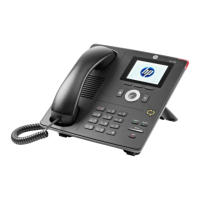
HP 4110 Quick Start Guide
10
ENGLISH
E
N
G
L
I
S
H
Create/Reset Your Sign-in PIN
To create or reset your sign-in PIN, do one of the following:
On your computer:
1. Open Microsoft® Outlook®, and click Online Meeting from the
Home page.
Note: In many Outlook clients, Online Meeting is listed in the
New Items dropdown.
2. From the meeting invitation, click Online Meeting.
3. Click Forgot your dial-in PIN?
4. From the PIN settings page, click Sign In, then create or reset
your PIN.
From a web browser:
1. In the address bar of your web browser, type the address of
the Dial-in Conferencing Settings page that was provided to
you by your support team (e.g.,
https://im.contoso.com/dialin).
2. Once the webservice has opened, reset your PIN.
If you have trouble with both options, please contact your support
team.
Configure Your PIN to Unlock Phone
The PIN auto-lock feature is enabled by default in Lync Server, so if
the administrator has not disabled it, you will be prompted to create
a PIN upon registering your phone. Once the auto-lock PIN has been
set, your phone will lock when left unattended for a specified period
of time (determined by your support team). You also have the option
to manually lock/unlock your phone.



 To Next Page