EasyManua.ls Logo

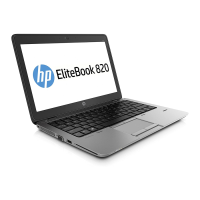
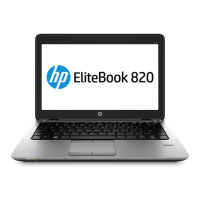
HP EliteBook 820 - User Manual

HP EliteBook 820
115 pages
Print Icon
To Next Page IconTo Next Page
Loading...
User Guide

Table of Contents

Questions and Answers

  • E
    Emily CrawfordAug 12, 2025
    What to do if HP EliteBook 820 is on but not responding?
    • R
      Robert SuarezAug 12, 2025
      If your HP Laptop is on but not responding, try pressing and holding the power button for at least 5 seconds. Alternatively, disconnect the computer from external power and remove the battery.
  • J
    Justin EnglishAug 16, 2025
    How to fix a blank screen on HP Laptop?
    • H
      Herbert CortezAug 16, 2025
      If your HP Laptop screen is blank, the computer may be in Sleep mode. To exit Sleep, briefly press the power button. Alternatively, the computer may not be set to display the image on the computer screen. To transfer the image to the computer screen, press fn+f4.
  • B
    Brittney FloresAug 19, 2025
    Why is my HP Laptop so hot?
    • S
      Stefanie ColemanAug 20, 2025
      If the computer feels unusually warm, it may be overheating because a vent is blocked. Allow the computer to cool to room temperature. Be sure to keep all vents free from obstructions while you are using the computer.
  • J
    Jacqueline HunterAug 23, 2025
    How to fix wireless network connection on HP EliteBook 820 Laptop?
    • V
      vwagnerAug 23, 2025
      To resolve a wireless network connection issue on your HP Laptop: * To enable or disable a wireless or wired network device, right-click the Network Connection icon on the Windows desktop and select the check box from the menu option. * Be sure that the wireless device is turned on. * Be sure that the computer wireless antennas are free from obstructions. * Be sure that the cable or DSL modem and its power cord are properly connected and that the lights are on. * Be sure that the wireless router or access point is properly connected to its power adapter and to the cable or DSL modem, and that the lights are on. * Disconnect and then reconnect all cables, and turn the power off and then back on.
  • S
    Sonya WellsAug 27, 2025
    How to fix an external device that is not working on HP EliteBook 820 Laptop?
    • D
      droseAug 27, 2025
      To resolve issues with an external device not working with your HP Laptop: * Turn on the device according to the manufacturer's instructions. * Ensure all device connections are secure. * Verify the device is receiving electrical power. * Confirm the device is compatible with the operating system, especially if it is an older device. * Ensure the correct drivers are installed and updated.
  • A
    andersonmarkAug 31, 2025
    What to do if a disc does not play on HP EliteBook 820?
    • E
      eric78Aug 31, 2025
      To troubleshoot a disc that does not play on your HP Laptop: * Save your work and close all open programs before playing a CD or a DVD. * Log off the Internet before playing a CD or a DVD. * Be sure that you insert the disc properly. * Be sure that the disc is clean. * Check the disc for scratches. * Disable Sleep mode before playing the disc.
  • M
    Melissa PerrySep 4, 2025
    What to do if a movie is not visible on an external display on HP Laptop?
    • L
      Lisa BarnettSep 4, 2025
      To address a movie not being visible on an external display connected to your HP Laptop, if both the computer display and an external display are turned on, press fn+f4 one or more times to switch between the 2 displays. You can also configure the monitor settings to make the external display primary.
  • J
    Jason BrooksSep 7, 2025
    What to do if the process of burning a disc does not begin, or it stops before completion on HP Laptop?
    • A
      Ashley TaylorSep 7, 2025
      To troubleshoot the process of burning a disc on your HP Laptop, if it does not begin or stops before completion: * Be sure that all other programs are closed. * Turn off Sleep mode. * Be sure that you are using the right kind of disc for your drive. * Be sure that the disc is inserted properly. * Select a slower write speed and try again. * If you are copying a disc, save the information on the source disc to your hard drive before trying to burn the contents to a new disc, and then burn from your hard drive.

Summary

Getting to Know Your Computer

Keyboard and Navigation

Explains keyboard keys, hot keys, numeric keypad, touchpad, and pointing stick functions.

Connecting to a Network

Wireless Network Connectivity

How to connect to Wi-Fi, WWAN, and Bluetooth networks, including controls and HP Connection Manager.

Navigating Your Computer

Pointing Device Navigation

How to use the pointing stick, touchpad, and various gestures for computer navigation.

Keyboard Usage and Shortcuts

Explains keyboard keys, hot keys, and numeric keypad functions for efficient operation.

Multimedia Features

Power Management

System Power States and Battery Management

Procedures for shutting down, Sleep, Hibernation, and managing battery life and care.

Drives

Security

Password and Access Security

Managing user, administrator, BIOS, and DriveLock passwords for system protection.

Backup and Recovery

Recovery Media and Backups

Methods for creating system recovery media and performing data backups.

System Recovery Procedures

Using Windows recovery tools, f11 recovery, and OS media to restore the system.

Computer Setup, MultiBoot, and Diagnostics

Troubleshooting

Troubleshooting Resources and Common Issues

Accessing help, diagnosing startup, display, software, and hardware problems.

HP EliteBook 820 Specifications

General IconGeneral
ProcessorIntel Core i5 or i7
Display12.5-inch HD or FHD
RAMUp to 16GB
StorageUp to 512GB SSD
Operating SystemWindows 10
WeightApprox. 1.3 kg
Battery3-cell Li-ion
GraphicsIntel HD Graphics
PortsUSB 3.0, VGA, Ethernet, headphone/microphone combo jack
WirelessBluetooth

Videos

How to replace LCD for HP Elitebook 820 G3

Related product manuals