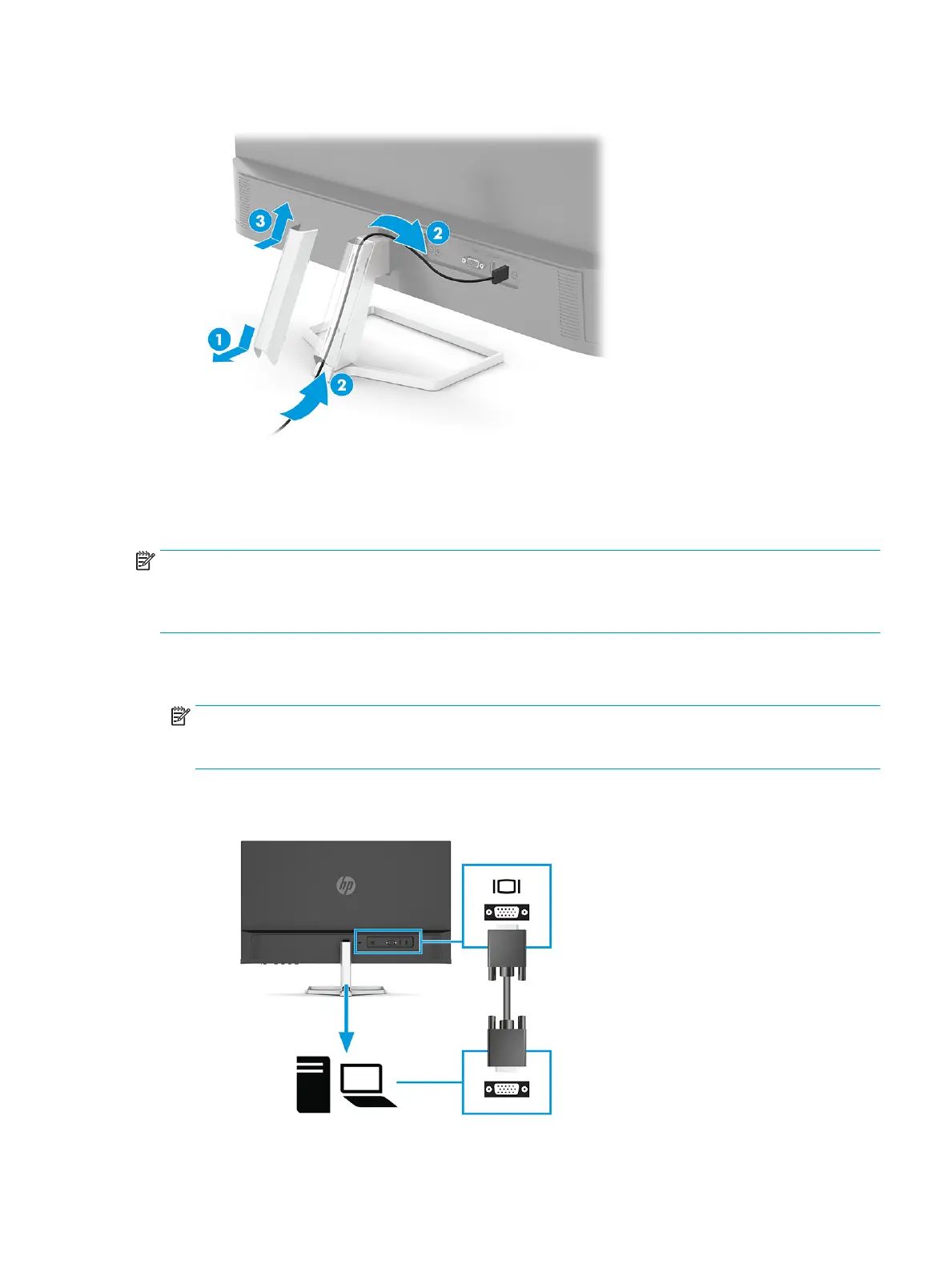
3. Replace the cover on the stand (3).
Connecting the cables
In addition to details about how to connect a cable, this section contains information about how your monitor
functions when you connect certain cables.
NOTE: Depending on the model, the monitor might be capable of supporting VGA, USB Type-C, HDMI, or
DisplayPort inputs. The video mode is determined by the video cable used. The monitor automatically
determines which inputs have valid video signals. You can select the inputs through the OSD menu. The
monitor ships with select cables. Not all cables shown in this section are included with the monitor.
1. Place the monitor in a convenient, well-ventilated location near the computer.
2. Connect a video cable.
NOTE: Except for USB Type-C input, the monitor automatically determines which inputs have valid
video signals. You must manually select USB Type-C input. To select any input, including USB Type-C,
open the OSD menu and select Input.
● Connect one end of a VGA cable to the VGA port on the rear of the monitor and the other end to the
VGA port on the source device.
Setting up the monitor 9


 To Next Page