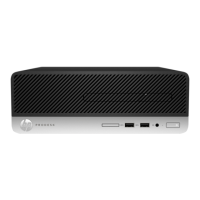
Front Bezel
The front bezel is located on the front of the computer and is secured to the main system bracket with
five Torx screws and nine tabs.
You can remove the front bezel without disassembling many of the computer's components. Most
components can remain attached to the base pan. The following procedure demonstrates removing
the bezel while removing the smallest number of components possible.
To remove the front bezel:
1. Prepare the computer for disassembly (see
Preparing to Disassemble the Computer
on page 26).
2. Remove the center access panel (see
Hinge Cover Panel on page 27).
3. Remove the memory access panel (see
Memory Access Panel on page 29).
4. Remove the drive access panel (see
Drive Access Panel on page 31).
5. Remove the top panel (see
Top Panel on page 51).
6. Remove the rear cover (see
Rear Cover on page 55).
7. Remove the speakers (see
Speakers on page 66).
8. Remove the power switch assembly cable from the front bezel. You do not have to remove the
remaining cables.
9. Remove the five black Torx screws that secure the bezel to the main system bracket assembly.
10. Lift the nine tabs (see arrows in image) that secure the bezel to the main system bracket
assembly. Be sure to slide the bracket free from the tabs as you lift each one.
Front Bezel 77


 To Next Page