
EasyManua.ls Logo

HP StorageWorks D2700 - User Manual

HP StorageWorks D2700
80 pages
Print Icon
To Next Page IconTo Next Page
Loading...
HP StorageWorks
D2600/D2700 Disk Enclosure User Guide
Smart Array P212/P411 Controller Environments
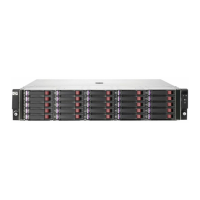
This guide describes the D2600/D2700 6Gb SAS disk enclosure. Installation, cabling, and configuration
procedures are also included.
Part number: 504227–001
First edition: September 2009

Table of Contents

Questions and Answers

  • D
    Danielle MunozJul 26, 2025
    Why is the power supply LED amber on my HP Storage?
    • M
      michael50Jul 27, 2025
      If the power supply LED is amber on your HP Storage device, it might indicate that the power supply isn't properly inserted, has a damaged connector, or has failed. Ensure the power supply is undamaged and fully seated. Also, check that all pins on connectors and components are straight.
  • C
    Carmen JohnsonJul 31, 2025
    What to do if the enclosure front fault LED is amber on HP StorageWorks D2700?
    • N
      nancychapmanJul 31, 2025
      If the front fault LED is amber on your HP Storage enclosure, it might be due to the Front Status and UID module not being inserted properly, having a damaged connector, or having failed. Ensure the Front Status and UID module is undamaged and fully seated. You may also check rear fault LEDs to isolate the failed component.
  • D
    Dr. Nicholas Mcintosh Jr.Aug 4, 2025
    Why is the power on/standby button LED amber on my HP StorageWorks D2700 Storage?
    • J
      Joseph LivingstonAug 4, 2025
      If the power on/standby button LED is amber on your HP Storage, it might mean the button wasn't pressed firmly or held long enough. Firmly press and hold the power on/standby button for about three seconds. Also, ensure all components are fully seated.
  • A
    Angela ShafferAug 8, 2025
    How to fix HP StorageWorks D2700 Storage enclosure that does not initialize?
    • J
      Jennifer HaleyAug 9, 2025
      If the enclosure does not initialize, make sure that the power on/standby button was pressed firmly and held for approximately three seconds. Also, verify that the power on/standby button LED is green. Check the power supply LEDs to verify that the power supplies are working. If needed, remove and reinstall the power supplies to be sure they are seated properly. Remove and inspect AC power cords from both power supplies and reconnect them.
  • S
    Sabrina GreeneAug 12, 2025
    What does it mean when the enclosure rear fault LED is amber on HP Storage?
    • B
      billytaylorAug 12, 2025
      If the enclosure rear fault LED is amber on your HP Storage device, it could be that the rear power and UID module isn't properly inserted, has a damaged connector, or has failed. Ensure the rear power and UID module is undamaged and fully seated.
  • I
    ihaasAug 17, 2025
    What to do if I/O module fault LED is amber on HP StorageWorks D2700?
    • J
      John KirkAug 17, 2025
      If the I/O module fault LED is amber on your HP Storage, it could be because the I/O module is locked. Ensure the I/O module is seated properly by pressing it firmly into its bay after the handle has clicked in place.
  • G
    Gregory NicholsAug 21, 2025
    What does it mean if the fan fault LED is amber on HP StorageWorks D2700?
    • H
      Heather BrownAug 21, 2025
      If the fan fault LED is amber on your HP Storage, it might indicate that the fan isn't properly inserted, has a damaged connector, or has failed. Ensure the fan is undamaged and fully seated.

Summary

1 Hardware

Disk Drives, LEDs, and Blanks

Covers supported drives, hot-pluggability, drive LED indicators, and drive blanks.

Front Status and UID Module

Explains the front status LEDs and the Unit Identification (UID) button.

Power Supply Module Details

Describes the power supply module and its status LED.

Fan Module Details

Describes the fan module and its status LED.

I;O Module Overview

Describes the I/O module, its ports, and the 7-segment display.

I;O Module LED Status

Details the status indicators for the I/O module ports and health.

Rear Power and UID Module

Describes the rear module, its LEDs, and the power button.

2 Technical Specifications

3 Installation

Preliminary Installation Tasks

Covers planning, support confirmation, and information gathering before installation.

Site Preparation and Requirements

Details structural support, clearance, ventilation, and power source requirements.

Powering On the Disk Enclosure

Provides procedures and best practices for initial power-up.

Verifying Device Operating Status

Explains how to check the enclosure's status using its LEDs.

4 Configuration

5 Operation and Management

Powering On Disk Enclosures

Provides the procedure and best practices for powering up enclosures.

Powering Off Disk Enclosures

Details the steps to safely power down the disk enclosures.

7 Troubleshooting

Enclosure Initialization Issues

Steps to take if the disk enclosure does not initialize upon power restoration.

Front Fault LED Troubleshooting

Diagnosing issues indicated by an amber front fault LED.

Rear, Power Button, and Power Supply LED Troubleshooting

Diagnosing amber LEDs for rear fault, power button, and power supply status.

I;O and Fan Module LED Troubleshooting

Diagnosing amber fault LEDs for I/O modules and fan modules.

Disk Drive Failure Recognition

How to identify a failed disk drive and understand the effects of failure.

Automatic Data Recovery (Rebuild)

Explains the automatic data recovery (rebuild) process and its influencing factors.

Handling Disk Drive Failures

Provides steps to take after a disk drive failure occurs.

8 Replacement Procedures

Identifying and Replacing Failed Components

Covers finding spare parts and the process for replacing failed components.

HP StorageWorks D2700 Specifications

General IconGeneral
Form Factor2U
Host Interface6 Gb/s SAS
Redundant Power SuppliesYes
Drive TypeSAS/SATA
RAID SupportDepends on the connected controller
CompatibilityHP ProLiant servers
CoolingRedundant fans
Enclosure TypeRack-mounted

Related product manuals



