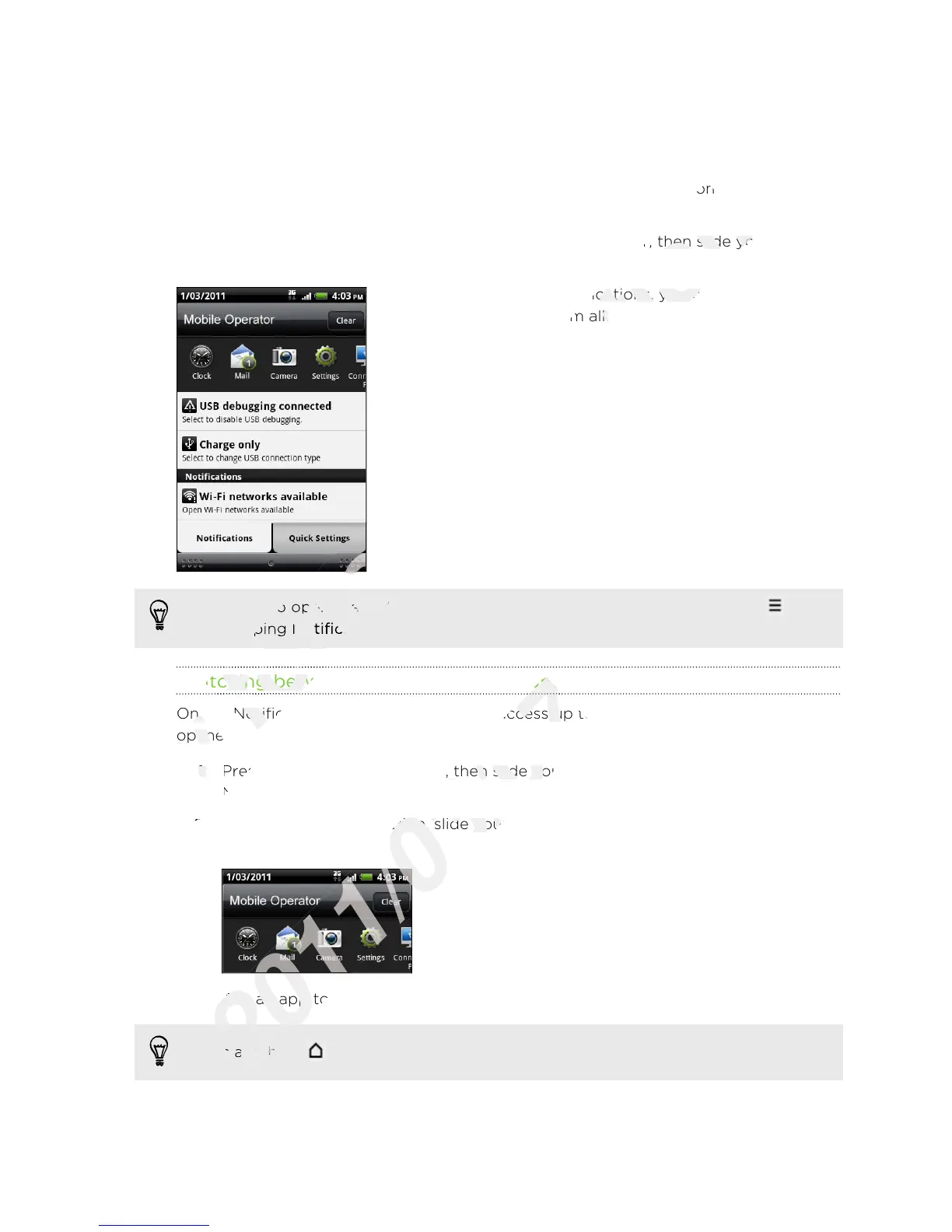
Notifications panel
When you get a new notification, you can open the Notifications panel to see the
message, reminder or event notification. The Notifications panel lets you quickly
switch between recently-opened apps, and also lets you easily turn on settings such
as Wi-Fi and Bluetooth.
To open the Notifications panel, press and hold the status bar, then slide your finger
downward.
If you have several notifications, you can scroll down
the screen to see them all.
You can also open the Notifications panel on the Home screen by pressing and
then tapping Notifications.
Switching between recently opened apps
On the Notifications panel, you can easily access up to eight apps you just recently
opened.
1. Press and hold the status bar, then slide your finger downward to open the
Notifications panel.
2. In the Recent apps section, slide your finger left or right to see recently-opened
apps.
3. Tap an app to open it.
Press and hold to view recently used apps.
24 Basics
On the Notifications panel, you can easily access up to eight apps you just recently
Only
On the Notifications panel, you can easily access up to eight apps you just recently
Press and hold the status bar, then slide your finger downward to open the
Only
Press and hold the status bar, then slide your finger downward to open the
Notifications panel.
Only
Notifications panel.
You can also open the Notifications panel on the Home screen by pressing
for
You can also open the Notifications panel on the Home screen by pressing
then tapping
for
then tapping
Notifications
for
Notifications
Switching between recently opened apps
for
Switching between recently opened apps
On the Notifications panel, you can easily access up to eight apps you just recently
for
On the Notifications panel, you can easily access up to eight apps you just recently
switch between recently-opened apps, and also lets you easily turn on settings such
certification
switch between recently-opened apps, and also lets you easily turn on settings such
To open the Notifications panel, press and hold the status bar, then slide your finger
certification
To open the Notifications panel, press and hold the status bar, then slide your finger
If you have several notifications, you can scroll down
certification
If you have several notifications, you can scroll down
the screen to see them all.
certification
the screen to see them all.
You can also open the Notifications panel on the Home screen by pressing
certification
You can also open the Notifications panel on the Home screen by pressing
Switching between recently opened apps
2011/03/07
Switching between recently opened apps
On the Notifications panel, you can easily access up to eight apps you just recently
2011/03/07
On the Notifications panel, you can easily access up to eight apps you just recently
Press and hold the status bar, then slide your finger downward to open the
2011/03/07
Press and hold the status bar, then slide your finger downward to open the
In the Recent apps section, slide your finger left or right to see recently-opened
2011/03/07
In the Recent apps section, slide your finger left or right to see recently-opened
Tap an app to open it.
2011/03/07
Tap an app to open it.
Press and hold
2011/03/07
Press and hold


 To Next Page