H
C
R
A
E
S
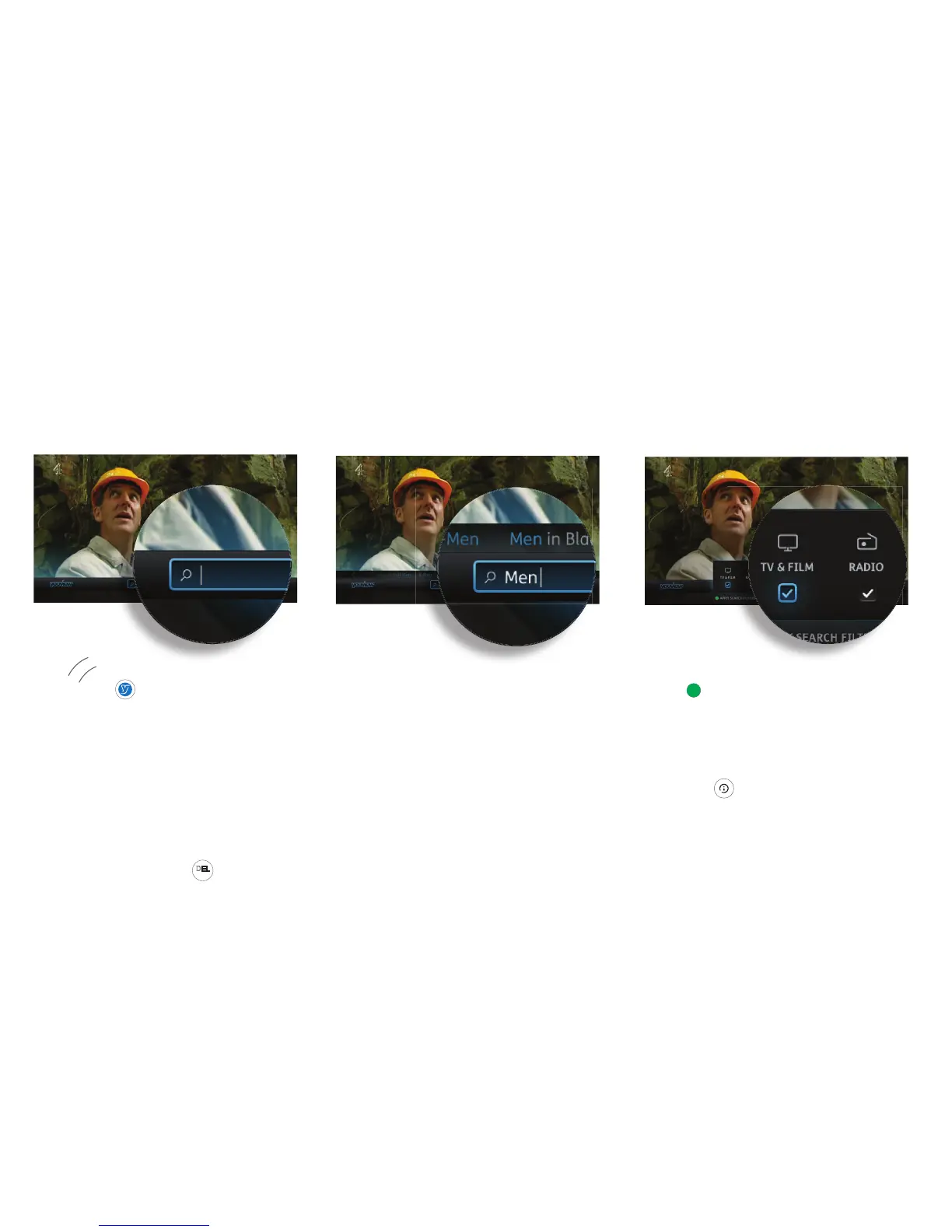
on the remote control. Otherwise,
you can press to display the main menu,
then use the left arrow button to select Search
and press OK.
The number keys on your remote allow you to
enter a search term (e.g. programme title) using
multi-tap functionality. For example, tap the ‘2’
key once for ‘a’, twice for ‘b’, three times for ‘c’
and four times for ‘2’.
If you make a mistake whilst searching using
your remote, you can press
DEL
sub
.
Auto suggestions
As you type, YouView will suggest programmes
or fi lms it thinks you’re looking for – use the up
arrow button to select the one you want and
press OK.
If you haven’t seen the programme you want,
just keep entering your search term, then press
OK to run your search.
Filtering
To fi lter your search results, press the green
button then use the arrow buttons to select
a programme type: TV and Film, Radio or Music
Videos.
Once you’ve fi ltered your results, use the arrow
keys to navigate to the item you want. Press OK
to watch or to get more information. Press
the blue button to clear your search and start
again.
9


 To Next Page