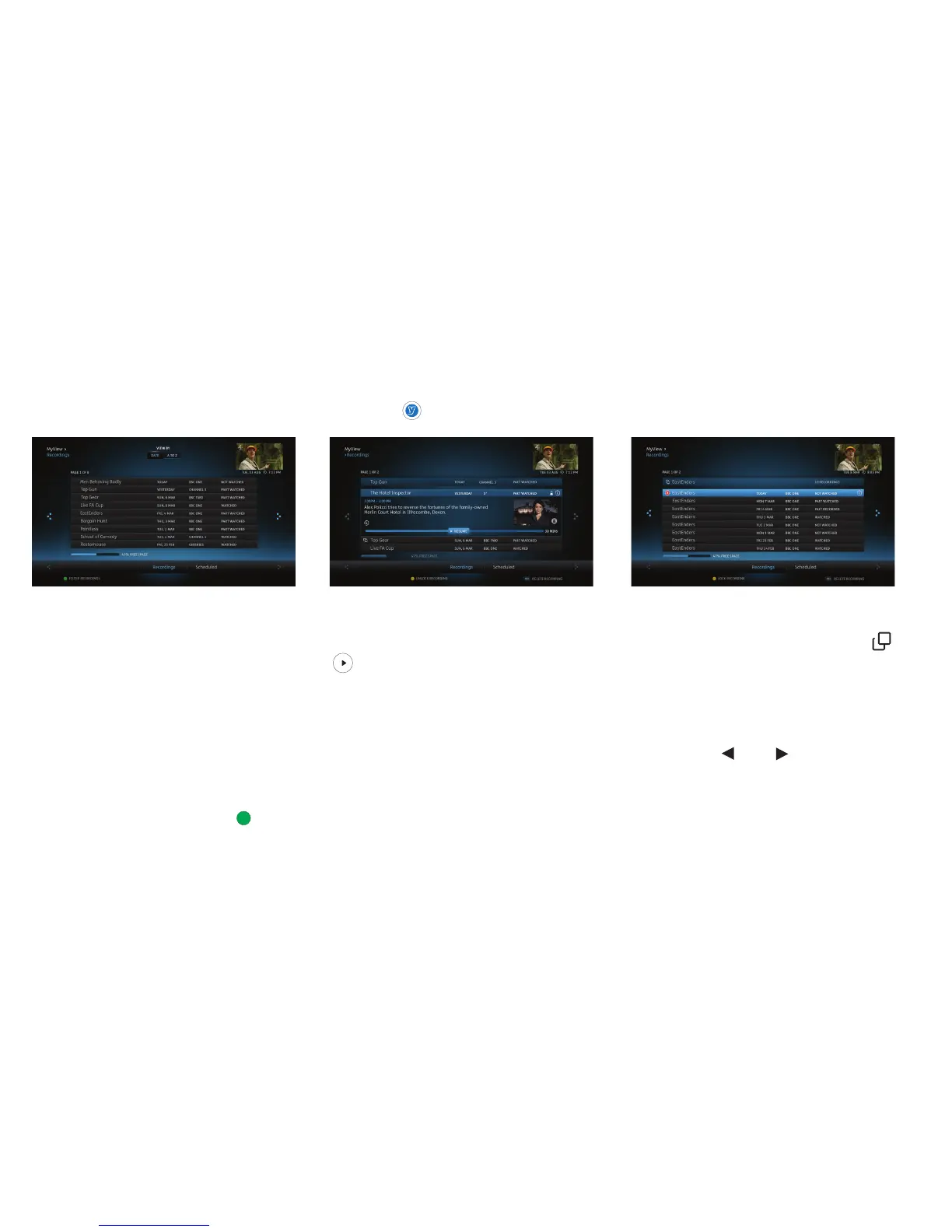
Viewing your recordings
The Recordings area of MyView lists all your
watched and unwatched recorded programmes.
If you have a lot of recordings, they will be split
across two or more screens. To scroll between
them, just use the left and right arrow buttons on
your remote control.
MyView also gives you other ways to fi nd a specifi c
recording. For example, at the top of the screen,
you can choose to view by date or alphabetically.
Or, you can press the green button on your
remote control to fi lter programmes by watched
or unwatched.
Playing your recordings
Highlight the recording you want to watch. Press
on the remote control.
Depending on your parental control settings, you
may be asked to enter a PIN before playback of
the recording will begin (see the Parental Controls
section for more details).
Series Recording
If you have recorded a series you will see next
to the programme title. Selecting the programme
will reveal all recorded episodes of the show.
Select the episode using the arrow keys and then
press OK.
You can press OK to play the recording from the
start or use the and to select your
preferred start time on the play bar. Press OK
when you are ready to watch your recording.
MyView
Managing your programmes is really easy. Just press at any time and select MyView to access all your recordings.
13


 To Next Page