EasyManua.ls Logo

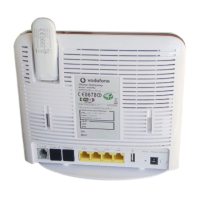
Huawei EchoLife HG556a - User Manual

Huawei EchoLife HG556a
37 pages
Print Icon
To Next Page IconTo Next Page
Loading...
User Manual
1
HG556a
INSTALLATION GUIDE
AND
USER MANUAL

Other manuals for Huawei EchoLife HG556a

Questions and Answers

  • R
    Rachel SampsonAug 2, 2025
    Why can't I access the internet with my Huawei Wireless Router?
    • M
      Michael BoyerAug 3, 2025
      If your Huawei Wireless Router can't access the internet, there might be several reasons: * The TCP/IP protocol might not be installed. To solve this, install the Ethernet cable or USB data card. * A proxy server may be set up in your browser. Disable the proxy server in your Internet Explorer options. * The SSID or encryption mode (WPA/WEP/non-encryption) may be incorrect. Check whether the SSID or encryption mode of the HG556a is correct. * The Wi-Fi device may be out of range. Move the Wi-Fi device within the radio coverage of the HG556a. * The Wi-Fi device might not be authorized. Use the 802.11b or 802.11g authorized device and check whether the installation and configuration are correct.
  • A
    Amanda HarrisAug 8, 2025
    How to fix Huawei Wireless Router when the power indicator is off?
    • R
      Robert SmithAug 8, 2025
      If the power indicator on your Huawei Wireless Router is off, it means the device isn't receiving power. Connect the HG556a to a power supply to resolve this issue.
  • O
    ocraigAug 15, 2025
    How to turn on Wi-Fi on Huawei Wireless Router?
    • S
      Sean MccoyAug 15, 2025
      If the Wi-Fi indicator on your Huawei Wireless Router is off, it's possible that the Wi-Fi radio channel is turned off. To resolve this, check if the Wi-Fi button on the side panel of the HG556a is pressed.
  • A
    Anna WillisAug 21, 2025
    What to do if the LAN indicator is off on Huawei EchoLife HG556a Wireless Router?
    • C
      Christina BrockAug 21, 2025
      If the LAN indicator on your Huawei Wireless Router is off, it could be due to a disconnected Ethernet cable. Ensure that the Ethernet cable is properly connected to both the Ethernet interface on the HG556a and your PC.
  • H
    Hannah McculloughAug 27, 2025
    What to do if the HSPA indicator is off on Huawei EchoLife HG556a?
    • R
      Robert BurtonAug 27, 2025
      If the HSPA indicator is off on your Huawei Wireless Router, the HSPA module may not be correctly connected. Try reconnecting the HSPA module.

Summary

Rear and Side Panels

Reset and Restart Buttons

Explains the reset and restart buttons for device management.

Indicator Descriptions

Power Indicator

Details power indicator status, color, and meanings.

Installation Guide

2.1 Connecting the Telephone

Step-by-step instructions for connecting the telephone to the HG556a using a splitter and DSL cable.

Supplying Power

2.2 Supplying Power to the HG556 a

Instructions on connecting the power adapter to the device and a wall outlet.

Connecting PC via Ethernet

2.3 Connecting the PC to the HG556 a

Instructions for connecting a PC to the HG556a using an Ethernet cable.

Connecting PC via Wi-Fi

2.4 Connecting the PC via Wi-Fi

Steps to enable WPS and connect a PC to the HG556a wirelessly.

Inserting Internet Key

2.5 Inserting the Vodafone Internet Key

Detailed instructions on how to insert a SIM card into the Vodafone Internet Key and then into the HG556a.

PC Configuration Requirements

3.3 Requirements of PC Configuration

Specifies the necessary PC hardware and software requirements for managing the HG556a.

Device Management - Home Page

3.4.1 Home Page Access

Instructions on how to log in to the HG556a's web interface and navigate the home page.

Device Management - WiFi

3.4.4 WiFi Parameters

Instructions on enabling/disabling Wi-Fi, setting SSID, and security parameters.

Advanced Functions - USB Printer

3.5.2 USB Printer Function Setup

Step-by-step guide to enable the USB printer function on the HG556a.

Advanced Functions - Shared Printer Config

3.5.2 Shared Printer Configuration

Instructions on configuring the web page to enable the shared printer function.

Advanced Functions - Add Network Printer

3.5.2 Adding Network Printer

Steps to add a network printer on the PC using the HG556a shared printer.

Wireless Network Function

3.5.3 Wireless Function

Explains how to use the HG556a for wireless networking and internet access.

Troubleshooting

3.6 Troubleshooting

Provides solutions to common problems encountered with the HG556a.

Huawei EchoLife HG556a Specifications

General IconGeneral
Device TypeWireless Router
ManufacturerHuawei
ModelEchoLife HG556a
Wireless Standard802.11b/g/n
Frequency Band2.4 GHz
WLAN data rateUp to 300 Mbps
WAN Ports1
LAN Ports4
USB Ports1
SecurityWEP, WPA, WPA2
Antenna TypeExternal
Power Supply12V DC, 1A

Related product manuals