EasyManua.ls Logo

Huion Keydial mini - User Manual

Huion Keydial mini
29 pages
Print Icon
To Next Page IconTo Next Page
Loading...
Keydial mini
Contents
Product Overview
...................................................... 2
Introduction
......................................................... 2
Accessories
......................................................... 2
Connection
.......................................................... 4
Driver Installation
..................................................... 7
Windows
........................................................... 7
mac
............................................................. 10
Driver
............................................................. 13
Driver Interface Overview
............................................... 13
Keydial Setting
...................................................... 15
Keys Function Setting
.................................................. 16
Dial Setting
........................................................ 21
Driver Setting
....................................................... 25
1 / 29

Questions and Answers

Summary

Product Overview

Introduction to Keydial Mini

Welcome message and initial explanation of the Keydial mini's purpose and operation.

Accessories and Indicator Light

Indicator Light Status

Explains the meaning of different indicator light colors and states for device status.

Wired Connection Setup

Bluetooth Connection Setup

Driver Installation

Windows Driver Installation

Guide for installing the driver software on Windows operating systems.

Mac Driver Installation

Guide for installing the driver software on macOS operating systems.

Driver Interface Overview

Keydial Configuration

Brightness of LED

Adjusts the brightness level of the LED indicator light on the device.

Dial Setting Options

Configures the functionality and behavior of the Keydial's dial.

Dial Sensitivity Adjustment

Sets the sensitivity level for the Keydial's dial rotation.

Sleep Time Configuration

Defines the duration of inactivity before the device enters sleep mode.

Keys Function Setting

Allows customization of functions and names for the device's physical keys.

Dial Function Modes

Dial Default and Custom Functions

Explains default dial functions like Zoom and how to customize them.

Radial Dial Function Setup

Instructions for setting up and using the Radial function for the dial.

Driver Settings Management

Device Information and Diagnosis

View firmware version and run the device diagnostic tool.

Backup and Restore Settings

Import and export custom settings to avoid repeated configurations.

General Driver Settings

Configure driver language, interface color, start menu options, and hotkeys.

About the Driver

Check driver version, update the driver, and access license and privacy information.

Overview

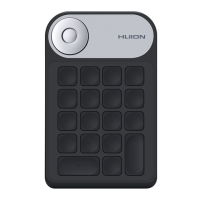
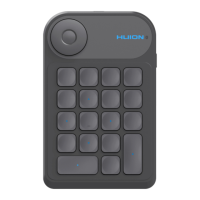
The Huion Keydial mini is a one-handed keyboard designed for use with pen tablets, pen displays, and other drawing products. It supports Bluetooth connectivity, offering flexible operation for creative professionals. This compact device allows users to customize various functions, enhancing workflow efficiency and providing a personalized experience.

Function Description

The Keydial mini serves as a programmable input device, featuring a dial and multiple press keys. Its primary function is to provide quick access to shortcuts and tools within creative software, reducing the need to constantly switch between the keyboard and the drawing surface.

The device includes a Dial that can be configured for various functions. In "Custom Function" mode, the dial's sensitivity can be adjusted from level 1 (slowest) to level 5 (fastest). The dial can be set to perform actions such as "Zoom in/out," "Adjust Brush Size," and "Scroll Up/Down." Users can also customize the dial to execute specific key combinations when rotated clockwise or counterclockwise. Alternatively, the dial can be set to "RaDial" mode, integrating with Windows' Radial menu for tool switching and confirmation. A "None" option is also available, rendering the dial inactive.

The Press Keys on the Keydial mini are fully customizable. Each key can be assigned a specific function, allowing users to create personalized shortcuts. The available functions include:

  • Keyboard Key: Assign a valid key combination to create a shortcut.
  • Mouse Key: Configure keys for left/right/middle click, double-click, and wheel functions, potentially combined with modifier keys.
  • Run Program: Launch a selected program quickly.
  • System Application: Access system functions like Lock Screen, Sleep, Power Off, Show/Hide Desktop, Task View, Start Menu, and Calculator.
  • Multimedia: Control media playback with functions like Previous Song, Next Song, Play/Pause, Volume up/down, and Mute.
  • Settings Preview: Display a preview of the current settings.
  • Quick Menu: Call up a customizable quick menu with six programmable buttons. Each button within the quick menu can have its own name and function. The quick menu can be temporarily displayed or fixed on the desktop.
  • None: Disable the key function.

The device's Indicator Light provides visual feedback on its working status:

  • Flash blue light: Bluetooth waiting for pairing.
  • Blue light: Working.
  • Flash red light: Low battery.
  • Red light: Charging.
  • Green light: Fully charged.
  • Light off: Sleep state (can be woken by pressing any key) or off state.

Usage Features

The Keydial mini offers both Wired Connection and Bluetooth Connection. For wired connection, users simply connect the device to their computer using a USB-C cable. The driver interface will display the device picture, confirming a successful connection. For Bluetooth connection, users need to enable Bluetooth on their computer or mobile device, download the appropriate driver or the HuionKeydial APP, and then press the Power button on the Keydial mini to start it. The device can then be found and connected via Bluetooth (Keydial mini-xxx). A forced Bluetooth pairing mode is also available by holding the Forced Bluetooth Pairing key for 3 seconds until the status light flashes.

The Driver Interface allows for extensive customization and management:

  • Keydial Section: This is the main interface for setting keyboard functions, including key customization, dial function, dial sensitivity, and other settings.
  • Store Section: Provides access to product information, FAQs, sales promotions, and other Huion products or accessories.
  • Add Programs: Users can add specific programs to the driver, allowing for unique key and dial settings for each application. The driver automatically recognizes the active program and switches to its corresponding settings. Settings made under "All programs" apply universally.
  • Setting Section: This area allows users to check device information, manage backup settings, configure general settings, and view the driver version.
  • Brightness of LED: The LED light brightness can be adjusted from level 1 (darkest) to level 5 (brightest).
  • Sleep Time: The device automatically enters sleep mode after 30 minutes of inactivity, but users can adjust this to 15 minutes, 30 minutes, 1 hour, or 1.5 hours.
  • Restore Default: All settings, including LED brightness, dial function, dial sensitivity, sleep time, and key functions, can be restored to their default values.

Maintenance Features

The driver includes several features to help maintain and manage the device:

  • Device Information: Users can view the firmware version and run a device diagnostic tool to troubleshoot issues.
  • Backup: The driver allows users to import and export custom settings. This feature is useful for backing up personalized configurations and avoiding repeated setup when using the device with different programs or after a reinstallation.
  • General Setting:
    • Language: The driver interface language can be selected from a drop-down menu.
    • Color: Users can choose between Dark, Blue, and Light themes for the driver interface.
    • Start Menu Options: Configure "Auto-Start," "New Message Alert," "Share diagnostic and usage data," "Low Battery Warning," and "Automatic Updates."
    • Hotkey: A customizable hotkey can be set to quickly call up the driver interface.
  • About Section: This section displays the driver version and provides an option to "Check for Updates," allowing users to easily update the driver to the latest version.

The Keydial mini is designed to be a flexible and adaptable tool for digital artists and designers, offering a high degree of customization to suit individual workflows and preferences.

Huion Keydial mini Specifications

General IconGeneral
ConnectivityBluetooth 5.0
Charging Time2 hours
DialYes
CompatibilityWindows, macOS, Android
Weight115 g
Working Distance10m
TiltNo
Keys18 keys
Working TimeUp to 30 days
Standby TimeAbout 3 months

Related product manuals