26
To resume, tap the Read icon again or long press.
When in Magnifier mode, Reading mode allows you to zoom in and out of your
captured document.
Zooming in/out of a captured document
Use the Zoom In/Out icons to adjust the zoom level. To increase character
size, tap the Zoom In icon (+). To decrease character size, tap the Zoom
Out icon (-). You can also tap and hold the Zoom In/Out icon to adjust the
zoom level incrementally and progressively. Release once you reach the
desired zoom level.
In addition to the Zoom In/Out icons, you can use the pinch and zoom
gesture to adjust the zoom level.
To instantly zoom to an area of interest, perform a single tap on an area
that you wish to view and the image will zoom in at that location at your
preferred zoom level.
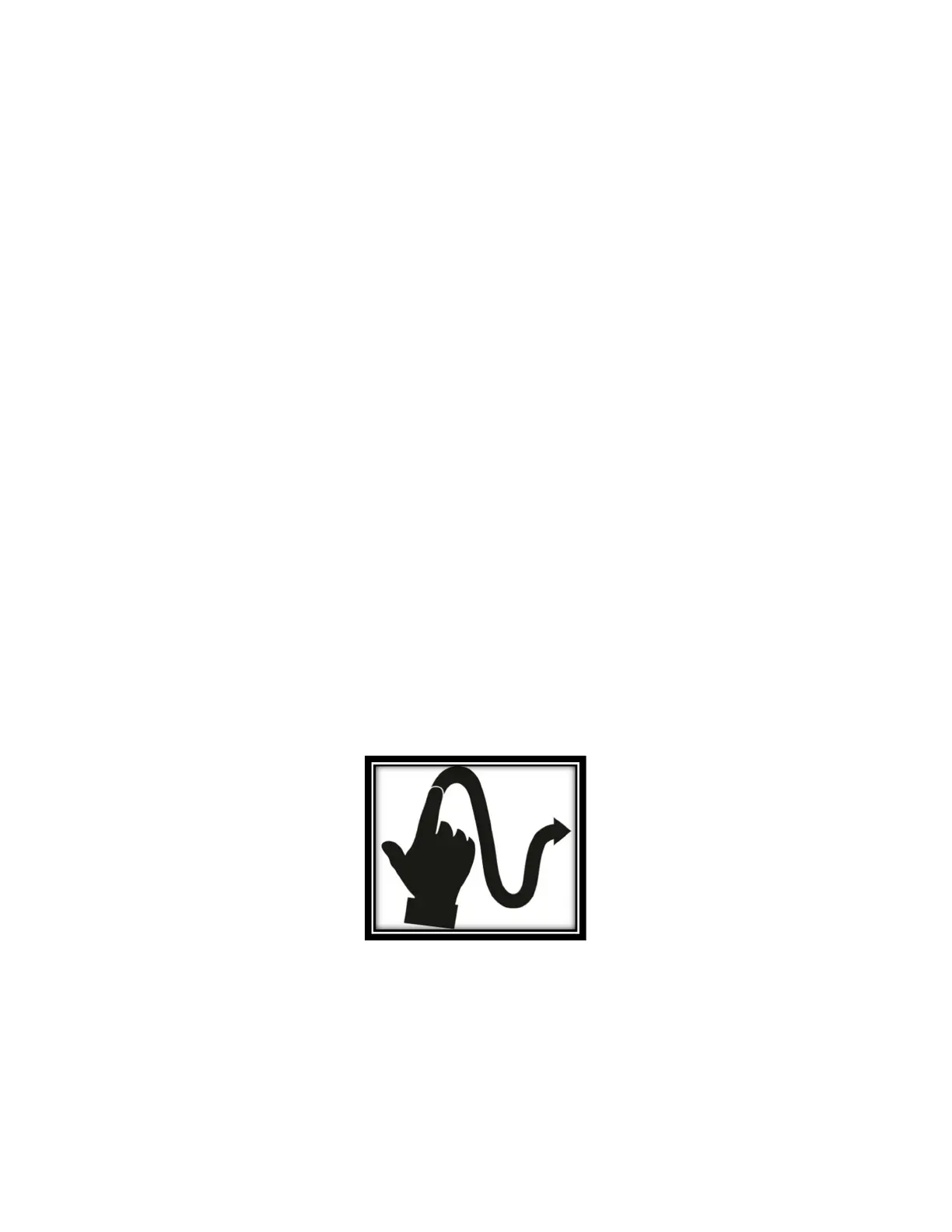
If you zoomed over level 1X, you can move around your zoomed document
by doing a Pan Gesture (slowly move your finger on the screen without
lifting it).
Pan gesture (image 20)
You can also pan to reach other parts of an enlarged image.
To toggle between the different contrasts, deliberately swipe the right edge
of the touchscreen or access Settings.


 To Next Page