34Display Settings
Change the View Color
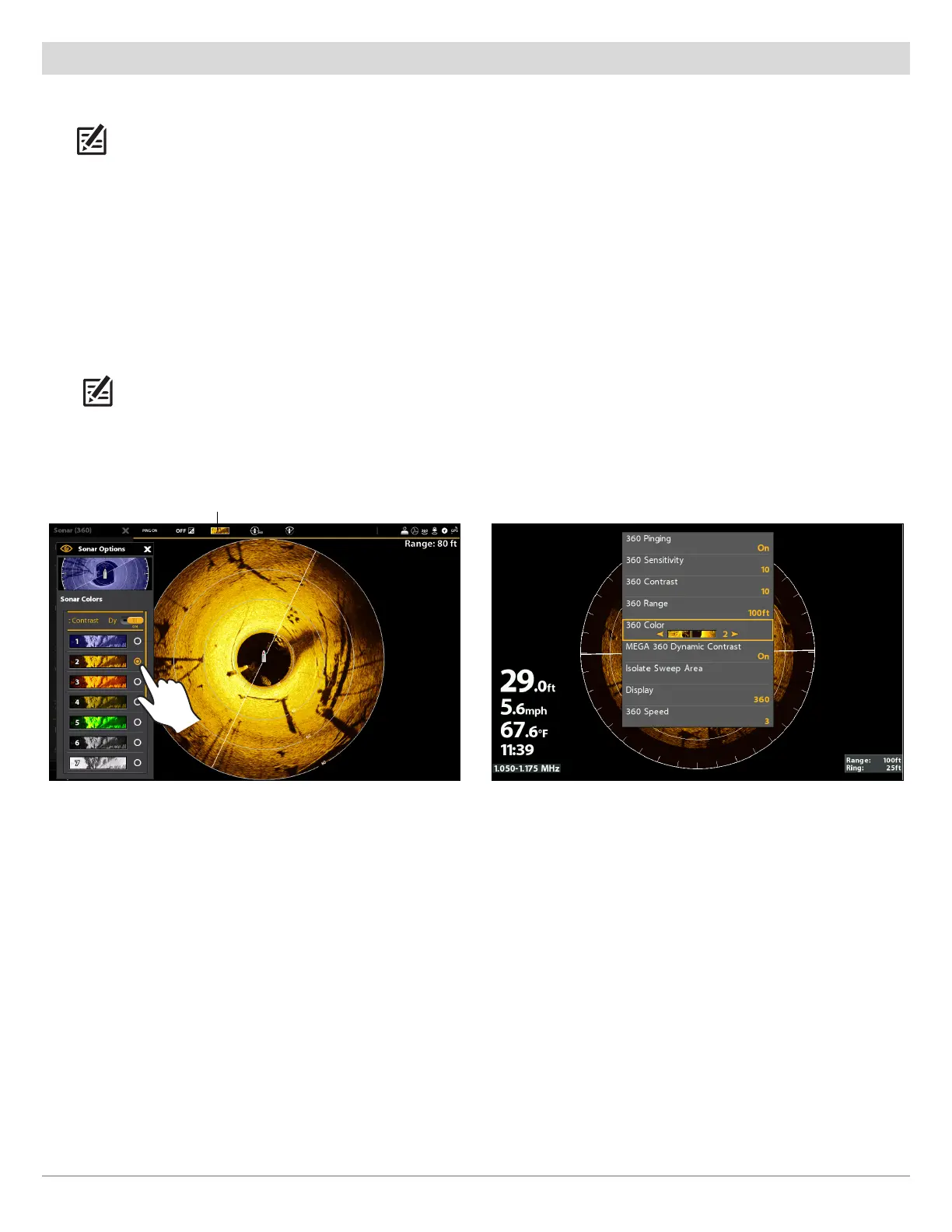
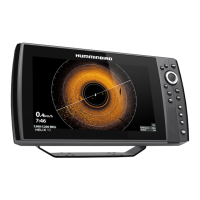
The MEGA 360 Imaging X-Press Menu allows you to quickly change the display palette while you fish.
NOTE: The palette you choose will be applied to all 360 Views in the View database.
SOLIX Series HELIX Series
1. X-Press Menu: With the 360 View displayed on-screen,
press the MENU key once, or tap Sonar (360) on the
status bar.
2. Select Sonar Colors.
3. Tap a sonar color palette, or use the Joystick to select a
palette.
4. Close: Tap the X icon.
QUICK TIP! This setting can also be changed in the
status bar menu.
1. X-Press Menu: With a 360 Imaging View displayed on-
screen, press the MENU key once.
2. Select 360 Color.
3. Press the RIGHT or LEFT Cursor Keys to select a palette.
4. Close: Press the EXIT key.
Adjusting the Color (SOLIX) Adjusting the Color (HELIX)
color palette






 To Next Page