PB startup / opEratIon
P/N 3018126_E U.S. & Canada 1-800-922-1919 • Mexico 1-800-890-2900 • www.hussmann.com
P/N 3018126_E 3-1
HUSSMANN CORPORATION • BRIDGETON, MO 63044-2483 U.S.A.
SMG8B & SSG8B
START UP / OPERATION
The optional evaporator fan remains ON when
the adjustment knob is in the OFF position.
CONTROLLER OPERATION
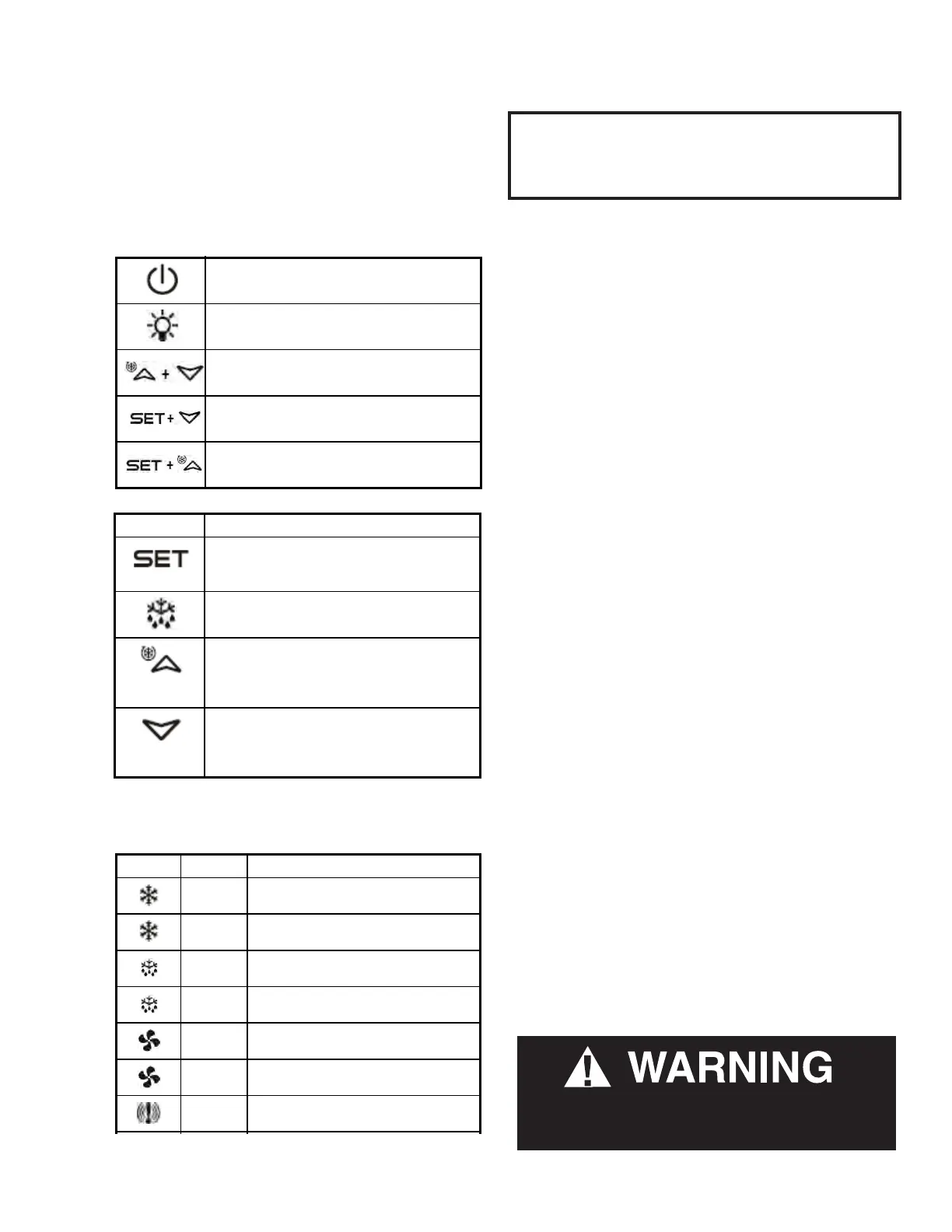
Follow the tables to use the commands. The
keypad display is located on the front of the
merchandiser.
Follow the LED commands to operate and
control the case’s lighting.
How to see the setpoint
1. Push and immediately release the SET key.
The display will show the setpoint value.
2. Push and immediately release the SET key or
wait for 5 seconds to display the present value
again.
How to change the setpoint:
The controller is shipped from the factory with
Frozen Food settings. To modify the temperature
for Ice Cream application, follow these
instructions:
1. Push and hold the SET key for more than 2
seconds to change the setpoint value.
2. The value of the setpoint will be displayed and
the °C or °F LED starts blinking.
3. To change the setpoint value push the UP or
DOWN arrows within 10 seconds.
4. To memorize the new setpoint value, push the
SET key again or wait 10 seconds.
How to start a manual defrost:
Push and hold the DEF key for more than 2
seconds and a manual defrost will start.
How to lock the keyboard:
1. Keep the UP + DOWN arrow keys pressed
for more than 3 seconds.
2. The PoF message will be displayed and the
keyboard will be locked. At this point it will
be possible to see the setpoint of the MAX or
Min temperature stored only.
3 If a key is pressed for more than 3 seconds the
PoF message will be displayed.
4 • XR75CX I&O Manual 026-1210 Rev 0 09-FEB-2011
4 Front Panel
Commands
4.1. Keys and Functions
Table 4-1 shows the keys that are found on the
front panel of the XR75CX controller and their corre-
sponding functions:
4.2. Use of LEDS
Each LED function is described in Table 4-2:
Figure 4-1 - XR75CX Front Panel
Key Function
Press to display target setpoint, to select a pa-
rameter in programming mode, or to confirm
an operation
Starts a manual defrost
Press the UP arrow to see the MAX tempera-
ture, to browse the parameter codes in pro-
gramming mode, or to increase the currently
displayed temperature value.
Press the DOWN arrow to see the MIN tem-
perature, to browse the parameter codes in
programming mode, or to decrease the cur-
rently displayed temperature value.
Table 4-1 - XR75CX Front Panel Keys and Functions
Switches the device ON and OFF, if
onF = oFF
Switches the light ON and OFF, if oA1 = Lig
Locks/Unlocks the keyboard
To enter programming mode
Returns to room temperature display
LED Mode Function
ON Compressor enabled
Flashing Anti-short cycle delay enabled
ON Defrost enabled
Flashing Drip time in progress
ON Fans enabled
Flashing Fans delay after defrost in progress.
ON An alarm is occurring
ON Continuous cycle is running
ON Energy saving enabled
ON Light ON
ON30 Auxiliary relay ON
ON Measurement unit
Flashing Programming phase
Table 4-2 - LEDs
Table 4-1 - XR75CX Front Panel Keys and Functions
4 • XR75CX I&O Manual 026-1210 Rev 0 09-FEB-2011
4 Front Panel
Commands
4.1. Keys and Functions
Table 4-1 shows the keys that are found on the
front panel of the XR75CX controller and their corre-
sponding functions:
4.2. Use of LEDS
Each LED function is described in Table 4-2:
Figure 4-1 - XR75CX Front Panel
Key Function
Press to display target setpoint, to select a pa-
rameter in programming mode, or to confirm
an operation
Starts a manual defrost
Press the UP arrow to see the MAX tempera-
ture, to browse the parameter codes in pro-
gramming mode, or to increase the currently
displayed temperature value.
Press the DOWN arrow to see the MIN tem-
perature, to browse the parameter codes in
programming mode, or to decrease the cur-
rently displayed temperature value.
Table 4-1 - XR75CX Front Panel Keys and Functions
Switches the device ON and OFF, if
onF = oFF
Switches the light ON and OFF, if oA1 = Lig
Locks/Unlocks the keyboard
To enter programming mode
Returns to room temperature display
LED Mode Function
ON Compressor enabled
Flashing Anti-short cycle delay enabled
ON Defrost enabled
Flashing Drip time in progress
ON Fans enabled
Flashing Fans delay after defrost in progress.
ON An alarm is occurring
ON Continuous cycle is running
ON Energy saving enabled
ON Light ON
ON30 Auxiliary relay ON
ON Measurement unit
Flashing Programming phase
Table 4-2 - LEDs
Table 4-1 - XR75CX Front Panel Keys and Functions
4 • XR75CX I&O Manual 026-1210 Rev 0 09-FEB-2011
4 Front Panel
Commands
4.1. Keys and Functions
Table 4-1 shows the keys that are found on the
front panel of the XR75CX controller and their corre-
sponding functions:
4.2. Use of LEDS
Each LED function is described in Table 4-2:
Figure 4-1 - XR75CX Front Panel
Key Function
Press to display target setpoint, to select a pa-
rameter in programming mode, or to confirm
an operation
Starts a manual defrost
Press the UP arrow to see the MAX tempera-
ture, to browse the parameter codes in pro-
gramming mode, or to increase the currently
displayed temperature value.
Press the DOWN arrow to see the MIN tem-
perature, to browse the parameter codes in
programming mode, or to decrease the cur-
rently displayed temperature value.
Table 4-1 - XR75CX Front Panel Keys and Functions
Switches the device ON and OFF, if
onF = oFF
Switches the light ON and OFF, if oA1 = Lig
Locks/Unlocks the keyboard
To enter programming mode
Returns to room temperature display
LED Mode Function
ON Compressor enabled
Flashing Anti-short cycle delay enabled
ON Defrost enabled
Flashing Drip time in progress
ON Fans enabled
Flashing Fans delay after defrost in progress.
ON An alarm is occurring
ON Continuous cycle is running
ON Energy saving enabled
ON Light ON
ON30 Auxiliary relay ON
ON Measurement unit
Flashing Programming phase
Table 4-2 - LEDs
Table 4-1 - XR75CX Front Panel Keys and Functions
All cases manufactured after August 2017, use the
Dixell XR75 Controller. For cases manufactured before
this date, refer to the Safe-NET III user instructions in
Section 6 of this manual.


 To Next Page