15
User GuideHYDRAFACIAL
Syndeo
™
1900104-B
en
Touchscreen
This section shows how to operate the touchscreen and navigate the system software. The user interface is designed to be intuitve
and consistent on each screen, therefore, only some screens will be shown below as an example. The touchscreen has been preset
for optimal performance with the HydraFacial program. Thus, you cannot and will not need to adjust the monitor.
1. Access each page by lightly tapping the buttons displayed with your ngertip, not ngernail. If the touchscreen does not respond,
verify that you have actually pressed on the button and did not miss it.
Note: There may be a slight delay when you press the touchscreen; do not press repeatedly if it does not respond immediately.
Initial Setup
Start-Up Page
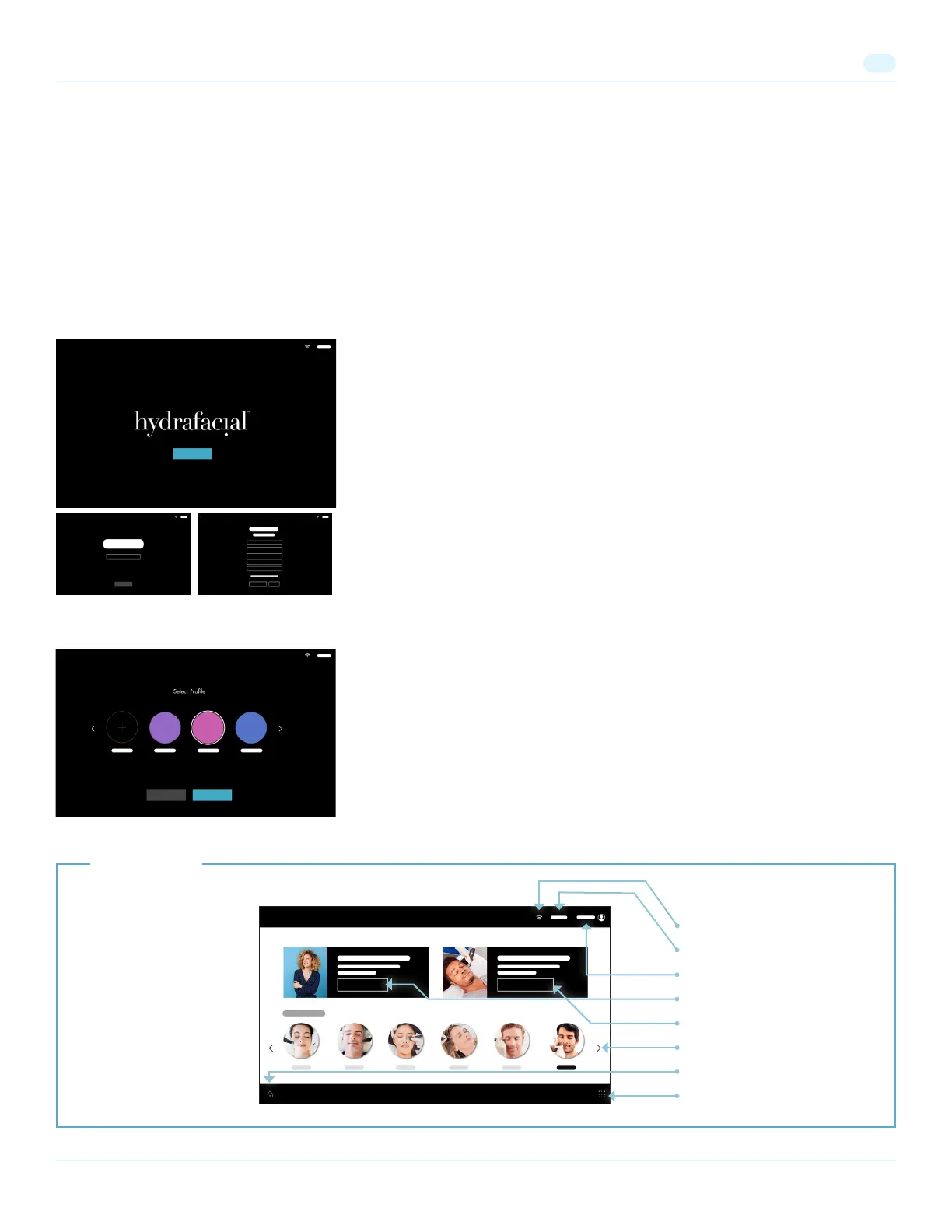
Click the Get Started button to begin the onboarding process.
You will be asked to:
• Select language
• Connect to the internet
• Login using your HydraFacial Nation App user prole or continue as a guest
Follow the prompts on each screen to complete the setup process.
Navigating the System
Login
Navigate to the login screen and select your name from the available user proles.
Select New User and follow the prompts to create a new user prole or continue
as a guest. Click Continue to be brought to the Home screen.
Note: Select Edit Proles to delete proles from the login screen
From the Home
Screen, you can
initiate a treatment,
scan in a client,
explore the
HydraFacial treatment,
and consumable
options, or pull up
the menu.
Wi signal
Clock
Logged in user
Scan client
Access HydraFacial catalog
Select a treatment
Home
Menu
Home Screen


 To Next Page