Finding the hotspot
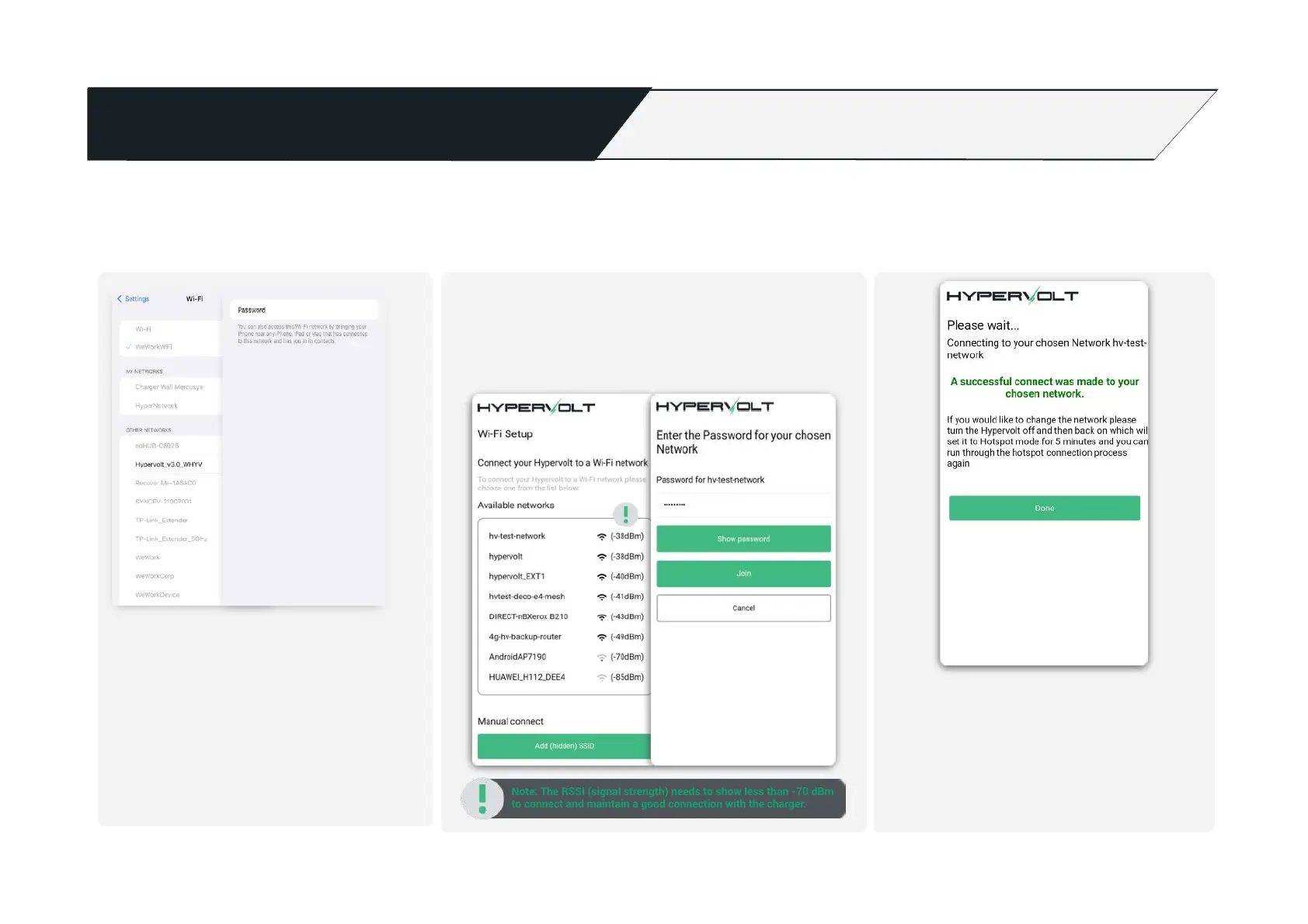
Go to your wifi settings and search for the
Hypervolt Hotspot which will look like
‘Hypervolt_v3.0_XXXX’
The password is the Adoption Token shown on
the sticker in the unit or on the back of the
Quick Start Guide. The first four characters are
the same as those showing in the hotspot
name.
If you are having connection issues or struggling to get the device online with the App we have an alternative method of connecting called a Hotspot.
Adjust your network settings before proceeding: You will need to disconnect your current Wi-Fi network by temporarily turning off ‘auto connect’ or tap ‘forget the
network’ in your network settings. You will also need to turn off your mobile data as well during this process. When you tap ‘forget network’ be sure to write you
password down just in case beforehand so you can connect back again after.
Connecting Online via Hotspot
Connecting to the hotspot
Next open your browser i.e. Safari or Google Chrome and
type in the address bar ‘hypervolt.energy’. It should display a
list of available WiFi connections, select the one you need to
connect to and enter your WiFi password.
Note: The RSSI (signal strength) needs to show less than -70 dBm
to connect and maintain a good connection with the charger.
Success / Confirmation
You will be presented with the confirmation
page, please read through and then tap
‘connect’. The ring around your Hypervolt
charger will change from pulsing white to solid
blue to confirm connection. You can now
reconnect your phone back to your standard
WiFi connection.


 To Next Page