28
8
CLONING
Cloning allows you to quickly and easily transfer the
programmed data from one transceiver to another transceiver,
or, data from PC to a transceiver using the optional CS-A23
cloning software.
D Transceiver to transceiver cloning
q Connect the OPC-474 CLONING CABLE with adapter plugs
to the [SP/MIC] jack of the master and slave transceivers.
• The master transceiver is used to send data to the slave trans-
ceiver.
w While push and holding [Y]
+ [Z],push [PWR] ON to
enter cloning mode (for both
the master transceiver and
slave transceiver both.).
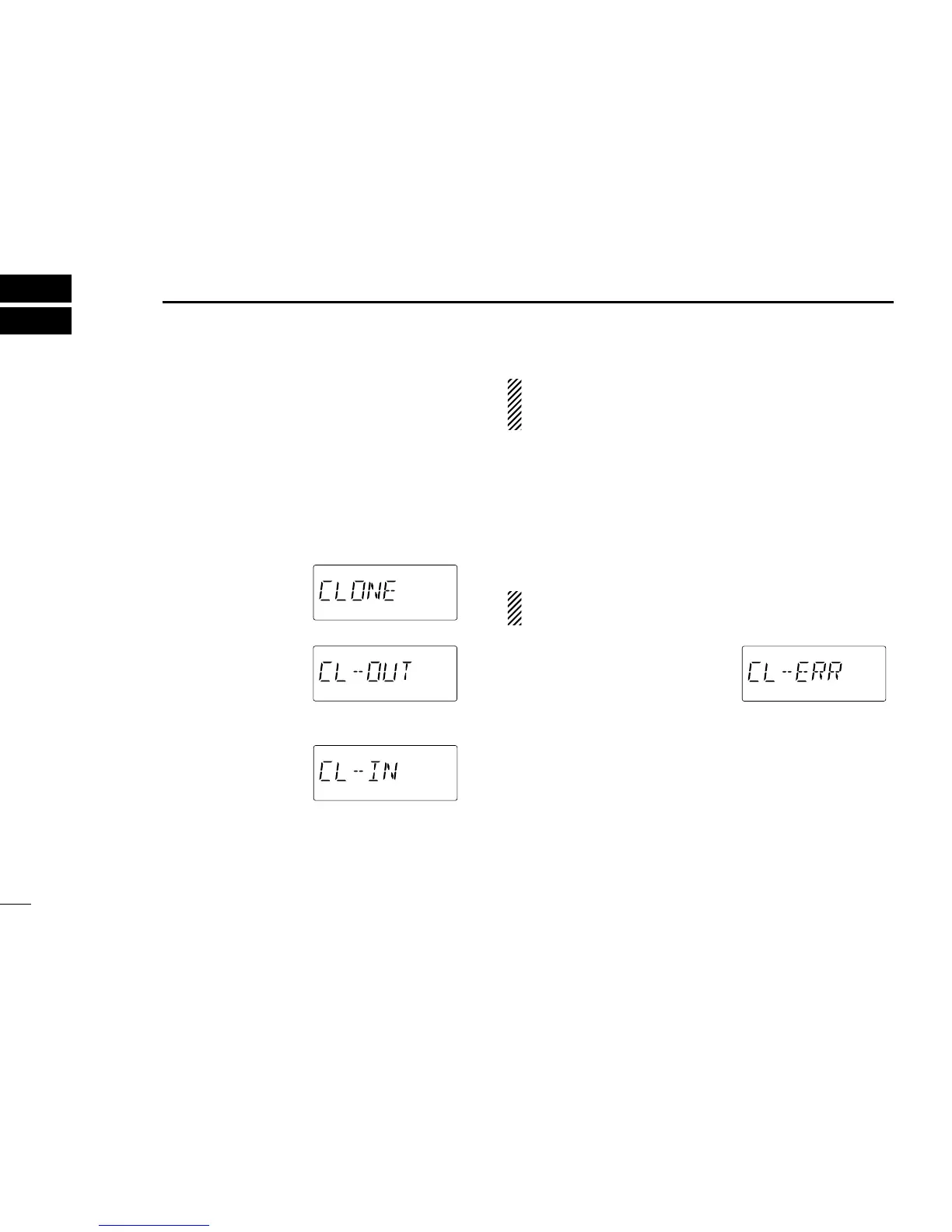
•“CLONE” appears and the
transceivers enter the clone
standby condition.
e Push [ENT] on the master
transceiver.
•“CL-OUT” appears in the
master transceiver’s display.
•“CL-IN” appears automati-
cally in the slave trans-
ceiver’s display.
r When cloning is finished, turn power OFF, then ON again
to exit cloning mode.
NOTE: DO NOT transfer the data from IC-A23 to IC-A5,
when the data contains the NAV band data. In such case,
cloning error may occur.
Cloning using PC
Data can be cloned to and from a PC (IBM compatible) using
the optional CS-A23
CLONING SOFTWARE and the optional
OPC-478
CLONING CABLE. Consult the CS-A23 CLONING
SOFTWARE HELP message for details.
D Cloning error
NOTE: DO NOT push [ENT] on the slave transceiver dur-
ing cloning.This will cause a cloning error.
When the display at right ap-
pears, a cloning error has oc-
curred.
In this case, both transceivers automatically return to the
clone standby condition and cloning must be repeated.


 To Next Page