9
Esc
F1
F2
F3
F4
F5
F6
F7
F8
F9
F10
F11
F12
Prtsc
sysrq
pause
Break
Lns
Del
Home
Pgup
PgDN
End
$
~
`
!
1
··
2
3
4
5
6
7
78
9
0
)
)
*
—
-
+
=
#
¥
%
*
#
#
Q
W
E
R
T
Y
U
I
O
P
{
}
|
A
S
D
F
G
H
J
K
L
:
;
Z
X
C
V
B
N
M
<
>
?
Tab
CapsLook
Shift
Ctrl
Alt AltGr
Ctrl
Backspace
[
]
|
Enter
Shift
intel
2
1
3
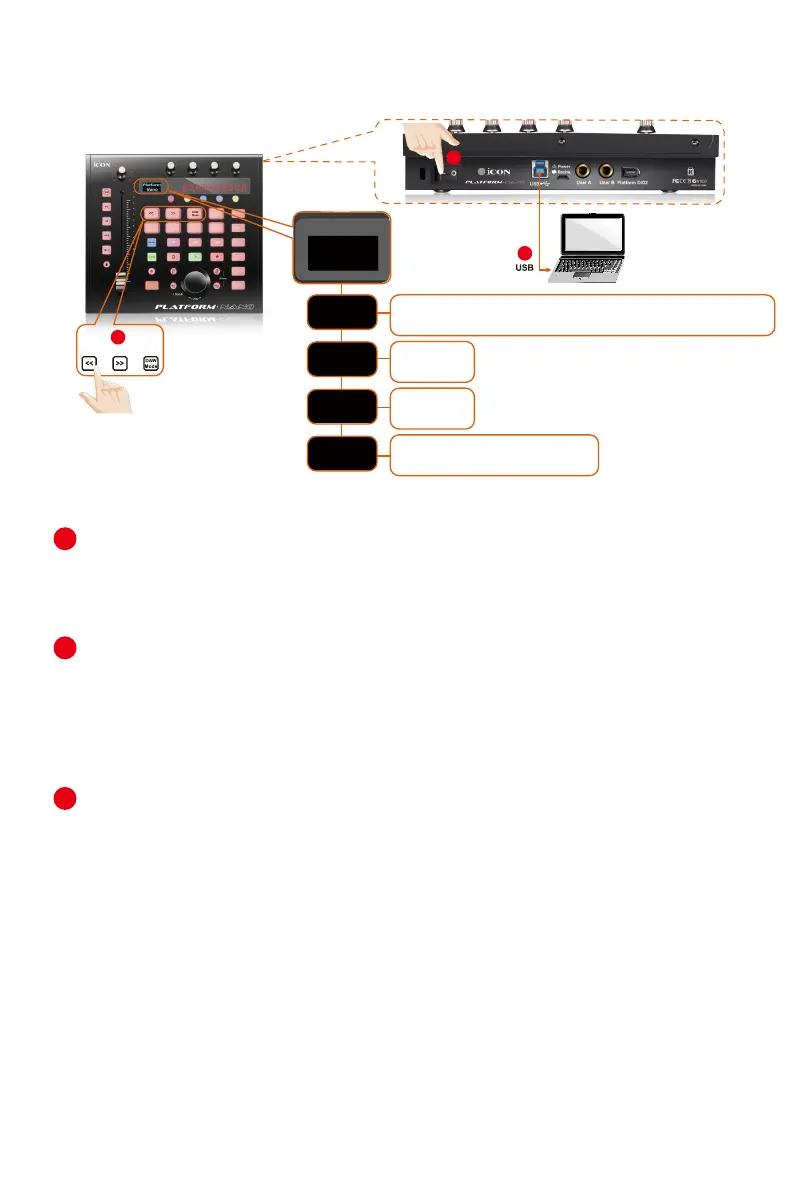
(1)
MCP
Nuendo/Cubase; Digital Performer; FL Studio; SamplitudePro;
Reaper; Studio One; Bitwig; Reasons; Sonar; Audition; Ableton Live
Logic Pro
ProTools
User self mapping with iMap
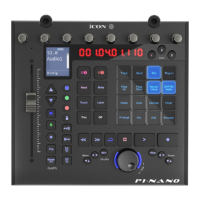
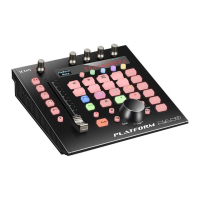
Connect the PlatformNano to your Mac/PC via the USB port
Choose a USB port on your Mac/PC and insert the wide (at) end of the USB
cable. Connect the cable’s other end to the PlatformNano. Your Mac/PC should
automatically “detect” the new hardware and notify you that it is ready to use.
1. Select the DAW at PlatformNano.
Press <</>> to scroll through the DAW mode list and then press the “DAW mode”
button to make the selection.
Tip: PlatformNano will memorize your last selected DAW mode and re-enter the
same mode a few seconds after it the unit has been switched powered on. (i. e.
DAW mode selection is not needed necessary if the last DAW mode is being used. )
Setup your DAW
Activate the ICON PlatformNano controller in your DAW or MIDI software using “MIDI
Setup” or “MIDI Devices”.
Select MCP for Nuendo/Cubase, Digital Performer
,
FL Studio, SamplitudePro, Reaper, Studio
One, Bitwig, Reasons, Audition, Sonar, Ableton Live, Digital Performer select Mackie Control.
Select HUI for Pro Tools.
Select Logic Pro for Logic Pro.
(Note: Every application does this a little differently, so refer to your software user
manual for the settings. )
Getting Started
Connecting Your PlatformNano Controller
1
2
3


 To Next Page