Understanding your Protege WX System
Protege WX is a flexible web-based system that allows you to program, monitor and control a site from any
smartphone, tablet or computer with a fixed or mobile network connection. It combines access control, alarm
intrusion, and automation and control, all into one unified package.
The system can include a number of components:
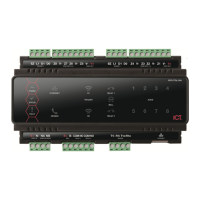
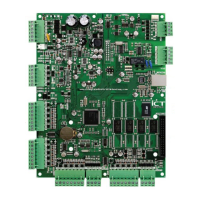
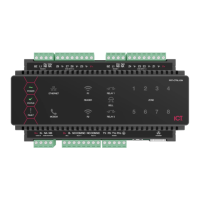
⦁ The Protege WX controller which is the central processing unit of the system. The controller will be mounted
in an out of the way area such as a utility room or cupboard, and in most circumstances there is no reason for
anyone but your security professional or property manager to require physical access to this unit.
⦁ Various detection sensors (referred to as inputs) such as motion detectors or door contacts which are
connected to the controller. If your system is armed and a sensor is activated, the input is 'opened' and sends a
signal to the controller to trigger an alarm. A siren or other alarm device is activated, and the controller
automatically transmits these details to your monitoring station or guardhouse. Entering your access code and
disarming the system will turn off the alarm.
⦁ One or more keypads which are used to arm/disarm the system and display the current system status. Each
keypad will typically be located in a convenient location inside your premises, close to the exit-entry door.
⦁ One or more card readers which are used to provide access control for the door(s) in your building.
Before You Begin
The flexibility of the Protege system allows an integrator to program functionality and system behavior to suit the
needs of the site. This guide is aimed at explaining the most common settings.
Your system may behave differently depending on how your integrator has programmed it. Check with your
installer for further operating instructions.
Signing In
To access the system after the initial setup you need to sign in with a valid operator username and password.
1. Open a web browser and enter the controller's IP address, with the prefix https:// (e.g. https://192.168.1.2).
If you cannot access the controller with this URL, remove the https:// prefix (e.g. 192.168.1.2).
2. If you are presented with a security warning when accessing the HTTPS web page, use the advanced options
to proceed to the controller web page.
3. The Sign In window is displayed.
4. Enter your operator Username and Password.
5. Click Sign In.
Repeatedly entering incorrect passwords at the sign in window forces a login stand down. Three consecutive
incorrect attempts will result in the sign in process being locked for 5 seconds. If another three attempts fail, the
sign in process is locked for 60 seconds between all subsequent attempts until a valid login is made. It is not
possible to configure the length of time for the login stand down.
If you still cannot browse to the controller, additional web browser configuration may be required. For more
information, see Browsing to Less Secure Controllers (below).
Browsing to Less Secure Controllers
Some controllers use older hardware types or operating systems which do not support more recent security
protocols and cipher suites. Most web browsers will not allow users to access the web interface of these
controllers, even if users trust the site and accept the risk.
PRT-WX-DIN | Protege WX | End User Guide 5



 To Next Page