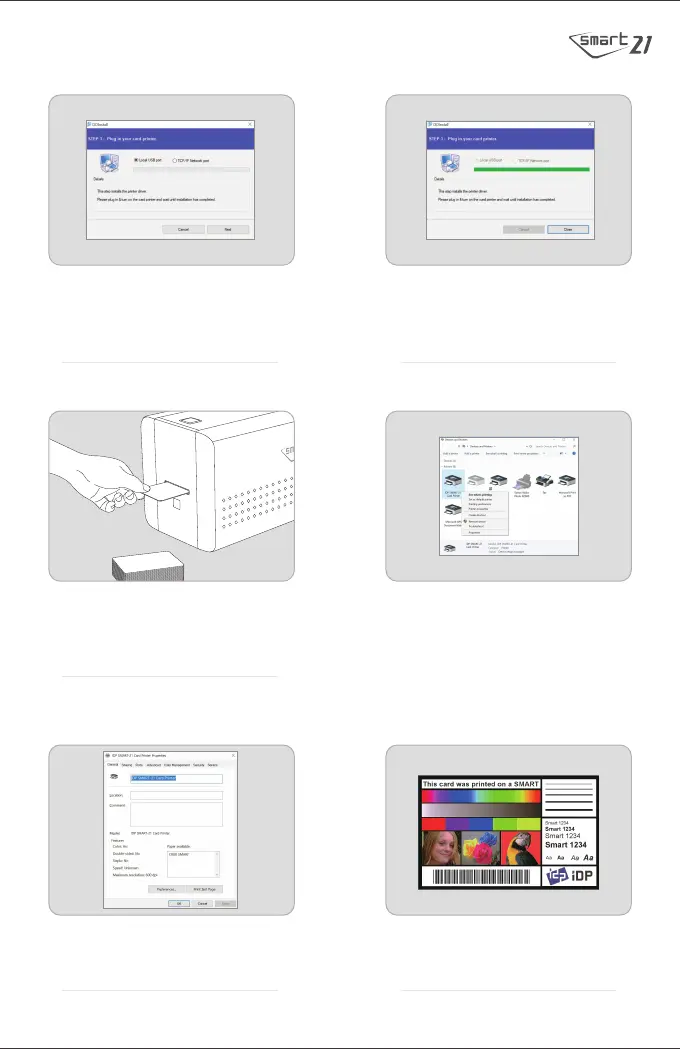
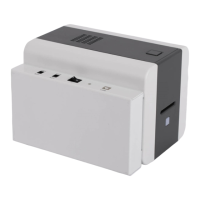
7. Check the USB port connection and
click the “Next” button.
※ This model does not support TCP/IP
network functionality.
8. Click “Close” after installation is
completed.
9. Insert a card into the card slot.
The card will be automatically moved
to the print position.
11. Select the “General” tab and click
“Print Test Page” to print Test Card.
12. Compare the printed Test Card with
the image above.
10. Access Windows Control Panel and
select Devices and Printers.
Right click “IDP CUBO1 Card Printer”
and select “Printer Properties”.
※ Some Windows10 installations access
printer configurations in Scanners and
Printers in Windows Control Panel.


 To Next Page