EasyManua.ls Logo

idp Smart Series - User Manual

idp Smart Series
90 pages
Print Icon
To Next Page IconTo Next Page
Loading...
1
User Manual
SMART
-
30S, SMART
-
30R,
SMART
-
30D,
SMART-50S, SMART-50D, SMART-50L
SMART Series

Table of Contents

Questions and Answers

Summary

Copyright and Legal Information

Copyright Notice

Users must respect copyright laws. Manual must not be reproduced without authorization.

Trademarks

Lists registered trademarks of IDP card printers and Microsoft Corp.

Return Materials Authorization (RMA)

Procedure for warranty claims and returning equipment for repair.

1. Introduction

1.1 Printer outside features

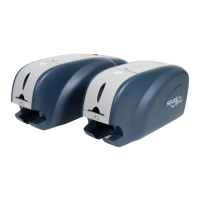
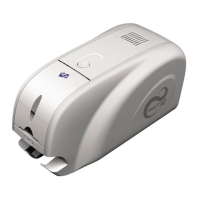
Describes external functional features of the SMART-30 and SMART-50 printers.

SMART-30 Model Variations

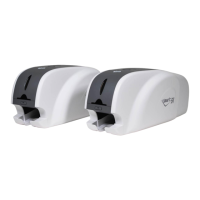
Details features of SMART-30S, SMART-30R, and SMART-30D card printers.

1.1.2 SMART-50 outside feature

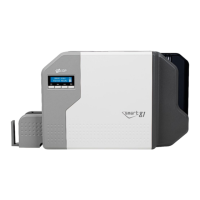
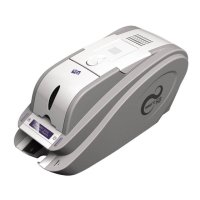
Describes external functional features of the SMART-50 printer.

SMART-50 Model Variations

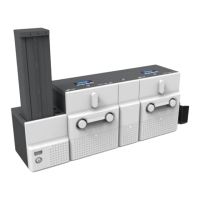
Describes SMART-50S, SMART-50D, and SMART-50L card printer models.

1.2 Printer inside features

Describes internal functional features of the SMART-30 and SMART-50 printers.

1.3 Ribbon cartridge features

Explains features of the ribbon cartridge and disposable cleaning roller.

1.4 LCD panel display & button operation

Details LCD display messages and button operations for printer status.

Table 1 Status display

Lists printer status codes, LCD displays, and button actions.

Printer Error Codes

Description of printer error code

Lists printer error codes and their descriptions.

Description of laminator error code

Lists laminator error codes and their descriptions.

2. Printer installation

2.1 Fitting the ribbon

Step-by-step guide for installing the ribbon and cleaning roller into the printer.

Ribbon Installation Steps

Details on installing the ribbon and cleaning roller, including wrapper removal.

Installing Ribbon Cartridge

Instructions for installing the ribbon cartridge and closing the top cover.

2.2. Loading the cards

Instructions on how to load plastic cards into the printer's input hopper.

Card Loading Procedure

Details on preparing and loading cards into the input hopper.

2.3. The withdrawal of printed cards.

Explains how to remove printed cards from the stacker.

2.4. Driver installation (Windows XP, 2000, 2003)

Step-by-step guide for installing the printer driver on older Windows versions.

XP Driver Installation Steps

Continues the driver installation process for Windows XP.

Connecting Printer for XP Driver

Instructions for connecting the printer power and USB cable for XP driver installation.

Completing XP Driver Installation

Final steps for completing the printer driver installation on Windows XP.

Verifying XP Printer Installation

How to check if the printer driver is installed and test print.

Smart Application Installation

Steps for installing the "Smart Application" program.

Smart Application Installation Completion

Completing the Smart Application installation and system restart.

2.5. Driver installation (Windows Vista, 7, 8)

Step-by-step guide for installing the printer driver on Windows Vista, 7, and 8.

Windows Vista;7;8 Driver Installation Steps

Continues driver installation with security prompts and connection options.

Connecting Printer for Vista;7;8 Driver

Instructions for connecting printer power and USB for driver installation.

Verifying Vista;7;8 Printer Installation

Checking printer creation and properties after driver installation.

Vista;7;8 Driver and Application Installation

Performing test print and installing Smart Design/DB.

Smart Application Installation for Vista;7;8

Completing the Smart Application installation for Windows Vista/7/8.

2.5. Network configuration

2.5.1 Connecting network port

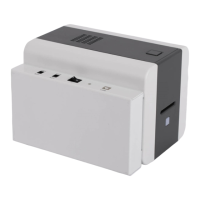
Identifies the network port on the SMART-50 printer for connection.

2.5.2 Network configuration

Details network configuration using NetAdmin, DHCP vs Static IP.

Connecting to USB port for Network Setup

How to connect via USB for network configuration using NetAdmin.

Dynamic vs Static IP Configuration

Explains DHCP (Dynamic IP) and Static IP configuration options.

Service Configuration

Configures printer services like USB Spool, Network Spool, and Network SDK.

OCP configuration

Configures Open Card Print function for network printing.

Network user configuration

Manages user accounts and passwords for network access.

USB port state

Shows the status of USB devices connected to the network module.

Rebooting the network module

Steps to reboot the printer's network module.

Reset to default network module

Steps to reset the network module to factory defaults.

Upgrading the firmware 1

Starting the firmware upgrade process for the network module.

Upgrading the firmware 2

Completing the firmware upgrade process with reboot.

3. Driver configuration

3.1. Checking printer properties

How to access and view the printer's properties.

3.2. Changing printer properties

Navigating printer properties and accessing print preferences.

3.2.1.1. Layout

Setting print orientation (portrait/landscape) and page order.

3.2.1.2. Advanced setup

Detailed settings for color correction, magnetic stripe encoding, and print settings.

3.2.1.3. Paper; Ribbon; Printing

Configuration for paper tray, ribbon type, printing mode, speed, color, and dither.

3.2.1.4. Side; Media

Settings for print side (front/back) and media masks.

3.2.1.5. Laminator

Settings for the laminator function, including side, overlay, position, and temperature.

3.3. Other settings

Covers printer sharing, port settings, and advanced configurations.

3.3.1. Sharing

How to share the printer over a network.

3.3.2. Ports

Displays the printer's connection port, typically USB.

3.3.3. Advanced

Advanced settings like working time, priority, and spooling.

3.3.4. Color Management

Setting color profiles for optimal color output.

3.3.5. Service

Accessing printer serial, ID, firmware, and cleaning functions.

3.3.6. Laminator

Displays laminator status, film type, version, and serial number.

4. Utilities

4.1. Card Printer Setup

Utility for adjusting printer settings and spare parts configuration.

4.1.1. Run Card PrinterSetup

Launching the Card Printer Setup utility and password input.

4.1.2. Card Printer

Basic setup screen for printer ID, firmware, and print area settings.

4.1.2.1. Basic Setup

Basic setup screen for printer ID, firmware, and print area settings.

Print Area Settings

Adjusting print area, X/Y start/end positions, and Y scale.

Density Settings

Adjusting color, black, and overlay densities for print quality.

Card Printer Setup Utility Functions

Explains functions like Get Config, Set Config, Load/Save files.

4.1.2.2. Advanced Setup

Advanced settings for printer ID, PC serial, head, encryption, and issue counts.

Other Advanced Settings

Details on warming up, magnetic stripe mode, security, and ribbon position.

4.1.3. Laminator

Basic setup for laminator film type, remain, and temperature.

4.1.3.1. Basic Setup

Basic setup for laminator film type, remain, and temperature.

4.1.3.2. Advanced Setup

Advanced laminator settings for motor torque and film movement.

Laminator Motor Torque Settings

Adjusting motor torque for film movement and laminating.

4.2. Card Printer Test

Utility for testing printer functions like printing, encoding, and status.

4.2.1. CardPrinterTest

Running the Card Printer Test program and its components.

Select printer and control

Selecting a printer and controlling its functions step-by-step.

Print function

Using the print function with CSD files.

Batch function

Performing continuous encoding/decoding tests.

Magnetic Stripe Encoding

Reading and writing magnetic stripe data.

IC(PC;SC): Contact Smartcard Encoding

Testing contact smartcard and SIM encoding.

RF(PC;SC): Contactless Smartcard Encoding

Testing contactless smartcard encoding.

4.2.6. Printer status

Checking printer status, temperature, and error codes.

Printer Status Codes

Lists status codes for printer operations like card movement and printing.

Laminators Status Code

Lists status codes for laminator operations.

4.3. Firmware upgrade

Procedure for upgrading the printer firmware.

4.3.1. Card Printer Firm-ware Upgrade

Steps for automatic and manual firmware upgrade of the card printer.

4.3.2. Laminator Firm-ware Upgrade

Steps for automatic and manual firmware upgrade of the laminator.

5. Optional device driver installation

5.1. Contact smartcard reader

Instructions for installing drivers for contact smartcard readers.

5.1.1. Run the smartcard driver installer

Steps to find and run the smartcard driver installer from the CD.

5.1.2. License agreement

Reviewing and accepting the software license agreement.

5.1.3. Installation

Initiating the installation of the contact smartcard reader driver.

5.1.4. Complete installation

Finalizing the smartcard reader driver installation.

5.2. Contactless smartcard reader

Instructions for installing drivers for contactless smartcard readers.

5.2.1. Connect SMART-50 printer to PC

Connecting the printer to the PC for driver installation.

5.2.2. Choose the installation method

Selecting the installation method for the contactless smartcard reader driver.

5.2.3. Driver location

Specifying the location of the contactless smartcard reader driver files.

5.2.4. Complete installation

Finalizing the contactless smartcard reader driver installation.

6. Troubleshooting

6.1. Cleaning the printer

Procedure for cleaning the printer using an exclusive cleaning card.

Printer cleaning Step 1

Step 1 of printer cleaning: turn on the printer and prepare the cleaning card.

Printer cleaning Step 2

Step 2 of printer cleaning: open hopper and remove card/ribbon.

Printer cleaning Step 3

Step 3 of printer cleaning: insert cleaning card.

Printer cleaning Step 4

Step 4 of printer cleaning: close top cover.

Printer cleaning Step 5

Step 5 of printer cleaning: wait for cleaning completion.

Printer cleaning Step 6

Step 6 of printer cleaning: remove cleaning card and install ribbon.

6.2 TPH (Thermal Print Head) replacement

Guide to replacing the Thermal Print Head, including setup.

Calibration of Print Head Angle

Adjusting the print head angle for optimal print quality.

6.3. Card movement

Troubleshooting issues related to card movement in the printer.

6.3.1. Cards cant enter into the printer from input hopper.

Troubleshooting issues with cards not entering the printer.

6.4. Printing quality

Troubleshooting common printing quality issues.

6.4.1. Not printed or wrong colors printed spot.

Troubleshooting spots or wrong colors in printing.

6.4.2. Not printed horizontal line.

Troubleshooting horizontal lines in printouts.

6.4.3. Unclear or not uniform print.

Troubleshooting unclear or non-uniform prints.

6.4.4. Not aligned color print.

Troubleshooting misaligned color printing.

6.4.5. Unplanned color print.

Troubleshooting unplanned color prints.

6.5. Magnetic stripe encoding

Troubleshooting magnetic stripe encoding.

6.5.1. Magnetic encoding error.

Troubleshooting magnetic stripe encoding errors.

6.6. General operation

General operational troubleshooting for the printer.

6.6.1. Ribbon snapped during printing.

Troubleshooting issues with a snapped ribbon.

7. Printer specification

Printer Specification 1

Specifies printing, cards, system, and encoding for SMART-30S/R.

Printer Specification 2

Specifies printing, cards, system, and encoding for SMART-30D.

Printer Specification 3

Specifies printing, cards, system, and encoding for SMART-50S/D.

Printer Specification 4

Specifies printing, laminating, cards, system, and encoding for SMART-50L.

idp Smart Series Specifications

General IconGeneral
Brandidp
ModelSmart Series
CategoryPrinter
LanguageEnglish

Related product manuals